Project Overview
ESP32 TF-Luna LiDAR Distance Meter: Read the Benewake TF-Luna time-of-flight LiDAR over UART at 100 readings per second, show distance on an OLED, and sound a parking-sensor style beeper as objects get close. You will also crimp a clean Dupont lead so the sensor plugs straight into a breadboard or robot.
- Time: about 1 hour
- Skill level: Beginner to Intermediate
- What you will build: A LiDAR rangefinder from 0.2 m to 8 m with signal-strength and temperature readout, a STOP/NEAR/CLEAR status and an audible warning, ready to drop into a robot as a forward obstacle sensor.

Parts List
From ShillehTek
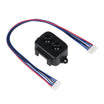
- TF-Luna 8 m LiDAR distance sensor - the time-of-flight sensor that provides distance, signal strength, and temperature.
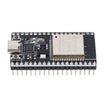
- ESP32 Dev Board 4MB CP2102 USB-C (38-pin) - reads the TF-Luna over UART and drives the OLED and buzzer.
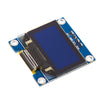
- 0.96" SSD1306 I2C OLED display - shows distance, frame rate, temperature, and signal strength.
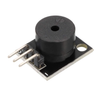
- KY-006 passive buzzer module - provides an audible proximity warning.
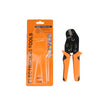
- SN-58B crimping tool for Dupont 2.54 mm terminals - used to crimp reliable Dupont terminals onto the TF-Luna cable.
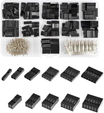
- 620-piece Dupont 2.54 mm terminal and housing kit - terminals and housings for a clean, breadboard-friendly cable.
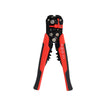
- Automatic wire stripper and cutter - speeds up consistent stripping for crimps.
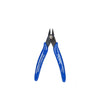
- Electronics flush cutters - trims wires cleanly before crimping.
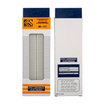
- 830-point solderless breadboard - quick prototyping for the ESP32, OLED, and sensor wiring.
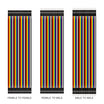
- Dupont jumper wires - connects modules to the ESP32 headers and breadboard.
External
- The 6-pin cable supplied with the TF-Luna (1.25 mm connector on the sensor end)
- USB-C data cable
Note: The TF-Luna is powered from 5 V but its UART runs at 3.3 V logic, so it connects directly to the ESP32. Its 850 nm laser is a Class 1 (eye-safe) source, but it is still good practice not to stare into it.
Step-by-Step Guide
Step 1 - Get to know the TF-Luna
Goal: Understand the pins, the two interfaces, and the data format.
What to do: The TF-Luna measures the time light takes to reach a target and come back, over a narrow 2 degree beam. Benewake specifies 0.2 m to 8 m on a 90% reflective target indoors, with accuracy of about plus or minus 6 cm out to 3 m. The 6-pin connector is numbered on the module:
- Pin 1: +5 V supply
- Pin 2: RXD (UART) / SDA (I2C)
- Pin 3: TXD (UART) / SCL (I2C)
- Pin 4: GND
- Pin 5: CFG. Leave it open for UART mode, or tie it to GND for I2C mode (address 0x10)
- Pin 6: MUX, an auxiliary output we do not need here
In UART mode the sensor streams 9-byte frames at 115200 baud, 100 times per second by default: two 0x59 header bytes, distance (cm, low byte first), signal strength, chip temperature, and a checksum that equals the low byte of the sum of the first eight bytes. Readings with a strength below 100, or exactly 65535 (saturated), should be ignored.
Expected result: You know which wire is which by pin number. Cable colours differ between suppliers, so always go by the numbers on the sensor.
Step 2 - Crimp a breadboard-friendly lead
Goal: Turn the sensor cable into clean female Dupont connectors.
What to do: If your cable ends in bare wires (or you want a different length), terminate it yourself:
- Trim the wires to length with the flush cutters and strip about 2.5 mm of insulation with the automatic stripper.
- Place a female Dupont terminal in the SN-58B so the small wings close on the bare copper and the larger wings close on the insulation, then squeeze until the ratchet releases.
- Give each wire a gentle tug test, then push the terminals into housings until the latch clicks. A single 4-pin housing for pins 1 to 4 keeps power and data together.
- Fold back pins 5 and 6, insulate them, and label the housing so it cannot go in backwards.
Expected result: A neat lead whose terminals hold firmly and slide onto header pins without wobbling.
Step 3 - Wire the circuit
Goal: Connect the LiDAR, the display, and the buzzer to the ESP32.
What to do: Make these connections:
- TF-Luna pin 1 (+5 V) to ESP32 5V (VIN)
- TF-Luna pin 4 (GND) to GND
- TF-Luna pin 3 (TXD) to GPIO16 (RX2)
- TF-Luna pin 2 (RXD) to GPIO17 (TX2)
- TF-Luna pin 5 (CFG) leave unconnected for UART mode
- OLED: VCC to 3V3, GND to GND, SDA to GPIO21, SCL to GPIO22
- KY-006: S to GPIO25, minus to GND
Expected result: TX goes to RX and RX goes to TX, and everything shares one ground.
Step 4 - Upload the sketch
Goal: Parse the frames, filter the readings, and drive the display and buzzer.
What to do: Install Adafruit SSD1306 and Adafruit GFX from the Library Manager, select ESP32 Dev Module, and upload. The parser syncs on the two header bytes and rejects any frame with a bad checksum, so a lost byte only costs one reading. A median of the last five readings removes single-frame spikes.
Code:
// ShillehTek ESP32 + TF-Luna LiDAR: UART frames, OLED readout and a proximity beeper
#include <Wire.h>
#include <Adafruit_GFX.h>
#include <Adafruit_SSD1306.h>

const int LIDAR_RX   = 16;          // ESP32 RX2 <- TF-Luna pin 3 (TXD)
const int LIDAR_TX   = 17;          // ESP32 TX2 -> TF-Luna pin 2 (RXD)
const int BUZZER_PIN = 25;          // KY-006 passive buzzer
const uint16_t STOP_CM = 30;        // solid tone below this distance
const uint16_t WARN_CM = 120;       // beeps get faster from here down to STOP_CM
const uint16_t MIN_STRENGTH = 100;  // weaker returns are not trustworthy

Adafruit_SSD1306 display(128, 64, &Wire, -1);
HardwareSerial Lidar(2);

uint8_t frame[9];
uint8_t framePos = 0;
uint16_t distCm = 0, strength = 0;
float tempC = 0;
bool valid = false;
uint16_t history[5];
uint8_t histCount = 0, histIdx = 0;
uint32_t framesOk = 0, framesBad = 0, framesThisSecond = 0, frameRate = 0;
unsigned long lastSecond = 0, lastDraw = 0, lastBeep = 0;
bool toneOn = false;

// Feed one byte; returns true when a complete frame with a good checksum arrives
bool parseByte(uint8_t b) {
  if (framePos == 0) {
    if (b == 0x59) frame[framePos++] = b;
    return false;
  }
  if (framePos == 1) {
    if (b == 0x59) frame[framePos++] = b;
    else framePos = 0;
    return false;
  }
  frame[framePos++] = b;
  if (framePos < 9) return false;
  framePos = 0;
  uint8_t sum = 0;
  for (uint8_t i = 0; i < 8; i++) sum += frame[i];
  if (sum != frame[8]) {
    framesBad++;
    return false;
  }
  distCm   = frame[2] | (frame[3] << 8);
  strength = frame[4] | (frame[5] << 8);
  tempC    = (frame[6] | (frame[7] << 8)) / 8.0f - 256.0f;
  valid    = strength >= MIN_STRENGTH && strength != 65535 && distCm > 0;
  framesOk++;
  framesThisSecond++;
  return true;
}

uint16_t medianDistance() {           // median of the last 5 valid readings
  uint16_t s[5];
  for (uint8_t i = 0; i < histCount; i++) s[i] = history[i];
  for (uint8_t i = 1; i < histCount; i++) {
    uint16_t v = s[i];
    int8_t j = i - 1;
    while (j >= 0 && s[j] > v) { s[j + 1] = s[j]; j--; }
    s[j + 1] = v;
  }
  return histCount ? s[histCount / 2] : 0;
}

void sendCommand(const uint8_t *cmd, uint8_t len) {   // appends the checksum byte
  uint8_t sum = 0;
  for (uint8_t i = 0; i < len; i++) {
    Lidar.write(cmd[i]);
    sum += cmd[i];
  }
  Lidar.write(sum);
}

void setFrameRate(uint16_t hz) {      // 1..250 Hz, not saved unless you send the save command
  const uint8_t cmd[5] = { 0x5A, 0x06, 0x03, (uint8_t)(hz & 0xFF), (uint8_t)(hz >> 8) };
  sendCommand(cmd, 5);
}

void updateBeeper(uint16_t d, bool ok) {
  if (!ok || d >= WARN_CM) {
    if (toneOn) { noTone(BUZZER_PIN); toneOn = false; }
    return;
  }
  if (d < STOP_CM) {
    if (!toneOn) { tone(BUZZER_PIN, 2500); toneOn = true; }
    return;
  }
  unsigned long period = map(d, STOP_CM, WARN_CM, 100, 700);   // closer = faster
  if (millis() - lastBeep >= period) {
    lastBeep = millis();
    tone(BUZZER_PIN, 2500, 40);
    toneOn = false;
  }
}

void draw(uint16_t d, bool ok) {
  display.clearDisplay();
  display.setTextColor(SSD1306_WHITE);
  display.setTextSize(1);
  display.setCursor(0, 0);
  display.print("TF-Luna  ");
  display.print(frameRate);
  display.print(" Hz  ");
  display.print(tempC, 0);
  display.print("C");
  display.setCursor(0, 18);
  if (!ok) {
    display.setTextSize(2);
    display.print("NO SIGNAL");
  } else {
    display.setTextSize(3);
    if (d < 100) {
      display.print(d);
      display.setTextSize(2);
      display.print(" cm");
    } else {
      display.print(d / 100.0f, 2);
      display.setTextSize(2);
      display.print(" m");
    }
  }
  display.setTextSize(1);
  display.setCursor(0, 48);
  display.print(!ok ? "check aim / range" : d < STOP_CM ? "STOP" : d < WARN_CM ? "NEAR" : "CLEAR");
  uint8_t bar = constrain(map(strength, 0, 3000, 0, 60), 0, 60);   // signal strength bar
  display.drawRect(66, 48, 62, 8, SSD1306_WHITE);
  display.fillRect(67, 49, bar, 6, SSD1306_WHITE);
  display.display();
}

void setup() {
  Serial.begin(115200);
  Lidar.begin(115200, SERIAL_8N1, LIDAR_RX, LIDAR_TX);
  pinMode(BUZZER_PIN, OUTPUT);
  Wire.begin();
  if (!display.begin(SSD1306_SWITCHCAPVCC, 0x3C)) Serial.println("OLED not found");
  delay(200);
  setFrameRate(100);                  // the TF-Luna default; change to taste
  Serial.println("dist_cm,strength,temp_c,valid");
}

void loop() {
  while (Lidar.available()) {
    if (parseByte(Lidar.read()) && valid) {
      history[histIdx] = distCm;
      histIdx = (histIdx + 1) % 5;
      if (histCount < 5) histCount++;
    }
  }
  if (millis() - lastSecond >= 1000) {
    lastSecond = millis();
    frameRate = framesThisSecond;
    framesThisSecond = 0;
    if (frameRate == 0) { valid = false; histCount = 0; }   // sensor silent: show NO SIGNAL
  }
  uint16_t d = medianDistance();
  bool ok = valid && histCount > 0;
  updateBeeper(d, ok);
  if (millis() - lastDraw >= 100) {   // 10 Hz screen and serial updates
    lastDraw = millis();
    draw(d, ok);
    Serial.print(d); Serial.print(',');
    Serial.print(strength); Serial.print(',');
    Serial.print(tempC, 1); Serial.print(',');
    Serial.println(ok ? 1 : 0);
  }
}
Expected result: The OLED shows the distance in centimetres (or metres past 1 m), the frame rate near 100 Hz, the sensor temperature, and a strength bar. The Serial Monitor prints CSV ten times per second.
Step 5 - Test it like a parking sensor
Goal: Check range, accuracy, and the warning zones.
What to do: Point the sensor at a wall and walk toward it. Beyond 1.2 m the status reads CLEAR and the buzzer is silent. Between 1.2 m and 30 cm it beeps faster as you get closer, and below 30 cm it holds a steady tone and shows STOP. Try a dark jacket, a shiny surface, and a sunny window to see the strength bar drop. When it falls below the threshold the display switches to NO SIGNAL instead of showing a bogus number.
Expected result: Readings track a tape measure to within a few centimetres on matte targets. Closer than 20 cm the sensor is in its blind zone, so mount it at least that far back from the front of a robot.
Step 6 - Put it on a robot
Goal: Reuse the reader as an obstacle sensor.
What to do: The parseByte() function and the median filter are self-contained, so copy them into your robot sketch and stop the motors whenever the median distance is under your threshold. For slower updates, change setFrameRate(100) to anything from 1 to 250 Hz. If you would rather share an I2C bus, tie pin 5 to GND, power-cycle the sensor, and read six bytes starting at register 0x00 from address 0x10: distance, strength, and temperature, each low byte first.
Expected result: A fast, narrow-beam distance input that sees much farther than an ultrasonic sensor and is not fooled by soft or angled surfaces in the same way.
Conclusion
You connected a TF-Luna LiDAR to an ESP32 over UART, crimped a clean Dupont lead for it, decoded its 100 Hz frames with checksum and strength checks, and built an OLED distance meter with a proximity beeper. The same code gives a robot a reliable forward obstacle sensor out to several metres.
Want the exact parts used in this build? Grab them from ShillehTek.com. If you want help customizing this project or building something for your product, check out our IoT consulting services.
Credits
All photos and images in this tutorial are credited to dingo27 Mobile on Hackster.io (MIT license). The original Lidar Bot 0.1 build by dingo27 Mobile served as the reference for this ShillehTek version. We thank them for their excellent work in the maker community.