

Project Overview
Arduino Nano V3 + IR Obstacle Sensor Filament Run-Out Alarm: An IR obstacle sensor watches the filament path between the spool and extruder. If the filament breaks or runs out, the sensor no longer detects it, and the Arduino Nano triggers a piezo buzzer alarm and can optionally signal the printer to pause.
This adds a print-saving feature that many mid-range 3D printers do not include.
- Time: ~1 hour
- Skill level: Beginner
- What you will build: A filament run-out sensor with audible alert and Marlin / Klipper integration.

Parts List
From ShillehTek
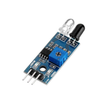
- IR Obstacle Avoidance Sensor - detects whether filament is present in the sensor gap
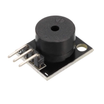
- KY-006 Buzzer - audible alarm when filament runs out
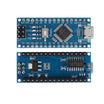
- Arduino Nano V3.0 - reads the sensor and drives the buzzer output
- Dupont Jumper Wires - quick wiring between modules and the Arduino
External
- 3D-printed bracket that clips onto the printer's filament guide tube
- Klipper / Marlin firmware on your 3D printer (for pause-on-runout)
Note: Many IR obstacle modules output an active LOW/HIGH signal depending on adjustment and design. Calibrate and confirm the output state (with the onboard LED and/or Serial) before relying on it for a pause trigger.
Step-by-Step Guide
Step 1 - Mount the Sensor
Goal: Position the IR sensor so it can reliably detect filament in the path.
What to do: Mount the IR obstacle sensor so it aims across the filament guide where the filament will pass consistently between the spool and the extruder.

Expected result: The sensor is fixed in place and the filament passes through the detection area without rubbing or snagging.
Step 2 - Wire It Up
Goal: Connect the IR sensor output to the Arduino input and connect the buzzer to an Arduino output pin.
What to do: Wire the IR module power and output to the Arduino Nano, and wire the KY-006 buzzer to a digital pin. Use the wiring diagram below as the pin reference.

Expected result: The Arduino has power, the IR module powers on, and all signal wires are secure and not pulling loose during printer motion.
Step 3 - Calibrate
Goal: Set a reliable detection threshold for your filament path.
What to do: Turn the IR obstacle module's trim-pot until the on-board LED stays lit when filament is in place and goes off when you slide the filament out.
Expected result: With filament present, the module indicates detection; with filament removed, it indicates no detection.
Step 4 - Upload the Arduino Sketch
Goal: Make the Arduino detect a run-out condition and sound the buzzer.
What to do: Upload the sketch below to your Arduino Nano. It reads the sensor input and beeps the buzzer when filament is absent.
Code:
const int IR = 2;
const int BUZZ = 8;
void setup() {
  pinMode(IR, INPUT);
  pinMode(BUZZ, OUTPUT);
  Serial.begin(9600);
}
void loop() {
  if (digitalRead(IR) == HIGH) {   // filament absent
    Serial.println("FILAMENT OUT");
    for (int i = 0; i < 5; i++) {
      tone(BUZZ, 1500, 300); delay(400);
    }
  }
  delay(50);
}
Expected result: When the filament is removed, the Arduino prints "FILAMENT OUT" to Serial and the buzzer sounds a short alert pattern.
Step 5 - Integrate with Klipper (Optional)
Goal: Configure your printer firmware to pause automatically on run-out.
What to do: In Klipper's printer.cfg, define a filament_motion_sensor or filament_switch_sensor on the Arduino's runout pin. When triggered, Klipper auto-pauses the print and can optionally send an alert.
Expected result: A run-out event triggers a pause instead of letting the printer continue printing with no filament.
Step 6 - Test on the Printer
Goal: Verify the sensor detects filament removal quickly and consistently in the real filament path.
What to do: With the printer idle, feed filament through the sensor, confirm the module indicates "filament present," then slide the filament out and confirm the alarm triggers.


Expected result: Filament removal consistently triggers the alarm (and your pause behavior if configured).
Step 7 - Optional Enhancements
Goal: Extend the project if you want more data or notifications.
What to do: If you want to expand the idea, consider these upgrades:
- Add a counter to track total meters of filament used per spool
- Wi-Fi alerts via ESP32 (Telegram message + photo from ESP32-CAM when filament runs out)
- Multi-spool monitor (4 IR sensors + 4-channel display for 4-color printers)
- Pair with a HX711 weight cell to weigh the spool and estimate remaining grams
Expected result: You have a clear next path for expanding beyond a simple run-out alarm.
Conclusion
This build adds a practical filament run-out safeguard using an Arduino Nano V3, an IR obstacle sensor, and a KY-006 buzzer. Once mounted and calibrated, it can alert you immediately and can be tied into Klipper or Marlin to pause prints when filament is missing.
Want the exact parts used in this build? Grab them from ShillehTek.com. If you want help customizing this project or building something for your product, check out our IoT consulting services.



.png?v=25000753014097803521791168436)

.png?v=68677308723310773341791168436)


