

Video Tutorial
Watch first if you want to see the Raspberry Pi Pico wired to a BME280 and the MicroPython setup in real time.
Project Overview
In this project, you connect a Raspberry Pi Pico to a BME280 environmental sensor and read temperature, humidity, and pressure in MicroPython.
You will wire the sensor to the Pico, install a BME280 library in Thonny, and run a small script to print live readings.
- Time: 15 to 30 minutes
- Skill level: Beginner
- What you will build: A Pico + BME280 setup that outputs temperature, humidity, and pressure readings in MicroPython
Parts List
From ShillehTek
- Raspberry Pi Pico 2W - the microcontroller board used in this build
Additional parts
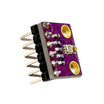
- BME280 sensor module - measures temperature, humidity, and pressure
- Jumper wires - connect the BME280 to the Pico
Note: Use the Picos 3.3V power for the BME280 module unless your specific breakout board explicitly supports 5V.
Step-by-Step Guide
Step 1 - Gather the required components
Goal: Make sure you have the Pico, BME280, and wiring needed to complete the build.
What to do: Gather a Raspberry Pi Pico (or Pico W), a BME280 module, and jumper wires (links are in the Parts List above).
Expected result: You are ready to wire the sensor to the Pico and configure MicroPython.
Step 2 - Wire the BME280 to the Raspberry Pi Pico
Goal: Connect the BME280 module to the Pico so MicroPython can read sensor data.
What to do: Connect the BME280 to the Raspberry Pi Pico as shown in the wiring diagram below.

Expected result: The BME280 is powered and connected to the Pico, ready for a MicroPython library and test script.
Step 3 - Install the BME280 library in Thonny
Goal: Add a MicroPython-compatible BME280 package so your script can access the sensor.
What to do: In Thonny, go to Tools > Packages, search for BME280, and install the MicroPython version.

Expected result: The BME280 library is installed and available for import in your MicroPython script.
Step 4 - Create the MicroPython file and run the code
Goal: Run a script on the Pico that reads temperature, humidity, and pressure from the BME280.
What to do: Create a Python file for your Raspberry Pi Pico and use the code from the link below.
Expected result: When you run the script, you should start getting readings for temperature, humidity, and pressure.
Conclusion
You now have a Raspberry Pi Pico reading temperature, humidity, and pressure from a BME280 sensor in MicroPython. This same setup is a solid base for weather stations, datalogging, or IoT monitoring projects.
Want the parts for this build? Grab electronics and project supplies from ShillehTek.com. If you want help customizing this project for your device or product, check out our IoT consulting services.
If you enjoyed this tutorial, consider subscribing or leaving a like on the Youtube Channel.







.png?v=25000753014097803521791168436)

.png?v=68677308723310773341791168436)


