

Video Tutorial (Optional)
Watch first if you want to follow the full build for the Pico W robot control interface.
Project Overview
Raspberry Pi Pico W + ultrasonic sensor: In this project, you turn a Raspberry Pi Pico W robot into a Wi-Fi controlled system with a web interface for driving and an emergency stop using ultrasonic obstacle detection.
You will set up a lightweight web server on the Pico W, serve an interactive control page, and run asynchronous tasks to manage Wi-Fi, sensor readings, NeoPixel feedback, and motor commands in one MicroPython script.
- Time: 45 to 90 minutes
- Skill level: Intermediate
- What you will build: A Pico W robot that you can drive from a phone or laptop over Wi-Fi, with ultrasonic-based emergency stop and NeoPixel status feedback
Parts List
From ShillehTek
- Raspberry Pi Pico 2W - the WiFi microcontroller board used in this build
External
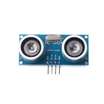
- Ultrasonic distance sensor (TRIG + ECHO style) - provides obstacle detection for emergency stop
- NeoPixel LEDs (6 pixels, WS2812-type) - provides distance-based visual feedback
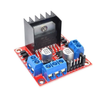
- Motor driver and two DC motors - drives the robot using direction pins and PWM speed control
- Jumper wires and a breadboard (or equivalent wiring) - for connecting sensors, LEDs, and motor driver to the Pico W
- Power source suitable for your motors and Pico W - stable power for robot operation
Note: This code uses Pico W pins GP15 (TRIG), GP14 (ECHO), and GP28 (NeoPixel data). Motor control uses GP0/GP1 with PWM on GP8, and GP2/GP3 with PWM on GP9.
Step-by-Step Guide
Step 1 - Prepare the required files and Wi-Fi credentials
Goal: Make sure the Pico W has the supporting files needed for NeoPixels and Wi-Fi authentication.
What to do: On your Pico W filesystem, place:
- neopixel.py in the same folder as your main script.
- config.py with a variable like password = "mywifi_password".
In the script, set your Wi-Fi name (SSID) and use config.password for the password.
Expected result: Your Pico W can import Neopixel and can read your Wi-Fi password from config.py.
Step 2 - Wire the ultrasonic sensor, NeoPixels, and motor driver
Goal: Connect the hardware so distance readings, LED feedback, and motor control can run together.
What to do: Wire your modules to match the pins used in the code:
- Ultrasonic sensor: TRIG on GP15, ECHO on GP14
- NeoPixels (6 LEDs): data on GP28
-
Motor control:
- in1 on GP0, in2 on GP1, ena (PWM) on GP8
- in3 on GP2, in4 on GP3, enb (PWM) on GP9
Expected result: The sensor, NeoPixels, and motor driver are connected to the Pico W pins referenced by the script.
Step 3 - Upload the MicroPython script and run it
Goal: Start the Wi-Fi web server and the asynchronous tasks for distance measurement and robot control.
What to do: Save the following as your main script on the Pico W and run it. This code includes Wi-Fi connection retry logic, a background Wi-Fi monitor, ultrasonic distance measurement with an emergency stop threshold, NeoPixel distance feedback, and a basic HTTP server.
Code:
import network
import socket
import uasyncio
import time
import random
from machine import Pin, PWM, time_pulse_us

### You need neopixel.py in the same folder
from neopixel import Neopixel

### config.py should define something like: password = "mywifi_password"
import config

##############################################################################
# 0) Configuration
##############################################################################

SSID = "SMA"
PASSWORD = config.password

# For controlling the on-board LED
led = Pin("LED", Pin.OUT)

# Create global wlan object
wlan = network.WLAN(network.STA_IF)
wlan.active(True)

##############################################################################
# 1) Wi-Fi Connection Helpers
##############################################################################

def wifi_connect():
    """
    Continuously retry Wi-Fi connection until successful.
    """
    global wlan

    attempt = 0
    while True:
        attempt += 1

        if not wlan.isconnected():
            print(f"Attempt {attempt}: Connecting to Wi-Fi...")
            wlan.connect(SSID, PASSWORD)

            # Wait up to 10 seconds in small increments to see if it connects
            max_wait = 10
            while max_wait > 0:
                if wlan.isconnected():
                    print("Connected! Network config:", wlan.ifconfig())
                    return  # Exit the function when connected
                max_wait -= 1
                time.sleep(1)

            # If still not connected after 10s, wait a bit before retrying
            print("Failed to connect. Retrying in 5 seconds...")
            time.sleep(5)
        else:
            # Already connected
            print("Already connected! Network config:", wlan.ifconfig())
            return

async def wifi_monitor_task():
    """
    Periodically checks if the Wi-Fi is still connected.
    If not, it attempts to reconnect.
    """
    while True:
        if not wlan.isconnected():
            print("Wi-Fi dropped; reconnecting...")
            try:
                wifi_connect()
            except RuntimeError as e:
                print("Reconnect failed:", e)
        await uasyncio.sleep(10)

##############################################################################
# 2) Ultrasonic Sensor Setup
##############################################################################

SOUND_SPEED = 340  # m/s
TRIG_PULSE_DURATION_US = 10
TRIG_PIN = Pin(15, Pin.OUT)
ECHO_PIN = Pin(14, Pin.IN)

def get_distance_cm():
    """
    Returns distance in centimeters. Negative if reading fails.
    """
    TRIG_PIN.value(0)
    time.sleep_us(5)
    TRIG_PIN.value(1)
    time.sleep_us(TRIG_PULSE_DURATION_US)
    TRIG_PIN.value(0)

    duration = time_pulse_us(ECHO_PIN, 1, 30000)  # 30 ms max
    if duration < 0:
        # time_pulse_us returns -2 if timed out waiting for pin,
        # or -1 if timed out in the measurement
        return -1

    # Convert microseconds to distance in cm:
    distance_cm = SOUND_SPEED * duration / 20000
    return distance_cm

##############################################################################
# 3) Neopixel Setup
##############################################################################

NUMPIX = 6
PIXELS = Neopixel(NUMPIX, 0, 28)

# Define LED colors
YELLOW = (255, 100, 0)
ORANGE = (255, 50, 0)
GREEN = (0, 255, 0)
BLUE = (0, 0, 255)
RED = (255, 0, 0)
LAVENDER = (230, 230, 250)

def update_neopixels_with_distance(dist):
    """
    Lights up only the 1st and 4th neopixels and reduces brightness by 50%.
    """
    if dist < 0:
        color = (0, 0, 128)  # Dim BLUE
    elif dist < 10:
        color = (128, 0, 0)  # Dim RED
    elif dist < 20:
        color = (128, 50, 0)  # Dim YELLOW
    else:
        color = (0, 128, 0)  # Dim GREEN

    PIXELS.clear()  # Turn off all pixels first

    # Light up only the 1st (index 0) and 4th (index 3) NeoPixels
    PIXELS.set_pixel(0, color)
    PIXELS.set_pixel(3, color)

    PIXELS.show()

##############################################################################
# 4) Motor Setup
##############################################################################

in1 = Pin(0, Pin.OUT)
in2 = Pin(1, Pin.OUT)
ena = PWM(Pin(8))
ena.freq(1000)

in3 = Pin(2, Pin.OUT)
in4 = Pin(3, Pin.OUT)
enb = PWM(Pin(9))
enb.freq(1000)

current_duty = 0

def set_speed(percent):
    """
    percent: integer 0..100
    """
    global current_duty
    duty = int(65535 * (percent / 100))
    current_duty = duty
    ena.duty_u16(duty)
    enb.duty_u16(duty)

def stop_motors():
    in1.value(0)
    in2.value(0)
    in3.value(0)
    in4.value(0)

def forward():
    in1.value(1)
    in2.value(0)
    in3.value(1)
    in4.value(0)

def backward():
    in1.value(0)
    in2.value(1)
    in3.value(0)
    in4.value(1)

def left():
    in1.value(0)
    in2.value(1)
    in3.value(1)
    in4.value(0)

def right():
    in1.value(1)
    in2.value(0)
    in3.value(0)
    in4.value(1)

##############################################################################
# 5) Global State for Emergency Stop
##############################################################################

emergency_stop = False  # True if distance <10 cm
DIRECTION = "FORWARD"

##############################################################################
# 6) Web Page Generator
##############################################################################

def web_page():
    speed_percent = int((current_duty / 65535) * 100)
    html = f"""


  <img class=\"logo\" alt=\"ShillehTek Logo\" src=\"https://shillehtek.com/cdn/shop/files/Logo_Wip.png?v=1713328776&width=180\">


<h1>Pico W Robot Control</h1>

<h3>Current Speed: {speed_percent}%</h3>


<div class=\"speed-buttons\">
<a href=\"/?speed=25\" class=\"btn speed-btn\">25%</a> <a href=\"/?speed=50\" class=\"btn speed-btn\">50%</a> <a href=\"/?speed=75\" class=\"btn speed-btn\">75%</a> <a href=\"/?speed=100\" class=\"btn speed-btn\">100%</a>
</div>

<div class=\"control-container\">
<div style=\"grid-column: 2; grid-row: 1;\"><button class=\"btn dir-btn\"> Forward </button></div>
<div style=\"grid-column: 1; grid-row: 2;\"><button class=\"btn dir-btn\"> Left </button></div>
<div style=\"grid-column: 3; grid-row: 2;\"><button class=\"btn dir-btn\"> Right </button></div>
<div style=\"grid-column: 2; grid-row: 3;\"><button class=\"btn dir-btn\"> Backward </button></div>
</div>


"""
    return html

##############################################################################
# 7) Asynchronous Tasks
##############################################################################

async def measure_distance_task():
    """
    Continuously measure distance and update neopixels.
    If distance <10 cm, set emergency_stop = True and stop motors (FORWARD).
    """
    global emergency_stop
    global DIRECTION

    while True:
        dist_cm = get_distance_cm()
        update_neopixels_with_distance(dist_cm)

        # If distance < 10 and not negative => too close => emergency stop
        if dist_cm >= 0 and dist_cm < 10 and DIRECTION == "FORWARD":
            emergency_stop = True
            stop_motors()
        else:
            emergency_stop = False

        print("Distance:", dist_cm, "cm | EMERGENCY:", emergency_stop)
        await uasyncio.sleep(0.1)

async def handle_client(reader, writer):
    """
    Handle one HTTP client request (non-blocking).
    """
    global emergency_stop
    global DIRECTION

    try:
        request = await reader.read(1024)
    except Exception as e:
        print("Error reading request:", e)
        return

    request_str = request.decode() if request else ""
    # Speed settings
    if "/?speed=25" in request_str:
        set_speed(25)
    elif "/?speed=50" in request_str:
        set_speed(50)
    elif "/?speed=75" in request_str:
        set_speed(75)
    elif "/?speed=100" in request_str:
        set_speed(100)

    # Direction logic
    if "/?action=backward" in request_str:
        DIRECTION = "BACKWARD"
    elif "/?action=forward" in request_str:
        DIRECTION = "FORWARD"

    # Movement only if no emergency stop
    if not emergency_stop:
        if "/?action=backward" in request_str:
            backward()
        elif "/?action=forward" in request_str:
            forward()
        elif "/?action=left" in request_str:
            left()
        elif "/?action=right" in request_str:
            right()
        elif "/?action=stop" in request_str:
            stop_motors()
    else:
        stop_motors()

    # (Optional) measure distance again for fresh reading
    dist_cm = get_distance_cm()
    update_neopixels_with_distance(dist_cm)

    # Send response
    resp = web_page()
    writer.write("HTTP/1.1 200 OK\r\n")
    writer.write("Content-Type: text/html\r\n")
    writer.write("Connection: close\r\n\r\n")
    writer.write(resp)
    await writer.drain()
    await writer.wait_closed()

async def webserver_task():
    """
    Start the uasyncio server on port 80.
    """
    server = await uasyncio.start_server(handle_client, "0.0.0.0", 80)
    print("Web server listening on http://{}:80".format(wlan.ifconfig()[0]))
    return server

##############################################################################
# 8) Main Entry Point
##############################################################################

async def main():
    # 1) Ensure we are connected to Wi-Fi at startup
    wifi_connect()
    # 2) Create Wi-Fi monitor task to reconnect if dropped
    uasyncio.create_task(wifi_monitor_task())
    # 3) Start distance measure task
    uasyncio.create_task(measure_distance_task())
    # 4) Start webserver
    server = await webserver_task()

    # 5) Simple blink in a loop
    while True:
        led.value(1)
        await uasyncio.sleep(0.1)  # Non-blocking
        led.value(0)
        await uasyncio.sleep(1)

import sys

try:
    uasyncio.run(main())
except Exception as e:
    # Open (or create) error.log in append mode
    with open("error.log", "a") as f:
        # Print a full traceback to the file
        sys.print_exception(e, f)
    print("An error occurred and has been logged to error.log.")
Expected result: The Pico W connects to Wi-Fi (or keeps retrying), prints its IP address, starts a web server on port 80, updates NeoPixels based on distance, and can stop motors if an obstacle is within 10 cm while moving forward.
Step 4 - Open the control interface from your phone or laptop
Goal: Use the web page served by the Pico W to send drive and speed commands.
What to do: In the serial output, find the printed line that shows the server address (based on wlan.ifconfig()[0]). Open that IP in a browser on the same Wi-Fi network.
Expected result: You can load the robot control page, change speed using the provided links (25%, 50%, 75%, 100%), and the robot will stop automatically when the ultrasonic sensor detects an obstacle within 10 cm while driving forward.
Conclusion
You built a Wi-Fi control interface for a Raspberry Pi Pico W robot that combines a web server, motor control, ultrasonic obstacle detection with an emergency stop, and NeoPixel feedback in one asynchronous MicroPython application.
Want the exact parts used in this build? Grab what you need from ShillehTek.com. If you want help customizing this robot interface for your hardware, adding features, or building something similar for your product, check out our IoT consulting services.







.png?v=25000753014097803521791168436)

.png?v=68677308723310773341791168436)


