

Project Overview
In this project, you connect a Raspberry Pi Pico W to an MQ135 air quality / gas sensor module and read the sensor output using MicroPython to print live ADC values.
The MQ135 is often used in beginner air quality projects to detect relative changes in surrounding air conditions. In this Pico W example, you will read the module's analog output (AO) using an ADC pin and print values to the serial console.
- Time: 15 to 30 minutes
- Skill level: Beginner to Intermediate
- What you will build: A Raspberry Pi Pico W + MQ135 setup that prints live sensor values with MicroPython
Parts List
From ShillehTek
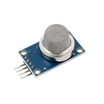
- MQ-135 Air Quality / Hazardous Gas Sensor Module - gas sensor module used to detect changes in air quality
- ShillehTek 120pcs 10cm Jumper Wires - for connecting the MQ135 module to the Pico W
- Raspberry Pi Pico 2W - the WiFi microcontroller board used in this build
External
- USB cable for Pico W - for power and code upload
- Breadboard (optional) - helps keep wiring organized
Note: Use discount code SHILLEHTEK for 30% off on ShillehTek. The Pico W ADC pins are 3.3V only. For beginner testing, many people power the MQ135 module at 3.3V and read relative values from AO. If you power the MQ135 module at 5V, do not feed the analog output directly into the Pico W ADC without proper voltage scaling.
Step-by-Step Guide
Step 1 - Physical setup (wire MQ135 to Raspberry Pi Pico W)
Goal: Connect the MQ135 module safely to the Pico W so the Pico can read the analog output.
What to do: Wire the MQ135 module to the Pico W as shown in your wiring diagram.
Recommended Pico W wiring (basic relative analog read at 3.3V):
- MQ135 VCC → 3V3(OUT) on Pico W
- MQ135 GND → GND on Pico W
- MQ135 AO → GP26 / ADC0 on Pico W
- MQ135 DO → Not used in this tutorial (optional)
Pin meanings:
- VCC - powers the sensor module
- GND - ground reference
- AO - analog output read by Pico W ADC
- DO - digital threshold output (optional)


Expected result: The MQ135 module powers on and the Pico W is ready to read the sensor signal from ADC0 (GP26).
Step 2 - Set up MicroPython on the Pico W
Goal: Get the Pico W ready to run a simple MQ135 reading script.
What to do: Make sure your Pico W has MicroPython installed and open your editor (such as Thonny) to create a new script.
- Connect the Pico W to your computer with a USB cable
- Open Thonny (or your preferred MicroPython editor)
- Select the MicroPython (Raspberry Pi Pico) interpreter
- Create a new file and paste the code below
Step 3 - Upload and run the MicroPython code
Goal: Read the MQ135 analog output and print live values.
What to do: Save the script to the Pico W as main.py (or run it manually first to test).
Code:
from machine import ADC
import time

mq135 = ADC(26)  # GP26 = ADC0

while True:
    raw_value = mq135.read_u16()  # 0 to 65535
    print("MQ135 Analog Value:", raw_value)
    time.sleep(1)
Expected result: The shell/console prints a changing stream of values every second.
Step 4 - Verify readings and test sensor response
Goal: Confirm the Pico W is receiving live sensor readings.
What to do: Watch the values in the Thonny shell (or serial console). The values should change as the surrounding air changes. The MQ135 often needs a warm-up period before readings become more stable.
For safety, avoid testing with hazardous gases indoors. If you want a quick response test, you can compare room air readings over time and observe relative changes.
Expected result: You see live numeric values changing over time, confirming the sensor and ADC wiring are working.
Step 5 - Optional digital threshold mode (DO)
Goal: Use the module as a simple threshold detector.
What to do: You can also use the DO pin for on/off detection, but be careful with voltage levels. If your MQ135 module is powered at 5V, use proper level shifting or a safe interface before connecting DO to a Pico W GPIO.
This mode is useful for simple alarm or trigger projects where you do not need analog values.
Conclusion
You connected an MQ135 gas sensor module to a Raspberry Pi Pico W and read live analog values with MicroPython. This is a solid starting point for air quality trend monitoring, notifications, and future IoT dashboards.
Want the exact parts used in this build? Grab them from ShillehTek.com. If you want help customizing this project or building something for your product, check out our IoT consulting services.



.png?v=25000753014097803521791168436)

.png?v=68677308723310773341791168436)


