

Project Overview
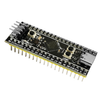
STM32F411CEU6 Black Pill + onboard LED: In this project, you will create a simple STM32CubeIDE project and blink the onboard LED on the ShillehTek Pre-Soldered Authentic STM32F411CEU6 Black Pill using STM32 HAL.
This is a great first STM32 project because it helps you confirm that your board, IDE, toolchain, and flashing workflow are all working before you move on to sensors, displays, communication interfaces, or more advanced embedded applications.
On this board, the onboard LED is connected to PC13, so that is the GPIO pin you will configure and toggle.
- Time: 20 to 40 minutes
- Skill level: Beginner
- What you will build: A working STM32CubeIDE project that blinks the onboard LED on an STM32F411CEU6 Black Pill using HAL
Parts List
From ShillehTek
- ShillehTek Pre-Soldered Authentic STM32F411CEU6 Black Pill - the STM32 development board used for this HAL LED blink project
External
- USB-C data cable - used to connect the board to your computer
- Computer with STM32CubeIDE installed - used to generate, build, and flash the project

Note: This tutorial assumes your board variant uses PC13 for the onboard LED, which is common on STM32 Black Pill boards.
Step-by-Step Guide
Step 1 - Install and open STM32CubeIDE
Goal: Get STM32CubeIDE ready for STM32 HAL development.
What to do:
- Download and install STM32CubeIDE from STMicroelectronics if you have not already done so.
- Open STM32CubeIDE and choose a workspace folder.
- Connect your Black Pill board to your computer using a USB-C data cable.
Expected result: STM32CubeIDE opens successfully and your board is connected to your computer.
Step 2 - Create a new STM32 project
Goal: Start a new project for the STM32F411CEU6 Black Pill.
What to do:
- Go to
File > New > STM32 Project. - Select the correct STM32 microcontroller for your board.
- Click Next, name the project, and continue.
- Use the default GNU Arm Embedded toolchain when prompted.
- Finish creating the project.
Expected result: A new STM32CubeIDE project is generated and opened.
Step 3 - Identify the onboard LED pin
Goal: Confirm which GPIO pin controls the onboard LED.
What to do:
- Check the board pinout or board documentation.
- For the ShillehTek STM32F411CEU6 Black Pill shown here, the onboard LED is connected to
PC13. - Use
PC13when configuring the GPIO output.
Expected result: You know exactly which pin to configure for LED control.

Step 4 - Configure PC13 as a GPIO output
Goal: Set up the LED pin so your code can toggle it.
What to do:
- Open the CubeMX configuration inside the project.
- Select PC13 and set it to GPIO_Output.
- Generate the project code so STM32CubeIDE creates the HAL initialization code for that pin.
Expected result: PC13 is initialized as an output in the generated code.
Example GPIO setup:
GPIO_InitTypeDef GPIO_InitStruct = {0};

__HAL_RCC_GPIOC_CLK_ENABLE();

GPIO_InitStruct.Pin = GPIO_PIN_13;
GPIO_InitStruct.Mode = GPIO_MODE_OUTPUT_PP;
GPIO_InitStruct.Pull = GPIO_NOPULL;
GPIO_InitStruct.Speed = GPIO_SPEED_FREQ_LOW;
HAL_GPIO_Init(GPIOC, &GPIO_InitStruct);
Step 5 - Blink the onboard LED using HAL
Goal: Write a simple loop that turns the LED on and off repeatedly.
What to do:
- Open
main.c. - Inside the main loop, use
HAL_GPIO_WritePin()andHAL_Delay()to change the LED state. - Build the project and flash it to the board.
Code:
while (1)
{
    HAL_GPIO_WritePin(GPIOC, GPIO_PIN_13, GPIO_PIN_SET);
    HAL_Delay(1000);

    HAL_GPIO_WritePin(GPIOC, GPIO_PIN_13, GPIO_PIN_RESET);
    HAL_Delay(1000);
}
Expected result: The onboard LED blinks on and off every second.

Conclusion
You created a basic STM32CubeIDE project and used STM32 HAL to blink the onboard LED (PC13) on an STM32F411CEU6 Black Pill. This quick test helps confirm your IDE setup, code generation, build, and flashing workflow before you move on to more advanced STM32 peripherals.
Want the exact parts used in this build? Grab them from ShillehTek.com. If you want help customizing this project or building something for your product, check out our IoT consulting services.


.png?v=25000753014097803521791168436)

.png?v=68677308723310773341791168436)


