

Project Overview
ESP32-S3-DevKitC-1 N16R8 + onboard PSRAM: This guide shows how to set up the ESP32-S3-DevKitC-1 N16R8 in Arduino IDE, enable OPI PSRAM, and verify you get the full 16 MB Flash and 8 MB PSRAM for memory-heavy projects.

The ESP32-S3-DevKitC-1 N16R8 is the modern upgrade from the classic ESP-WROOM-32. The "N16R8" suffix tells you everything: 16 MB Flash and 8 MB PSRAM, plus a native USB peripheral, vector instructions for AI inference, BLE 5, and more GPIO. For roughly $10, it is a high-spec ESP32 dev board and a strong choice for camera projects, AI inference, large displays, OTA-heavy firmware, and anything that needs serious memory.
This walkthrough covers unboxing the board, installing Arduino IDE 2.x support, building a first sketch that enables PSRAM, and highlighting where the S3 makes the older WROOM-32 feel slow.
- Time: 15 to 30 minutes
- Skill level: Beginner
- What you will build: A verified Arduino IDE setup for ESP32-S3 with OPI PSRAM enabled and a test sketch that reports CPU, Flash, and PSRAM correctly.
Parts List
From ShillehTek
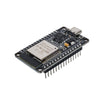
- ESP-WROOM-32 (USB-C, CP2102) - the older sibling for reference.
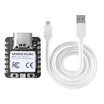
- XIAO ESP32-S3 Pre-Soldered - a compact ESP32-S3 option.
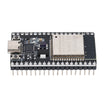
- ESP32 Dev Board 4MB CP2102 USB-C 38-pin - a common classic ESP32 dev board alternative.
- Breadboard + Wires - helpful for quick prototyping.
External
- ESP32-S3-DevKitC-1 N16R8 board - the model this guide focuses on.
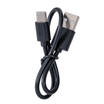
- USB-C cable - the S3 has native USB on GPIO19/20, so no separate UART chip is needed.
- Arduino IDE 2.x with the ESP32 board package >= 3.0.
Note: On N16R8 boards, Arduino IDE must be set to OPI PSRAM. If you leave PSRAM at the default QSPI setting, PSRAM detection can fail.
Step-by-Step Guide
Step 1 - Understand why the S3 is an upgrade
Goal: Know what you gain by moving from the classic ESP-WROOM-32 to the ESP32-S3 N16R8.
What to do: Use the list below to map hardware features to real project needs (memory, USB, BLE, and pin count).
- 16 MB Flash - 4x more code/data room. OTA updates fit comfortably.
- 8 MB PSRAM - enough for full camera framebuffers, big LVGL UIs, or ML model weights.
- Dual-core Xtensa LX7 @ 240 MHz with vector instructions for neural-network inference.
- Native USB - no CP2102, fewer auto-reset issues, and access to USB-HID, USB-MSC, and USB-CDC.
- BLE 5 + 2.4 GHz WiFi - same WiFi class as the original, plus BLE 5 long-range PHY support.
- 45 GPIO vs the original 38 - more pins and peripheral options (LCD, SPI camera).
Expected result: You can decide quickly if your project benefits from the extra Flash, PSRAM, and native USB.
Step 2 - Install ESP32 board support in Arduino IDE 2.x
Goal: Install the Espressif Arduino core and select the correct ESP32-S3 board and memory settings.
What to do:

- In Arduino IDE 2.x, go to File → Preferences.
- Add this to Additional Board URLs:
https://espressif.github.io/arduino-esp32/package_esp32_index.json - Go to Tools → Board → Boards Manager. Search "esp32" and install Espressif Systems >= 3.0.
- Go to Tools → Board → ESP32 Arduino → ESP32S3 Dev Module.
- Go to Tools → PSRAM → OPI PSRAM.
- Go to Tools → Flash Size → 16MB.
Expected result: Your board compiles and uploads with the correct PSRAM mode selected. Forgetting OPI PSRAM is the most common reason you will see PSRAM reported as missing.
Step 3 - Upload a first sketch to confirm CPU, Flash, and PSRAM
Goal: Confirm the board is detected correctly and PSRAM is enabled.
What to do: Upload the sketch below, then open Serial Monitor at 115200 baud.
Code:
void setup() {
  Serial.begin(115200);
  delay(2000);
  Serial.printf("CPU @ %d MHz\n", getCpuFrequencyMhz());
  Serial.printf("Flash size: %d MB\n", ESP.getFlashChipSize() / (1024*1024));
  Serial.printf("PSRAM size: %d KB\n", ESP.getPsramSize() / 1024);
  Serial.printf("Free PSRAM: %d KB\n", ESP.getFreePsram() / 1024);
}

void loop() {
  delay(1000);
}
Expected result: About 240 MHz, 16 MB Flash, 8192 KB PSRAM, and roughly 8100 KB free PSRAM. If you see "PSRAM size: 0", go back and verify Tools → PSRAM is set to OPI PSRAM.
Step 4 - Connect the memory upgrade to real project needs
Goal: Understand where the extra Flash and PSRAM actually change what you can build.
What to do: Use these examples as a quick sizing guide when deciding between classic ESP32 and ESP32-S3.
- Camera streaming: a 1600x1200 JPEG frame at full color is about 1.5 MB. PSRAM can hold several frames for buffering.
- Large LVGL UIs: dashboards with multiple high-resolution pages may need 1 to 2 MB for the framebuffer alone.
- TensorFlow Lite Micro: a wake-word model is about 300 KB, while a small object detector can be around 1 MB.
- Voice recording / streaming: 5 seconds of 16-bit/16-kHz audio is about 160 KB.
- HTTPS with multiple connections: each TLS session can use about 50 KB of heap; PSRAM helps when you need multiple connections.
Expected result: You can match your application (camera, UI, ML, audio, HTTPS) to the S3 memory headroom.
Step 5 - Try a quick native USB HID test
Goal: Validate a key ESP32-S3 feature: native USB device support.
What to do: Upload the sketch below while connected over USB-C. It will enumerate as a USB keyboard and type a short message.
Code:
#include <USB.h>
#include <USBHIDKeyboard.h>

USBHIDKeyboard kb;

void setup() {
  USB.begin();
  kb.begin();
  delay(2000);
  kb.print("Hello from ESP32-S3!");
}

void loop() {
}
Expected result: Your computer sees a new USB keyboard device, and the text prints into the currently focused text field.
Step 6 - Keep basic power characteristics in mind
Goal: Understand typical power draw so you can plan USB and battery builds realistically.
What to do: Plan around these numbers during your design:
- Idle current around 30 mA
- Peaks around 240 mA during WiFi transmit
- Deep sleep around 7 µA (similar to WROOM-32)
Expected result: You can size your power supply and battery budget appropriately while still benefiting from the S3 compute and memory.
Conclusion
You set up Arduino IDE for the ESP32-S3-DevKitC-1 N16R8, selected the correct OPI PSRAM setting, and verified the full 16 MB Flash and 8 MB PSRAM in a test sketch. With native USB, higher-performance cores, and much more memory than the classic ESP-WROOM-32, the ESP32-S3 is a strong default choice for camera, UI, ML, and network-heavy firmware.
Want the exact parts used in this build? Grab them from ShillehTek.com. If you want help customizing this project or building something for your product, check out our IoT consulting services.
Credit: Inspired by "Build Custom ESP32 Boards From Scratch (ESP32-S3 and C3 Guide)" on Instructables. Images credited to the original author.




.png?v=25000753014097803521791168436)

.png?v=68677308723310773341791168436)


