

Project Overview
Arduino UNO Joystick Shield V1.A: build a thumbstick-and-button controller shield that reads all inputs, then use it as a USB gamepad (ATmega32U4) or an nRF24L01 wireless transmitter.
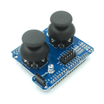
The Joystick Shield V1.A is a fast way to build a game controller, robot driver, or RC transmitter on top of an Arduino UNO. Plug it on with no wiring and you get a 2-axis thumbstick, 4 directional buttons, two extra action buttons, a select button, and a header for an nRF24L01 wireless transceiver. The shield turns your UNO into a fully featured input device in about 30 seconds.
This guide walks through reading every input on the shield, then shows two popular builds: a USB gamepad (using an ATmega32U4 board like Pro Micro or Leonardo) and a wireless RC car transmitter using the nRF24L01 socket built into the shield.
- Time: 20 to 45 minutes
- Skill level: Beginner to Intermediate
- What you will build: A joystick + button input controller that can act as a USB HID gamepad or an nRF24L01 wireless transmitter.
Parts List
From ShillehTek
- Joystick Shield V1.A for Arduino UNO R3 - provides the joystick, buttons, and nRF24L01 socket.
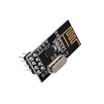
- NRF24L01+ 2.4GHz Transceiver - slots directly into the shield’s socket for wireless control.
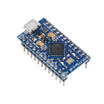
- Pro Micro (ATmega32U4) - needed if you want USB-HID gamepad behavior.
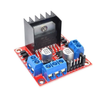
- L298N Motor Driver - receiver-side motor control for the RC car build.
External
- An Arduino UNO R3 (or compatible clone with the same shield footprint).
- USB-A cable for the UNO.
- A second Arduino + chassis if you’re building the wireless RC car.
Note: All buttons on this shield are active-low. Configure button pins as INPUT_PULLUP and treat a pressed button as LOW. For the USB gamepad build, use an ATmega32U4 board (Pro Micro or Leonardo), not an UNO.
Step-by-Step Guide
Step 1 - Review the shield’s I/O map
Goal: Identify which Arduino pins read the joystick axes, the button cluster, and the nRF24L01 socket signals.
What to do: Use this mapping when you write code or troubleshoot inputs.
- Joystick X axis - A0
- Joystick Y axis - A1
- Joystick press (Z button) - D8
- Button F (north) - D6
- Button D (east) - D5
- Button C (south) - D4
- Button E (west) - D3
- Button A (top-right action) - D2
- Button B (top-left action) - D7
- nRF24L01 socket - D9, D10, D11, D12, D13 (CE + CSN + SPI bus)
Expected result: You know exactly which pins to configure as inputs, and which pins the nRF24L01 uses for CE/CSN/SPI.
Step 2 - Upload a sketch to read everything and print to Serial
Goal: Verify that every button press and joystick movement is detected.
What to do: Upload the sketch below, open Serial Monitor at 9600 baud, and move the stick while pressing buttons.
Code:
const int BTN_PINS[] = {2, 3, 4, 5, 6, 7, 8};
const char* BTN_NAMES[] = {"A", "E", "C", "D", "F", "B", "Z"};

void setup() {
  Serial.begin(9600);
  for (int p : BTN_PINS) pinMode(p, INPUT_PULLUP);
}

void loop() {
  int x = analogRead(A0);
  int y = analogRead(A1);

  Serial.print("X:"); Serial.print(x);
  Serial.print(" Y:"); Serial.print(y);
  Serial.print(" Btns:");

  for (int i = 0; i < 7; i++) {
    if (digitalRead(BTN_PINS[i]) == LOW) {
      Serial.print(BTN_NAMES[i]);
      Serial.print(" ");
    }
  }

  Serial.println();
  delay(100);
}
Expected result: The Serial output updates continuously with X/Y values, and prints button letters when buttons are pressed.
Step 3 - Calibrate the joystick (center and dead-zone)
Goal: Make joystick readings stable at rest and predictable at the extremes.
What to do: With the stick at rest, note typical X and Y values (often around 500 to 530). Then push full left/right/up/down and note the min/max. Use a small dead-zone and map the result into -100 to +100.
Code:
int X_MIN = 0, X_CTR = 512, X_MAX = 1023, X_DEAD = 20;

int axisRead(int pin, int min, int ctr, int max, int dead) {
  int v = analogRead(pin) - ctr;
  if (abs(v) < dead) return 0;
  if (v > 0) return map(v, dead, max - ctr, 0, 100);
  return map(v, ctr - min, -dead, -100, 0);
}
Expected result: Small noise near center reads as 0, and full deflection maps consistently to negative/positive values.
Step 4 - Build 1: USB HID gamepad (Pro Micro or Leonardo)
Goal: Make the controller appear to your PC as a real USB gamepad.
What to do: Swap the UNO for a Pro Micro or Arduino Leonardo (both ATmega32U4). The pinout above largely lines up. Install the MHeironimus Joystick library and use the sketch below.
Code:
#include <Joystick.h>

Joystick_ Joy;

void setup() {
  Joy.begin();
  for (int p : BTN_PINS) pinMode(p, INPUT_PULLUP);
}

void loop() {
  Joy.setXAxis(map(analogRead(A0), 0, 1023, -127, 127));
  Joy.setYAxis(map(analogRead(A1), 0, 1023, -127, 127));

  for (int i = 0; i < 7; i++) {
    Joy.setButton(i, digitalRead(BTN_PINS[i]) == LOW);
  }

  delay(10);
}
Expected result: When you plug into your PC, Windows recognizes it as a generic USB gamepad, and apps like Steam and emulators can use it.
Step 5 - Build 2: Wireless RC car transmitter (nRF24L01)
Goal: Stream joystick and button data over 2.4 GHz using the shield’s built-in nRF24L01 socket.
What to do: Install an nRF24L01 module into the shield socket. Use the transmitter sketch below to send a compact packet (x, y, and packed button bits). Keep CE and CSN as D9 and D10 per the shield wiring.
Code:
#include <RF24.h>

RF24 r(9, 10);   // CE, CSN per shield

struct __attribute__((packed)) Packet {
  int8_t x, y;
  uint8_t btns;
};

void setup() {
  r.begin();
  r.openWritingPipe(0xF0F0F0F0E1LL);
  r.setPALevel(RF24_PA_HIGH);

  for (int p : BTN_PINS) pinMode(p, INPUT_PULLUP);
}

void loop() {
  Packet p;
  p.x = map(analogRead(A0), 0, 1023, -127, 127);
  p.y = map(analogRead(A1), 0, 1023, -127, 127);

  p.btns = 0;
  for (int i = 0; i < 7; i++) {
    if (digitalRead(BTN_PINS[i]) == LOW) p.btns |= 1 << i;
  }

  r.write(&p, sizeof(p));
  delay(20);
}
Expected result: Your transmitter continuously sends joystick and button state. On the receiver side, use another Arduino + nRF24L01 + an L298N motor driver + 2 DC motors to build a fully wireless RC vehicle.
Step 6 - Explore other projects that use this shield
Goal: Identify additional ways to reuse the same joystick-and-button input hardware.
What to do: Consider these common ideas:
- Robot arm controller (buttons for actions, joystick for motion).
- Retro game console front panel (button-mapped emulator controls).
- Camera gimbal remote control.
- 3D printer manual mover (jog X/Y/Z + buttons for select/cancel).
- Drone trainer basic transmitter for fixed-wing planes.
Expected result: You have multiple clear next-project directions using the same shield.
Conclusion
You now have a complete pin map and working sketches for the Arduino UNO Joystick Shield V1.A, including serial input testing, joystick calibration, USB HID gamepad output (ATmega32U4), and an nRF24L01 wireless transmitter packet.
Want the exact parts used in this build? Grab them from ShillehTek.com. If you want help customizing this project or building something for your product, check out our IoT consulting services.
Credit: This guide was inspired by "Arduino Joystick Shield Nrf24l01 Wireless 2 DC Motor Control" on Instructables. Images credited to the original author.


.png?v=25000753014097803521791168436)

.png?v=68677308723310773341791168436)


