


Project Overview
Arduino display comparison: This guide compares the TM1637 4-digit 7-segment module, the SSD1306 0.96-inch OLED, and a 2.13-inch black-and-white e-paper display so you can choose the right screen and avoid wasted time in your project.
We focus on the specs that matter in real builds: resolution, brightness, power use, viewing angle, lifetime, and code complexity, with clear recommendations for clocks, dashboards, signs, and battery-powered devices.
- Time: 10 to 15 minutes
- Skill level: Beginner
- What you will build: A decision framework for picking the best Arduino-compatible display for your use case
Parts List
From ShillehTek
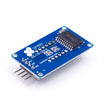
- TM1637 4-Bit Red LED Display - bright, simple numeric readout for clocks and counters
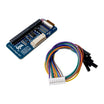
- 2.13" E-Paper HAT - ultra-low-power display that holds an image with no power
- Pi Pico 2W (pre-soldered) - a great low-power controller option for e-paper badge style builds
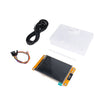
- ESP32 LVGL 2.8" Touchscreen - a TFT option if you need full color and touch
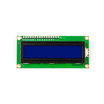
- LCD1602 Character Display - classic 16x2 character LCD alternative
- MAX7219 8x8 Matrix - good for scrolling text and simple animations
External
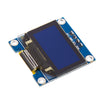
- SSD1306 128x64 0.96" OLED (I2C) - common Arduino OLED module
- Arduino Nano or ESP32 - a microcontroller to drive each display
Note: OLED modules are commonly I2C (2 signal wires). Many e-paper modules use SPI and may require extra control lines like RST and BUSY, depending on the board.
Step-by-Step Guide
Step 1 - Compare the headline specs
Goal: Quickly see how TM1637, SSD1306 OLED, and 2.13-inch e-paper differ in resolution, power, refresh speed, and wiring.
What to do: Use the table below to match your project needs (numbers, UI, or ultra-low power) to the right display type.
| TM1637 7-Seg | SSD1306 OLED | 2.13" E-Paper | |
|---|---|---|---|
| Resolution | 4 digits | 128x64 pixels | 250x122 pixels |
| Color | Red only | Mono / blue-yellow | Black on white |
| Brightness | Very bright (LED) | Bright, self-lit | Reflective, sunlight-readable |
| Power (active) | ~80 mA | ~20 mA | ~10 mA during refresh |
| Power (idle) | same as active | same as active | 0 mA (persists image) |
| Refresh rate | Continuous | ~100 Hz | ~2 seconds (full) |
| Lifetime | ~100,000 hours | ~30,000 hours (burn-in) | ~5 years no degradation |
| Interface | 2-wire custom | I2C (2 wires) | SPI (4 to 7 wires) |
| Cost | $5 | $3 to $6 | $15 to $22 |
| Library complexity | Simple | Medium | Heavy (framebuffer) |
Expected result: You can identify the best display for numbers (TM1637), compact UI (SSD1306), or ultra-low-power always-on info (e-paper).
Step 2 - Choose TM1637 for big bright numbers
Goal: Understand when the TM1637 4-digit display is the best fit.
What to do: Use TM1637 when your project shows one number that changes: clock, countdown timer, temperature, counter, alarm setpoint. It is readable at distance and in bright environments. Typical setup is 2 GPIO plus power.
Limitations: it is mainly digits and a few letters based on segment patterns. No graphics, no images, and no proportional fonts. If you need any real text, choose OLED or e-paper.
Expected result: You can quickly rule TM1637 in or out based on whether the UI is purely numeric.
Step 3 - Choose SSD1306 OLED for compact dashboards and menus
Goal: Understand why SSD1306 is the most common maker display for text and simple graphics.
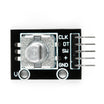
What to do: Pick SSD1306 when you need a small UI: sensor readings, simple graphs, menu screens (often paired with a rotary encoder), or small project status panels. It is self-lit and typically uses I2C, which keeps wiring simple.

The 30,000-hour rating (about 3.4 years continuous) is fine for many projects, but it matters for always-on or industrial use because of burn-in risk.
Expected result: You know when OLED is the best balance of cost, wiring simplicity, and UI capability.
Step 4 - Choose 2.13-inch e-paper for ultra-low power and sunlight readability
Goal: Understand when e-paper is the only sensible choice.
What to do: Use e-paper when the image updates infrequently (for example once an hour) and you want the display to keep showing content with no power. Reflective screens are readable in direct sunlight, but not readable in the dark without a light.
Because refresh is slow (around 2 seconds for a full update), it is not a good choice for fast-changing values. It is ideal for name badges, room signs, weather widgets, weekly schedules, and e-readers.
For a low-power wearable badge, pairing e-paper with a Pi Pico 2W and a small LiPo is a common approach.
Expected result: You can confidently pick e-paper for battery-powered, always-on info displays that do not need fast updates.
Step 5 - Do quick power budget math for battery projects
Goal: See how display choice determines battery life.
What to do: Consider the same project: show the current temperature, updated once per minute, for a week on a 2000 mAh battery.
- TM1637 always on: 80 mA * 168 hours = 13,440 mAh. Dies in about 14 hours. You would need to gate it on/off.
- SSD1306 always on: 20 mA * 168 hours = 3,360 mAh. Dies after about 4 days.
- E-paper: ~0.1 mAh per update * 60 updates per day * 7 days = 42 mAh. Runs for years.
Expected result: For battery projects, you can justify e-paper based on power math, not preference.
Step 6 - Compare code complexity across the three libraries
Goal: Understand what you are signing up for in software.
What to do: Use the examples below to gauge setup complexity. TM1637 is typically simplest, SSD1306 usually requires a framebuffer, and e-paper tends to be heaviest due to framebuffer and BUSY pin polling (and often partial refresh handling).

Code (TM1637):
#include <TM1637Display.h>
TM1637Display d(CLK, DIO);
d.setBrightness(7);
d.showNumberDec(1234);
Code (SSD1306):
#include <Adafruit_SSD1306.h>
Adafruit_SSD1306 oled(128, 64, &Wire, -1);
oled.begin(SSD1306_SWITCHCAPVCC, 0x3C);
oled.clearDisplay();
oled.setCursor(0,0);
oled.setTextSize(2);
oled.print("Hello!");
oled.display();
Code (E-paper):
#include <GxEPD2_BW.h>
GxEPD2_BW<GxEPD2_213_BN, 122> epd(GxEPD2_213_BN(/*CS=*/8, /*DC=*/9, /*RST=*/12, /*BUSY=*/13));
epd.init();
epd.setFullWindow();
epd.firstPage();
do {
  epd.fillScreen(GxEPD_WHITE);
  epd.setCursor(10, 30);
  epd.print("Hello!");
} while (epd.nextPage());
Expected result: You can choose a display based on how much code and memory overhead you are comfortable with.
Step 7 - Pick the display based on your project type
Goal: Map common Arduino project ideas to the best display choice.
What to do: Use these quick recommendations:
- Digital clock, kitchen timer, sous-vide setpoint - TM1637
- Sensor dashboard, menu UI, oscilloscope front-end - SSD1306 OLED
- Conference badge, room sign, e-reader, status widget - e-paper
- Touchscreen smart-home panel - jump up to the ESP32 LVGL TFT
- Scrolling text, animations, message ticker - MAX7219 8x8 LED matrix
Expected result: You can select a display quickly based on update rate, power, and UI needs.
Conclusion
There is no single best Arduino display. TM1637 wins for big bright numbers, SSD1306 OLED is a great all-around choice for compact dashboards and menus, and 2.13-inch e-paper is best for low-power, always-on information that updates slowly.
Want the exact parts used in this build? Grab them from ShillehTek.com. If you want help customizing this project or building something for your product, check out our IoT consulting services.
Credits: Inspired by "Arduino and the SSD1306 OLED I2C 128x64 Display" and "How to Use the TM1637 Digit Display With Arduino" on Instructables. Images credited to the original authors.




.png?v=25000753014097803521791168436)

.png?v=68677308723310773341791168436)


