

Project Overview
Arduino Nano + MQ-2 gas sensor: In this project, you will wire an MQ-2 flammable gas and smoke sensor module to an Arduino Nano to build a DIY gas-leak alarm that sounds a buzzer when readings exceed a set threshold.
The MQ-2 module is one of the cheapest “smoke alarm” style sensors you can buy, often under $3, and it can detect LPG, methane, propane, hydrogen, alcohol, smoke, and carbon monoxide. Add an OLED for a live “PPM-style” readout, and optionally swap to an ESP32 for WiFi phone notifications.
This guide wires the MQ-2 to an Arduino, explains warm-up and calibration against clean air, sounds an alarm above a threshold, and shows the OLED and WiFi upgrades for a finished home safety device.
- Time: 30 to 60 minutes (plus sensor warm-up and optional 24-hour baseline)
- Skill level: Beginner
- What you will build: An MQ-2-based gas and smoke alarm with a buzzer threshold alert, with optional OLED display and ESP32 WiFi notifications

Parts List
From ShillehTek
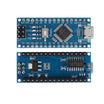
- Arduino Nano V3.0 - main microcontroller for reading the MQ-2 and driving the buzzer
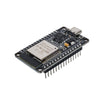
- ESP32 WROOM Dev Board - optional upgrade for WiFi notifications
- 830-Point Breadboard + DuPont wires - quick prototyping and wiring
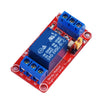
- 1-Channel 5V Relay - optional add-on to switch a ventilation fan when gas is detected
External
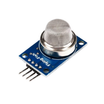
- MQ-2 sensor module (4-pin: VCC, GND, DOUT, AOUT) - gas/smoke sensing module
- Active 5V buzzer - audible alarm output
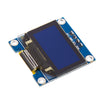
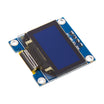
- 0.96" I b2C OLED (SSD1306) - optional display for live readings
- A lighter or a piece of bread (smoke stimulus for testing) - optional test source
Note: The MQ-2 uses an internal heater and needs a warm-up period before readings stabilize. Avoid calibrating immediately after power-up.
Step-by-Step Guide
Step 1 - Understand how the MQ-2 module works
Goal: Know what AOUT and DOUT represent so you can choose how to read the sensor.
What to do: The MQ-2 contains a tin-dioxide (SnO 82) sensing bead heated by an internal coil. In clean air, the bead has a known resistance. When a flammable gas or smoke hits the heated bead, its resistance drops and you can detect that change using a voltage divider.
The breakout module typically includes the divider plus a comparator. AOUT provides an analog voltage that tracks gas concentration, while DOUT provides a digital HIGH/LOW based on a trim-pot threshold on the module.

Expected result: You understand why the MQ-2 needs warm-up and why the analog pin (AOUT) is commonly used for threshold alarms.
Step 2 - Wire the MQ-2, buzzer, and optional OLED to the Arduino Nano
Goal: Create the basic circuit so the Arduino can read the sensor and trigger an alarm.
What to do: Use the MQ-2 module analog output (AOUT) for the main reading, and optionally connect DOUT to a digital pin if you want to use the onboard comparator output. Wire the active buzzer to a digital pin so the Arduino can sound an alarm. If you add an SSD1306 OLED, connect it to the I b2C pins.
Wiring map:
MQ-2         Arduino Nano
VCC      ->  5V
GND      ->  GND
AOUT     ->  A0    (analog reading)
DOUT     ->  D2    (optional digital threshold)

Buzzer       Arduino Nano
+        ->  D8
-        ->  GND

OLED (optional)
SDA      ->  A4
SCL      ->  A5
Expected result: With power applied, the MQ-2 heater begins warming and the Arduino is electrically connected to A0 (and the buzzer on D8).
Step 3 - Allow for MQ-2 warm-up and stabilization
Goal: Avoid false calibration and unreliable readings.
What to do: The MQ-2 heater takes about 30 seconds to stabilize after a cold boot, and up to 24 hours to settle to a long-term clean-air baseline. Do not calibrate or trust readings until at least 5 minutes after power-up. For a permanent install, power the sensor continuously.
Expected result: You wait long enough that the baseline becomes repeatable in clean air before setting a threshold.
Step 4 - Upload the Arduino sketch for a threshold alarm
Goal: Read the MQ-2 analog value and sound the buzzer when it exceeds a threshold.
What to do: Upload the sketch below to your Arduino Nano. It prints the raw analog value to Serial and triggers a buzzer tone when the reading rises above THRESHOLD.
Code:
const int SENSOR = A0;
const int BUZZER = 8;
const int THRESHOLD = 400;   // calibrate to your clean-air baseline + margin

void setup() {
  pinMode(BUZZER, OUTPUT);
  Serial.begin(9600);
  Serial.println("Warming up sensor...");
  delay(20000);
  Serial.println("Ready.");
}

void loop() {
  int v = analogRead(SENSOR);
  Serial.println(v);
  if (v > THRESHOLD) {
    tone(BUZZER, 2000, 200);
    delay(100);
  } else {
    noTone(BUZZER);
  }
  delay(500);
}
Expected result: You see raw readings in the Serial Monitor. When smoke or gas increases the reading above the threshold, the buzzer sounds intermittently.
Step 5 - Calibrate the alarm threshold in clean air
Goal: Set THRESHOLD based on your sensor and environment.
What to do: Use the Arduino Serial output to observe the sensor reading in clean air and during a test stimulus, then pick a midpoint plus margin.

- Power the sensor for 24 hours in clean room air.
- Note the typical baseline reading (for example, 150).
- Light a match across the room and wave the smoke near the sensor, then note the reading (for example, 500).
- Set your threshold halfway up:
(150 + 500) / 2 = 325. - Add a small margin (around 50) for noise: final threshold = 375 or 400.
Expected result: Your alarm stays quiet in clean air and reliably triggers during a controlled test.
Step 6 - Add an OLED for a live “PPM-style” display (optional)
Goal: Show a live estimate on an SSD1306 I b2C OLED display.
What to do: The MQ-2 analog output is not precisely in PPM; it follows a logarithmic curve. The snippet below shows one way to compute a rough “ppm equivalent” estimate using a datasheet-style curve.
Code:
#include <Adafruit_SSD1306.h>
Adafruit_SSD1306 oled(128, 64, &Wire, -1);

float estimatePPM(int raw) {
  float Rs = (1023.0 / raw - 1.0) * 5.0;   // sensor resistance
  // For LPG curve (datasheet): ppm = 574 * (Rs/Ro)^-2.07
  // Ro ~ baseline_rs * 10 (assume air baseline)
  float ratio = Rs / 30.0;     // placeholder for Ro
  return 574.0 * pow(ratio, -2.07);
}
Expected result: You have a function you can integrate into your display code to show a changing estimate as sensor readings change.
Step 7 - Send WiFi notifications using an ESP32 (optional)
Goal: Trigger a phone notification when readings exceed the threshold.
What to do: Swap the Arduino Nano for an ESP32 and add an HTTP POST to a free ntfy.sh topic when the threshold is exceeded.

Code:
#include <WiFi.h>
#include <HTTPClient.h>

void notify(const char* msg) {
  HTTPClient http;
  http.begin("https://ntfy.sh/my_gas_alarm_topic");
  http.addHeader("Title", "Gas Alarm");
  http.addHeader("Priority", "urgent");
  http.POST(msg);
  http.end();
}

void loop() {
  int v = analogRead(34);
  if (v > THRESHOLD) notify("Gas detected!");
  delay(2000);
}
Install the ntfy app on your phone and subscribe to your topic so an alarm at home becomes a push notification on your phone. This works on cellular and does not require a cloud subscription.
Expected result: When the sensor crosses the threshold, your phone receives a notification from the ntfy topic.
Step 8 - Drive a ventilation relay when gas is detected (optional)
Goal: Switch a ventilation fan when the alarm condition is met.
What to do: When gas crosses the threshold, also drive a 1-channel 5V relay to switch a 120V ventilation fan for a “smart range hood” style response.
Expected result: Your project can trigger both an audible alarm and an automatic ventilation action when readings exceed your set threshold.
Conclusion
You built an Arduino Nano + MQ-2 gas and smoke alarm that reads the sensor output, calibrates a baseline-based threshold, and sounds a buzzer when dangerous conditions are detected. With the optional OLED, you can display a live estimate, and with the optional ESP32 upgrade, you can send WiFi phone notifications.
Want the exact parts used in this build? Grab them from ShillehTek.com. If you want help customizing this project or building something for your product, check out our IoT consulting services.
Credit: Inspired by "Smoke and Carbon Monoxide Detector Using Arduino, the MQ2 Gas Sensor and a OLED Display" on Instructables. Images credited to the original author.




.png?v=25000753014097803521790645985)

.png?v=68677308723310773341790645985)


