

Project Overview
Arduino Nano + HM-10 BLE module: In this project, you will use an HM-10 Bluetooth Low Energy (BLE 4.0) module to send commands from an iPhone to an Arduino and toggle an LED (or trigger other actions) on demand.
Apple blocks Bluetooth Classic for most hobby devices on iOS, which is why modules like the HC-05 will not pair with an iPhone. The HM-10 uses BLE, which iOS supports, while still giving you a simple UART-style serial connection to the Arduino.
- Time: ~25 minutes
- Skill level: Beginner
- What you will build: An Arduino that reads BLE commands from your iPhone and turns an output on or off (example: built-in LED, relay, motor driver).

Quick reference: HM-10 is BLE 4.0 and iPhone compatible; HC-05 is Bluetooth Classic and not iPhone compatible for typical hobby pairing.
Parts List
From ShillehTek
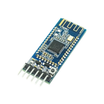
- HM-10 Bluetooth 4.0 BLE Module - BLE UART module that iOS can connect to.
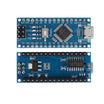
- Arduino Nano V3.0 Pre-Soldered - Arduino board that runs the sketch and controls the LED/output.
- 120 PCS Dupont Jumper Wires - wiring between the Nano and HM-10.
External
- iPhone or iPad
- LightBlue app (free from the App Store) - BLE scanner/tester used to connect and send data
- 2 x 1 kΩ resistors (optional) - for a voltage divider on the HM-10 RX pin if your Arduino logic is 5 V
Note: The HM-10 uses BLE 4.0, which is what iOS allows for third-party Bluetooth. HC-05 is Bluetooth Classic and will not pair with an iPhone for typical maker projects due to Apple's restrictions.
Step-by-Step Guide
Step 1 - Inspect the Module
Goal: Identify the HM-10 pins and confirm it is a 3.3 V logic BLE module.
What to do: Check that your HM-10 breakout exposes the typical 6-pin header and note that it is based on the TI CC2541. Plan your wiring so TX/RX will cross correctly to the Arduino.

Expected result: You know which pins are VCC, GND, TX, and RX before wiring.
Step 2 - Wire It Up
Goal: Connect the HM-10 to the Arduino over UART using SoftwareSerial pins.
What to do: Wire power and ground first, then cross TX/RX. If your Arduino runs 5 V logic, use a resistor divider into the HM-10 RX pin.

- HM-10 VCC to 3.3 V or 5 V (the breakout has a regulator)
- HM-10 GND to GND
- HM-10 TX to Arduino D2 (Arduino RX via SoftwareSerial)
- HM-10 RX to Arduino D3 (Arduino TX via SoftwareSerial) - use a divider if your Arduino runs 5 V logic
Expected result: The module is powered and connected to Arduino pins D2 and D3 for BLE serial data.
Step 3 - Upload the Arduino Sketch
Goal: Make the Arduino read incoming BLE characters and toggle the built-in LED on pin 13.
What to do: Upload the sketch below. It listens on SoftwareSerial for characters from the HM-10. Send 1 to turn the LED on and 0 to turn it off.
Code:
#include <SoftwareSerial.h>

SoftwareSerial ble(2, 3);   // RX, TX
const int LED = 13;

void setup() {
  Serial.begin(9600);
  ble.begin(9600);
  pinMode(LED, OUTPUT);
}

void loop() {
  while (ble.available()) {
    char c = ble.read();
    Serial.write(c);
    if (c == '1') digitalWrite(LED, HIGH);
    if (c == '0') digitalWrite(LED, LOW);
  }
  while (Serial.available()) ble.write(Serial.read());
}
Expected result: The Arduino is ready to respond to BLE characters and you can view received data in the Serial Monitor.
Step 4 - Connect from Your iPhone (LightBlue)
Goal: Discover the HM-10 in a BLE app and write characters to its UART-like characteristic.
What to do: Open LightBlue, tap the HM-10 device, then locate the writable characteristic and send text values.

- Open LightBlue on your iPhone
- Tap the HM-10 entry (default name: "HMSoft")
- Find the writable characteristic FFE1
- Send the text 1 to turn the Arduino LED on
- Send 0 to turn it off
Expected result: Your iPhone is connected over BLE and can write data to the HM-10.
Step 5 - Test the Live Control
Goal: Confirm the Arduino responds immediately to BLE commands.
What to do: In the LightBlue write field for the FFE1 characteristic, repeatedly send 1 and 0 and observe the LED on the Arduino.
Expected result: The LED turns on with "1" and turns off with "0" in real time.
Step 6 - Where to Take It Next
Goal: Extend the same BLE command link to real projects.
What to do: Use the same approach (write to FFE1, read characters on the Arduino) and expand what each command does.
- Build a custom iOS Swift app that talks to characteristic FFE1 for app-based control
- Swap the LED for a relay for smart-plug-style control from your phone
- Use the HM-10 AT commands to rename the device, set a password, or lower broadcast power
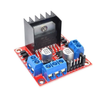
- Pair with an L298N motor driver for an iPhone-controlled RC car
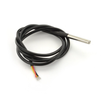
- Add a temperature sensor and let your iPhone read live temperature over BLE
Expected result: You have a working BLE-to-Arduino control channel you can apply to relays, motors, and sensors.
Conclusion
You built an iPhone-compatible Arduino controller using an Arduino Nano and the HM-10 BLE module, then used LightBlue to write characters (FFE1) that toggle an output in real time. This is the practical BLE alternative to Bluetooth Classic modules when iOS compatibility matters.
Want the exact parts used in this build? Grab them from ShillehTek.com. If you want help customizing this project or building something for your product, check out our IoT consulting services.
Photo credit: HM-10 photos and wiring are credited to Instructables.



.png?v=25000753014097803521791168436)

.png?v=68677308723310773341791168436)


