

Project Overview
Arduino + MLX90614: In this tutorial, you will wire an MLX90614 non-contact IR thermometer to an Arduino and read both ambient and object temperature over I2C in the Serial Monitor.
The MLX90614 is a non-contact infrared thermometer that reads object temperature from up to a few centimetres away. It is the same sensor used in many forehead thermometers, food-safety tools, and monitoring setups.
- Time: ~10 minutes
- Skill level: Beginner
- What you will build: An Arduino reading both ambient and object temperature over I2C.

Parts List
From ShillehTek
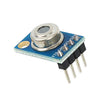
- MLX90614 Pre-Soldered IR Temperature Sensor - the non-contact IR thermometer module (I2C).
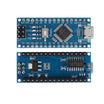
- Arduino Nano V3.0 Pre-Soldered - reads the sensor over I2C and prints temperatures to Serial.
- 120 PCS Dupont Jumper Wires - for quick VCC, GND, SDA, and SCL connections.
External
- USB cable - to power and program the Arduino
- Arduino IDE - to upload the sketch
Note: The MLX90614 itself is a 3 V device, but the GY-906 breakout includes an on-board regulator so it can accept 3 to 5 V on VCC.
Step-by-Step Guide
Step 1 - Inspect the module
Goal: Identify the MLX90614 breakout parts and confirm the pin labels before wiring.
What to do: Check the front for the IR sensor can and make sure the sensor window is clean. Then locate the 4-pin header labels (VCC, GND, SDA, SCL) on the board or silkscreen.


Expected result: You know which pins are power and which pins are I2C (SDA and SCL).
Step 2 - Wire it to the Arduino (I2C)
Goal: Connect power and I2C so the Arduino can communicate with the MLX90614.
What to do: Wire VCC and GND to the Arduino power pins, and connect SDA and SCL to the Arduino I2C pins for your board. Use the wiring diagram below as a reference.

Expected result: The sensor is powered and the I2C lines are connected, ready for code upload.
Step 3 - Install the library and upload the sketch
Goal: Load a working example that prints ambient and object temperature readings.
What to do: In the Arduino IDE, install Adafruit MLX90614 using the Library Manager. Then paste and upload the sketch below.
Code:
#include <Wire.h>
#include <Adafruit_MLX90614.h>

Adafruit_MLX90614 mlx = Adafruit_MLX90614();

void setup() {
  Serial.begin(9600);
  if (!mlx.begin()) { Serial.println("MLX not found"); while (1); }
}

void loop() {
  Serial.print("Ambient="); Serial.print(mlx.readAmbientTempC(), 1);
  Serial.print(" C  Object="); Serial.print(mlx.readObjectTempC(), 1);
  Serial.println(" C");
  delay(500);
}
Expected result: The sketch uploads successfully and the Arduino begins streaming temperature values over Serial.
Step 4 - Read temperatures in the Serial Monitor
Goal: Verify the sensor is measuring and reporting different object temperatures.
What to do: Open the Serial Monitor (9600 baud). Aim the sensor at different targets (for example, a hot drink, your skin, or a radiator) and watch the object temperature change.

Expected result: You see both Ambient and Object temperatures updating about twice per second.
Step 5 - Expand the project
Goal: Use the same sensor readings in a real project idea.
What to do: Choose one direction below and build from the same wiring and sketch (for example, add a display, logging, or alarm logic).
- Build a fingertip thermometer with an OLED readout
- Monitor a 3D printer hot-end externally for thermal-runaway protection
- Cook food by tracking surface temperature of a steak in real time
- Detect overheating components on a busy PCB
Expected result: You have a clear next step for turning MLX90614 readings into a complete build.
Conclusion
You built an Arduino MLX90614 non-contact thermometer that reads ambient and object temperature over I2C and prints the results to the Serial Monitor. This gives you touch-free temperature measurement using only four wires and a simple library.
Want the exact parts used in this build? Grab them from ShillehTek.com. If you want help customizing this project or building a thermal-monitoring feature into your product, check out our IoT consulting services.
Attribution: The MLX90614 photos and wiring diagrams in this tutorial are credited to Instructables.



.png?v=25000753014097803521791168436)

.png?v=68677308723310773341791168436)


