

Project Overview
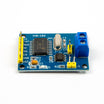
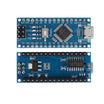
Arduino Nano + MCP2515 CAN Bus module: In this project, you will use an Arduino Nano and an MCP2515 CAN Bus module (with TJA1050 transceiver) to read raw CAN frames from your car through the OBD-II port.
Every car built after 2008 talks to itself over a Controller Area Network. With an MCP2515 module and an Arduino you can observe RPM, speed, throttle position, engine codes, door locks, and many other signals on the bus. This is a low-cost way to get started with automotive CAN sniffing.
- Time: ~30 minutes
- Skill level: Intermediate
- What you will build: An Arduino reading raw CAN frames from your vehicle’s OBD-II port.

Parts List
From ShillehTek
- MCP2515 CAN Bus Module with TJA1050 - reads CAN frames over SPI and interfaces to CAN-H/CAN-L.
- Arduino Nano V3.0 Pre-Soldered - runs the sketch and prints received CAN frames over Serial.
- 120 PCS Dupont Jumper Wires - for SPI wiring between the Arduino and MCP2515 module.
External
- An OBD-II to DB9 cable (or you can splice into the OBD-II connector) - to access the vehicle CAN pins.
- A car - preferably one you own and are not worried about.
Note: Read-only sniffing is safe. Writing to the bus can do anything from rolling down windows to disabling brakes - do not transmit until you understand what you are doing.
Step-by-Step Guide
Step 1 - Understand CAN
Goal: Know what you are tapping into and what the MCP2515 module does.
What to do: Review the basics before wiring anything. CAN is a differential two-wire bus (CAN-H and CAN-L) carrying short broadcast messages, typically at 500 kbps in many vehicles. Every device on the bus sees every message and chooses which to act on. The MCP2515 is the SPI-attached CAN controller; the TJA1050 is the physical-layer transceiver that drives the CAN-H/CAN-L wires.


Expected result: You understand which pins are SPI and which terminals connect to the vehicle (CAN-H and CAN-L).
Step 2 - Wire the MCP2515 to Your Arduino
Goal: Connect the MCP2515 module to the Arduino over SPI and set up the interrupt pin.
What to do: Wire the module to your Arduino using the following connections. This uses a standard SPI hookup with CS on D10 and INT on D2.

- VCC - 5 V, GND - GND
- CS - D10
- SO - D12 (Arduino MISO)
- SI - D11 (Arduino MOSI)
- SCK - D13
- INT - D2 (external interrupt 0)
Expected result: The MCP2515 module is powered and connected to the Arduino SPI bus, with INT wired for receive notifications.
Step 3 - Connect to OBD-II
Goal: Connect CAN-H, CAN-L, and ground to the vehicle through the OBD-II port.
What to do: With the car parked, connect the MCP2515 CAN terminals to the OBD-II CAN pins, and share a ground reference with the vehicle.

- CAN-H (screw terminal) - OBD-II pin 6
- CAN-L (screw terminal) - OBD-II pin 14
- GND (Arduino) - OBD-II pin 4 or 5
Expected result: The MCP2515 module is physically connected to the vehicle CAN bus (CAN-H/CAN-L) and shares ground with the vehicle.
Step 4 - Upload the Sketch
Goal: Install the required library and run a sketch that prints raw CAN frames to the Serial Monitor.
What to do: Install MCP_CAN_lib by Cory J. Fowler via the Arduino Library Manager. Then upload the following sketch and open the Serial Monitor at 115200 baud.
Code:
#include <SPI.h>
#include <mcp_can.h>

const int CS  = 10;
const int INT_PIN = 2;
MCP_CAN can(CS);

void setup() {
  Serial.begin(115200);
  while (can.begin(MCP_ANY, CAN_500KBPS, MCP_8MHZ) != CAN_OK) {
    Serial.println("MCP2515 init failed, retrying...");
    delay(500);
  }
  can.setMode(MCP_NORMAL);
  pinMode(INT_PIN, INPUT);
  Serial.println("CAN bus listening...");
}

void loop() {
  if (!digitalRead(INT_PIN)) {
    long unsigned id;
    byte len, buf[8];
    can.readMsgBuf(&id, &len, buf);
    Serial.print("ID="); Serial.print(id, HEX);
    Serial.print(" LEN="); Serial.print(len);
    Serial.print(" DATA=");
    for (byte i = 0; i < len; i++) {
      if (buf[i] < 0x10) Serial.print('0');
      Serial.print(buf[i], HEX);
      Serial.print(' ');
    }
    Serial.println();
  }
}
Expected result: You see CAN bus listening... in Serial Monitor, and then message lines appear as the vehicle broadcasts frames.
Step 5 - Watch the Bus
Goal: Confirm you are receiving real traffic from the vehicle CAN bus.
What to do: With everything connected, watch the Serial Monitor output. You should see arbitration IDs, payload lengths, and data bytes for each frame received.


Expected result: The Serial Monitor continuously prints raw CAN frames while the vehicle network is active.
Step 6 - Where to Take It Next
Goal: Plan the next upgrade after you can reliably read frames.
What to do: Choose a direction based on what you want to build next:
- Decode standard OBD-II PIDs to read RPM, speed, and throttle position
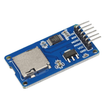
- Log all bus traffic to microSD for offline analysis
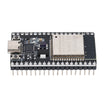
- Pair with an ESP32 to stream live telemetry to your phone over Wi-Fi
- Build a custom dash gauge that pulls real CAN data instead of mock values
Expected result: You have a clear next step, whether that is decoding PIDs, logging, streaming, or building a display.
Conclusion
You used an Arduino Nano with an MCP2515 CAN Bus module to listen to your car’s OBD-II CAN network and print raw CAN frames to the Serial Monitor. Once you can read frames reliably, you can start decoding signals and building dashboards, loggers, and telemetry tools.
Want the exact parts used in this build? Grab them from ShillehTek.com. If you want help customizing this project or building something for your product, check out our IoT consulting services.



.png?v=25000753014097803521790645985)

.png?v=68677308723310773341790645985)


