

Project Overview
Arduino Nano + MAX30102 pulse oximeter: In this project you will wire a MAX30102 I2C sensor module to an Arduino and stream live heart rate (BPM) to the Serial Monitor. The MAX30102 combines red and IR LEDs with a photodiode, similar to the hardware family used in commercial pulse oximeters.
With the right wiring and library, you can build a fingertip heart-rate (and eventually SpO2) sensor for a low-cost prototype.
- Time: About 25 minutes
- Skill level: Intermediate
- What you will build: An Arduino streaming live heart rate (BPM) and SpO2 data to the Serial Monitor.

Parts List
From ShillehTek
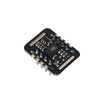
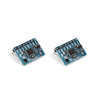
- MAX30102 Pre-Soldered Pulse Oximeter - the I2C heart rate and SpO2 sensor module.
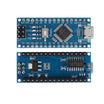
- Arduino Nano V3.0 Pre-Soldered - runs the sketch and prints BPM to the Serial Monitor.
- 120 PCS Dupont Jumper Wires - connects the sensor to the Arduino I2C pins.
External
- USB cable - to power and program the Arduino Nano
- Arduino IDE - to install the library and upload the sketch
Note: This is a hobby sensor, not medical hardware. It is great for learning and projects; do not use it for diagnostic decisions.
Step-by-Step Guide
Step 1 - Inspect the MAX30102 module
Goal: Identify the sensor window and the I2C pins you will wire to the Arduino.
What to do: Locate the LED/photodiode window on the front of the module. Then confirm the pin labels (VIN, GND, SCL, SDA). Some boards also expose optional pins like INT and IRD.


Expected result: You can clearly identify VIN, GND, SDA, and SCL on your specific MAX30102 module.
Step 2 - Wire I2C to the Arduino Nano
Goal: Connect the MAX30102 to the Arduino Nano over I2C so the library can detect the sensor.
What to do: Make these connections: VIN to 5V (or 3.3V), GND to GND, SDA to A4, and SCL to A5 on the Arduino Nano.

Expected result: The sensor is powered and connected on I2C, ready for detection by the Arduino sketch.
Step 3 - Install the SparkFun MAX3010x library
Goal: Add the driver and example code used for reading pulse data from the MAX30102.
What to do: In the Arduino IDE, open the Library Manager and install SparkFun MAX3010x. The library includes example sketches under File → Examples → SparkFun MAX3010x → Example5_HeartRate, which this project uses as the base.
Expected result: The SparkFun MAX3010x examples are available in your Arduino IDE.
Step 4 - Upload the sketch
Goal: Program the Arduino to read the IR signal, detect beats, and print BPM and an average to the Serial Monitor.
What to do: Create a new sketch (or adapt the example) and upload the code below. Then open the Serial Monitor at 115200 baud.
Code:
#include <Wire.h>
#include <MAX30105.h>
#include <heartRate.h>

MAX30105 sensor;
const byte AVG = 4;
byte rates[AVG];
byte rateSpot = 0;
long lastBeat = 0;
float beatsPerMinute;
int  beatAvg;

void setup() {
  Serial.begin(115200);
  if (!sensor.begin(Wire, I2C_SPEED_FAST)) {
    Serial.println("MAX30102 not found");
    while (1);
  }
  sensor.setup();             // sensible defaults
  sensor.setPulseAmplitudeRed(0x0A);
  sensor.setPulseAmplitudeGreen(0);
  Serial.println("Place a finger over the sensor...");
}

void loop() {
  long ir = sensor.getIR();
  if (checkForBeat(ir)) {
    long delta = millis() - lastBeat;
    lastBeat = millis();
    beatsPerMinute = 60.0 / (delta / 1000.0);
    if (beatsPerMinute < 255 && beatsPerMinute > 20) {
      rates[rateSpot++] = (byte)beatsPerMinute;
      rateSpot %= AVG;
      beatAvg = 0;
      for (byte i = 0; i < AVG; i++) beatAvg += rates[i];
      beatAvg /= AVG;
    }
  }
  Serial.print("IR=");        Serial.print(ir);
  Serial.print(" BPM=");      Serial.print(beatsPerMinute);
  Serial.print(" Avg=");      Serial.println(beatAvg);
}
Expected result: The Serial Monitor prints sensor readings and prompts you to place a finger over the sensor.
Step 5 - Place your finger and watch the readings
Goal: Get a stable heart rate reading by ensuring good fingertip contact and steady pressure.
What to do: Place a fingertip over the sensor window and keep still. Watch the Serial Monitor for the BPM value and the running average to stabilize.


Expected result: You see live BPM and an averaged BPM updating continuously, and the IR waveform becomes visible in the Serial Plotter.
Step 6 - Where to take it next
Goal: Extend the basic BPM readout into a more complete project.
What to do: If you want to expand beyond this tutorial, consider these next steps:
- Compute SpO2 from the red/IR ratio for a pulse-ox display
- Add an OLED for a stand-alone fingertip monitor
- Pair with an ESP32 to push readings to a fitness dashboard
- Combine with an MPU6050 for activity-aware heart-rate logging
Expected result: You have a clear direction for adding features once your BPM output is stable.
Conclusion
You built an Arduino Nano and MAX30102 project that reads the sensor over I2C and prints live heart rate (BPM) plus an average to the Serial Monitor. Once you have stable BPM output, you can build toward SpO2 estimation, on-device displays, or wireless logging.
Want the exact parts used in this build? Grab them from ShillehTek.com. If you want help customizing this project or building something for your product, check out our IoT consulting services.
Attribution: The photos and code in this tutorial are credited to Instructables, which served as a reference for this ShillehTek version.



.png?v=25000753014097803521790645985)

.png?v=68677308723310773341790645985)


