

Video Tutorial (Optional)
Watch first if you want to see the ADS1115 and MQ-135 setup on a Raspberry Pi in real time.
Project Overview
Raspberry Pi + ADS1115 + MQ-135: In this project, you connect an ADS1115 analog-to-digital converter to a Raspberry Pi to read the analog output of an MQ-135 gas sensor, then print voltage readings in Python for basic air quality monitoring.
The Raspberry Pi is great for digital tasks but it does not have built-in analog inputs. The ADS1115 fills that gap with precise 16-bit analog-to-digital conversion so the Pi can capture analog sensor data such as the MQ-135 output.
If you want to follow along and support the channel, here are the original links from the post: Youtube, https://www.buymeacoffee.com/mmshilleh, and https://www.upwork.com/freelancers/~017060e77e9d8a1157.
- Time: 30 to 60 minutes
- Skill level: Beginner
- What you will build: A Raspberry Pi script that reads MQ-135 analog voltage through an ADS1115 over I2C
Parts List
From ShillehTek
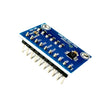
- ShillehTek ADS1115 Pre-Soldered - I2C ADC module used to read analog sensor voltage on the Raspberry Pi
Additional parts
- Raspberry Pi (any model with GPIO pins)
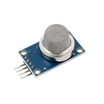
- MQ-135 gas sensor module (with analog output)
- Jumper wires
- Breadboard (optional, but recommended)
- ADS1115 from ShillehTek (available from ShillehTek)
Note: The ADS1115 uses I2C and typically appears at address 0x48 unless the address pin is configured differently. Power the ADS1115 from 3.3V on the Raspberry Pi. The MQ-135 module is commonly powered from 5V but must share common ground with the Pi and ADS1115.
Step-by-Step Guide
Step 1 - Assemble the components
Goal: Make sure you have all hardware needed for an ADS1115 to Raspberry Pi I2C build with an MQ-135 analog sensor.
What to do: Gather:
- Raspberry Pi (any model with GPIO pins)
- ADS1115 ADC module
- MQ-135 gas sensor
- Jumper wires
- Breadboard (optional, but recommended for prototyping)
Expected result: All parts are ready, and you can start wiring.
Step 2 - Set up the hardware wiring
Goal: Wire the ADS1115 to the Raspberry Pi over I2C and route the MQ-135 analog output into the ADS1115.
What to do: Wire the connections like this.
Connect the ADS1115 to the Raspberry Pi (I2C):
- VDD to Pi 3.3V
- GND to Pi GND
- SCL to Pi SCL (GPIO 3)
- SDA to Pi SDA (GPIO 2)
Connect the MQ-135 sensor to the ADS1115:
- AOUT to ADS1115 A0 (reads the analog output from the MQ-135)
Power the MQ-135 sensor:
- VCC to Pi 5V
- GND to Pi GND (common ground with ADS1115 and Pi)
Assembly tips:
- Use a breadboard for easier and safer prototyping.
- Ensure secure connections to prevent erratic readings.

Expected result: ADS1115 is powered from 3.3V and connected to GPIO 2/3, and the MQ-135 AOUT is connected to ADS1115 A0 with a shared ground.
Step 3 - Enable and verify I2C on the Raspberry Pi
Goal: Enable I2C so the Raspberry Pi can communicate with the ADS1115.
What to do: If I2C is not enabled yet:
- Open a terminal window on the Raspberry Pi.
- Run
sudo raspi-config. - Go to
Interfacing Options, selectI2C, and enable it. - Exit and reboot if prompted.
To confirm the ADS1115 shows up on the I2C bus, run:
sudo i2cdetect -y 1Expected result: You should see the ADS1115 address listed, typically 0x48 unless it was changed by address pin configuration.
Step 4 - Install the necessary Python libraries
Goal: Install the Adafruit ADS1x15 library so Python can read the ADS1115.
What to do: In a terminal:
sudo apt-get update
sudo apt-get install python3-pip
sudo pip3 install adafruit-ads1x15
Expected result: The library installs successfully and can be imported in Python.
Step 5 - Write and run the Python script to read MQ-135 voltage
Goal: Initialize the ADS1115 over I2C and continuously print the MQ-135 analog voltage from channel A0.
What to do: Create a new Python script and paste the following code (adjust the input channel if you wired AOUT to a different ADS1115 pin).
Code:
import time
import board
import busio
import adafruit_ads1x15.ads1115 as ADS
from adafruit_ads1x15.analog_in import AnalogIn


i2c = busio.I2C(board.SCL, board.SDA)

# Create the ADS object and specify the gain
ads = ADS.ADS1115(i2c)
ads.gain = 1
chan = AnalogIn(ads, ADS.P0)

# Continuously print the values
while True:
    print(f"MQ-135 Voltage: {chan.voltage}V")
    time.sleep(1)
You can use any analog-output device. The MQ-135 is used here because it is common and easy to interpret.
Expected result: Running the script prints voltage values in the terminal. If you expose the MQ-135 to something like alcohol vapors, you should see the voltage increase.

Step 6 - Adjust ADS1115 gain as needed
Goal: Tune the ADS1115 input range to improve accuracy and avoid clipping based on your sensor output.
What to do: The gain sets the full-scale voltage range the ADS1115 can read accurately. Higher gain increases sensitivity for lower voltages, but can saturate if the sensor output exceeds the range.
- Higher gain (example: gain = 4 for ±1.024V range): better resolution for low voltages, but may clip if the signal is too high.
- Lower gain (example: gain = 1 for ±4.096V range): supports higher voltages without saturation, but with less sensitivity.
In your script, change the gain line as needed:
- Find
ads.gain = 1 - Try a different value (for example
ads.gain = 4if your readings stay under about 1V and you want finer resolution) - Save and rerun the script to compare results
Expected result: Readings show useful detail without sticking at a constant maximum or minimum value (which can indicate saturation).
Conclusion
You now have a Raspberry Pi reading the MQ-135 gas sensor’s analog output using an ADS1115 over I2C, with live voltage readings printed in Python. This approach lets you use many analog sensors that the Raspberry Pi cannot read directly.
Want the exact parts used in this build? Grab them from ShillehTek.com, including the ADS1115 Pre-Soldered. If you want help customizing this project or building something similar for your product, check out our IoT consulting services (or hire via UpWork).




.png?v=25000753014097803521791168436)

.png?v=68677308723310773341791168436)


