

Video Tutorial
Watch first if you want to follow the full ESP32 + DHT22 setup and code in real time.
Project Overview
ESP32 + DHT22 Temperature and Humidity Sensor: In this project, you will wire a DHT22 to an ESP32 and print live humidity, Celsius, and Fahrenheit readings to the Serial Monitor using Arduino. This is a simple foundation for data logging, dashboards, alerts, or adding a display later.
- Time: 10 to 20 minutes
- Skill level: Beginner
- What you will build: An ESP32 sensor reader that logs DHT22 humidity and temperature (C and F) over Serial every 2 seconds
Parts List
From ShillehTek
- Breadboard - quick wiring without soldering
- Jumper wires - connects the ESP32 to the DHT22
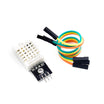
- ShillehTek DHT22 - measures environmental conditions humidity and temperature
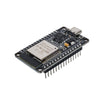
- ESP-WROOM-32 ESP32 Dev Board CP2102 USB-C Pre-Soldered - the development board used in this build
Step-by-Step Guide
Step 1 - Wire the DHT22 to the ESP32 (GPIO5)
Goal: Connect power, ground, and the data pin so the ESP32 can read the sensor.
What to do: Wire your sensor like this:
- DHT22 VCC to ESP32 3V3
- DHT22 GND to ESP32 GND
-
DHT22 DATA to ESP32 GPIO5 (this matches
#define DHTPIN 5)

Expected result: Your DHT22 is powered from 3.3V, grounded, and its DATA line is connected to GPIO5.
Step 2 - Install the DHT library in Arduino
Goal: Install the library that reads the DHT22 sensor.
What to do: In Arduino IDE, open Library Manager and install DHT sensor library. If prompted, also install required dependencies (often Adafruit Unified Sensor).
Expected result: The DHT library is installed and available for your sketch.
Step 3 - Upload the code
Goal: Flash the ESP32 so it reads humidity and temperature every 2 seconds.
What to do: Copy and upload this sketch. It reads humidity, temperature in Celsius, and temperature in Fahrenheit. If a read fails, it prints an error message and tries again after 2 seconds.
Code:
#include <DHT.h>

  #define DHTPIN 5      // D5 on ESP32 (GPIO5)
  #define DHTTYPE DHT22

  DHT dht(DHTPIN, DHTTYPE);

  void setup() {
    Serial.begin(115200);
    dht.begin();
  }

  void loop() {
    float h = dht.readHumidity();
    float t = dht.readTemperature();       // Celsius
    float f = dht.readTemperature(true);   // Fahrenheit

    if (isnan(h) || isnan(t) || isnan(f)) {
      Serial.println("DHT22 read failed");
      delay(2000);
      return;
    }

    Serial.print("Humidity: ");
    Serial.print(h, 1);
    Serial.print("%  Temp: ");
    Serial.print(t, 1);
    Serial.print("C  ");
    Serial.print(f, 1);
    Serial.println("F");

    delay(2000);
  }
Expected result: The sketch uploads successfully to the ESP32.
Step 4 - Open Serial Monitor and verify readings
Goal: Confirm you are getting real sensor data.
What to do: Open Tools -> Serial Monitor and set the baud rate to 115200. You should see a new line printed about every 2 seconds.

Expected result: You should see lines like:
Humidity: 45.2% Temp: 22.9C 73.2F
Note: If you see DHT22 read failed, double check wiring (especially DATA on GPIO5), confirm you are powering the sensor correctly, and verify your sensor type is set to DHT22.
Conclusion
You just wired a DHT22 to an ESP32 and printed humidity and temperature readings (C and F) to the Serial Monitor. From here, you can log these readings to a file, send them to a web dashboard, trigger alerts, or display them on an LCD or OLED.
Want the exact parts used in this build? Grab them from ShillehTek.com. If you want help customizing this project or building something for your product, check out our IoT consulting services.




.png?v=25000753014097803521791168436)

.png?v=68677308723310773341791168436)


