


Project Overview
Arduino UNO R3 vs Leonardo vs UNO R4 Minima vs UNO R4 WiFi: This guide compares the Arduino UNO family so you can pick the right board for your next project, based on USB behavior, I/O, power, and code compatibility.
The classic blue Arduino UNO has been the entry point for almost every maker since 2010, but it is no longer the only "UNO" on the shelf. Today you can buy four boards that all share the UNO footprint: the UNO R3 with the ATmega328P, the Leonardo with the ATmega32U4, the new UNO R4 Minima built around the 32-bit Renesas RA4M1, and the UNO R4 WiFi which adds an ESP32-S3 co-processor plus an onboard 12x8 LED matrix.
This walkthrough covers the meaningful spec differences, what changes in your code when you swap boards, and how to pick the right "UNO" for the project on your desk. If you build with our Arduino Nano, Pro Micro, or any UNO-compatible boards in our catalog, the takeaways here will translate directly.
- Time: 10 to 20 minutes
- Skill level: Beginner
- What you will build: A clear shortlist of which UNO-family board to buy for your use case
Parts List
From ShillehTek
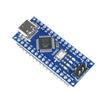
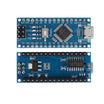
- Arduino Nano V3.0 Pre-Soldered (ATmega328P) - same MCU as the UNO R3, smaller footprint.
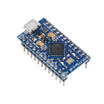
- Pro Micro ATmega32U4 - same chip family as the Arduino Leonardo (native USB-HID).
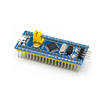
- STM32F103C8T6 Blue Pill - an option if you want to step up to a 32-bit ARM Cortex board.
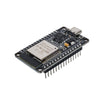
- ESP-WROOM-32 Dev Board - similar WiFi/BT class to what Arduino pairs with the UNO R4 WiFi conceptually.
External
- An Arduino UNO R3, Leonardo, UNO R4 Minima, or UNO R4 WiFi (whichever you are comparing).
- USB-A to USB-B (R3/Leonardo) or USB-C (R4) cable.
- A breadboard plus jumper wires - we use our 830-point breadboard and DuPont wire kit.
Note: All boards discussed share the UNO shield footprint, but USB behavior and low-level register code can differ significantly between ATmega-based boards and the UNO R4 (Renesas RA4M1).
Step-by-Step Guide
Step 1 - Compare the core specs at a glance
Goal: Understand the biggest hardware differences between UNO variants.
What to do: Use the list below to identify which CPU family you are actually buying and what that implies for performance and memory.

All four boards share the same shield footprint, but the silicon underneath is very different:
- UNO R3: 8-bit ATmega328P @ 16 MHz, 32 KB flash, 2 KB SRAM, 5 V I/O.
- Leonardo: 8-bit ATmega32U4 @ 16 MHz, 32 KB flash, 2.5 KB SRAM, 5 V I/O, native USB (it can become a keyboard or mouse).
- UNO R4 Minima: 32-bit Renesas RA4M1 (Cortex-M4) @ 48 MHz, 256 KB flash, 32 KB SRAM, 5 V I/O.
- UNO R4 WiFi: RA4M1 + ESP32-S3 co-processor for WiFi/BT, USB-C, 12x8 onboard LED matrix.
That is a 16x flash bump and a 16x SRAM bump from R3 to R4, plus a jump from 8-bit to 32-bit math.
Expected result: You can immediately tell whether you need classic AVR compatibility (R3/Leonardo) or the extra headroom and peripherals of the R4 family.
Step 2 - Account for USB behavior (common gotcha)
Goal: Avoid upload and serial monitor confusion when switching boards.
What to do: Note how each board implements USB and how resets affect the COM port.
- The UNO R3 uses a dedicated ATmega16U2 chip for USB-to-serial.
- The Leonardo and the R4 family handle USB natively from the main MCU.
- On a Leonardo or UNO R4, a reset or auto-reset cycles the USB port too, so some IDEs need you to re-select the COM port.
- Leonardo and R4 WiFi can act as a USB HID device (keyboard, mouse, MIDI) without an external chip. The classic UNO R3 cannot do this cleanly.
- The R4 boards expose USB-C; the R3 and Leonardo are USB-B.
Expected result: You know what to expect when uploading sketches and when using USB-HID features.
Step 3 - Check I/O voltage and pin capability
Goal: Confirm electrical compatibility and identify R4-only peripherals.
What to do: Match your project needs (5 V I/O, DAC, CAN bus) to the board that supports them.

All four boards drive their digital I/O at 5 V (an important compatibility win for the R4 over most ARM boards). Pin counts:
- UNO R3 / Leonardo: 14 digital + 6 analog (A0 to A5).
- UNO R4 (both): 14 digital + 6 analog plus a 14-bit DAC on A0 and a CAN bus on D4/D5.
If you are wiring up an analog audio signal or a CAN-bus motor controller, only the R4 boards can do it without extra hardware.
Expected result: You can rule boards in or out based on I/O needs (especially DAC and CAN).
Step 4 - Decide if you need WiFi/Bluetooth and the LED matrix
Goal: Determine whether the UNO R4 WiFi features matter for your build.
What to do: If you need wireless, focus on the R4 WiFi and its library support.
Only the UNO R4 WiFi ships with wireless. Internally it uses an ESP32-S3 talking to the RA4M1 over UART. From your sketch you use the WiFiS3 library, which is API-compatible with the older WiFiNINA code most makers already wrote.
The 12x8 red LED matrix is exclusive to the R4 WiFi and is exposed via the ArduinoGraphics library, which is useful for status icons, scrolling text, or animated indicators in finished projects.
Expected result: You know whether R4 WiFi is worth it for your connectivity and UI requirements.
Step 5 - Check sketch compatibility before you migrate code
Goal: Identify where older AVR-specific code may break on UNO R4.
What to do: Review common portability issues before committing to a board for an existing codebase.
Most "Blink"-style sketches port between all four boards with zero changes. Where you will trip:
-
Timer libraries: code that pokes ATmega328P timer registers directly will not compile on the R4. Switch to the
FspTimerlibrary on UNO R4. -
EEPROM: the R4 emulates EEPROM in data flash via the
EEPROM.hshim, but lifetime cycles are different from a real EEPROM. Design accordingly. -
SoftwareSerial: works on R3/Leonardo, but on R4 use a hardware UART (
Serial1) instead. It is exposed on D0/D1.
Expected result: You understand the main refactors required when moving AVR-targeted sketches to UNO R4.
Step 6 - Budget for power draw (especially on battery)
Goal: Avoid undersizing your power supply or battery pack.
What to do: Use the typical idle and peak numbers below as a sanity check when planning power.

The UNO R3 idles around 45 mA, the Leonardo around 35 mA. The UNO R4 Minima sits near 25 mA at idle. The R4 WiFi spikes to 100+ mA whenever the ESP32-S3 is transmitting, so budget your battery accordingly.
Expected result: You can pick a board that matches your runtime expectations and power source.
Step 7 - Choose the right board for your project
Goal: Make a purchase decision that matches your actual requirements.
What to do: Use the quick picks below based on what you are building.
- Pick UNO R3 if you are learning, want maximum library compatibility, or are following an older tutorial. A Nano works too: same chip, smaller footprint, often cheaper.
- Pick Leonardo (or our Pro Micro) if your project is a USB device like a macro pad, custom keyboard, or MIDI controller.
- Pick UNO R4 Minima if you need more RAM/flash, a DAC, or CAN bus, but you do not need wireless and want the lowest cost in the R4 family.
- Pick UNO R4 WiFi if you want WiFi, BLE, the LED matrix, and the RA4M1 platform in one board.
Expected result: You have a clear board choice based on USB needs, wireless, peripherals, and code constraints.
Conclusion
The Arduino UNO is no longer one board; it is a family. For many makers, the UNO R3 is still the right starting point because the documentation, libraries, and tutorial ecosystem are unmatched. If you outgrow the memory limits of AVR or need built-in DAC and CAN, the UNO R4 family is a meaningful upgrade you can drop in without changing your shields. If you want native USB tricks, the Leonardo (or a Pro Micro) remains the simplest path.
Want the exact parts used in this comparison? Grab them from ShillehTek.com. If you want help selecting hardware for your product or customizing an embedded build, check out our IoT consulting services.
Attribution: This comparison was inspired by Instructables - "Arduino Comparison in Detail: UNO R3, Leonardo, UNO R4 Minima and UNO R4 WiFi". Images credited to the original author of the source tutorial.




.png?v=25000753014097803521790645985)

.png?v=68677308723310773341790645985)


