

Project Overview
Arduino Nano + KY-040 rotary encoder + SSD1306 OLED: In this build, you will create a scroll-and-click menu UI where turning the encoder moves through items and pressing selects, with the OLED showing the current selection.
Buttons are fine for one or two settings, but the moment your project needs a menu (volume, brightness, temperature setpoint, fan speed, alarm time) a rotary encoder with a push button is the right input. Turn to scroll, push to select. The KY-040 is the standard maker rotary encoder: low cost, three rotation pins, an SPDT push-button switch, and it works with Arduino.
This guide builds a working OLED menu system around the KY-040 and an Arduino Nano. The pattern scales to any project: home brewing controller, sous-vide setpoint, 3D printer settings, smart fan, and more.

- Time: 20 to 40 minutes
- Skill level: Beginner to Intermediate
- What you will build: A 4-item OLED menu controlled by a KY-040 rotary encoder (turn to scroll, press to select).
Parts List
From ShillehTek
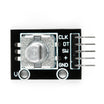
- KY-040 Pre-Soldered Rotary Encoder Module - the turn-and-press input used to navigate the menu
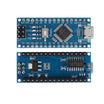
- Arduino Nano V3.0 - reads the encoder and drives the OLED menu
- 830-Point Breadboard - quick prototyping for encoder and OLED wiring
- DuPont Wire Kit - jumper wires to connect the Nano, KY-040, and OLED
External
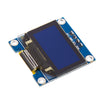
- 0.96 inch I2C OLED display (SSD1306, 128x64) - menu display
- Optional: knob for the encoder shaft (6 mm D-shaft, knurled top) - easier turning
Note: This wiring and sketch assume a 5V Arduino Nano and a common SSD1306 I2C OLED at address 0x3C. If your OLED uses a different address, you will need to update the code.
Step-by-Step Guide
Step 1 - Understand how the KY-040 reports rotation
Goal: Know what signals to read so you can determine direction and detect button presses.
What to do: The KY-040 outputs a quadrature signal on its CLK and DT pins. As you turn the shaft, the two pins go HIGH and LOW in a known sequence. By comparing the state of DT when CLK transitions, you can tell which direction the shaft turned. The SW pin is a momentary push button when you press down on the shaft.

Expected result: You understand that rotation is determined by reading DT when CLK changes, and the push button is read from SW.
Step 2 - Wire the KY-040 and the SSD1306 I2C OLED to the Arduino Nano
Goal: Connect power, the encoder pins, and the I2C display pins to the correct Nano pins.
What to do: Make the connections below. On a Nano, D2 and D3 are interrupt-capable, so the guide uses D2 for CLK.
KY-040       Arduino Nano
+        ->  5V
GND      ->  GND
CLK      ->  D2 (interrupt-capable)
DT       ->  D3
SW       ->  D4

OLED I2C     Arduino Nano
VCC      ->  5V
GND      ->  GND
SDA      ->  A4
SCL      ->  A5
Expected result: The encoder and OLED are powered, the encoder signals go to D2/D3/D4, and the OLED uses A4/A5 for I2C.
Step 3 - Upload the 4-item OLED menu sketch
Goal: Run a working menu where turning changes the highlighted item and pressing shows what you picked.
What to do: Paste the sketch into the Arduino IDE, install the required libraries (Adafruit_GFX and Adafruit_SSD1306), then upload to your Arduino Nano.
Code:
#include <Wire.h>
#include <Adafruit_GFX.h>
#include <Adafruit_SSD1306.h>

const int CLK = 2, DT = 3, SW = 4;
volatile int pos = 0;
int lastPos = 0, lastClk = HIGH;

const char* items[] = {"Brightness", "Volume", "Setpoint", "Exit"};
const int N = 4;
int selected = 0;

Adafruit_SSD1306 oled(128, 64, &Wire, -1);

void onRot() {
  int clk = digitalRead(CLK);
  if (clk != lastClk) {
    if (digitalRead(DT) != clk) pos++; else pos--;
    lastClk = clk;
  }
}

void draw() {
  oled.clearDisplay();
  for (int i = 0; i < N; i++) {
    oled.setCursor(8, i * 16);
    oled.setTextColor(i == selected ? BLACK : WHITE,
                       i == selected ? WHITE : BLACK);
    oled.print(items[i]);
  }
  oled.display();
}

void setup() {
  pinMode(CLK, INPUT_PULLUP);
  pinMode(DT, INPUT_PULLUP);
  pinMode(SW, INPUT_PULLUP);
  attachInterrupt(digitalPinToInterrupt(CLK), onRot, CHANGE);
  oled.begin(SSD1306_SWITCHCAPVCC, 0x3C);
  oled.setTextSize(1);
  draw();
}

void loop() {
  if (pos != lastPos) {
    selected = (selected + (pos > lastPos ? 1 : -1) + N) % N;
    lastPos = pos;
    draw();
  }
  if (digitalRead(SW) == LOW) {
    delay(50);  // debounce
    oled.clearDisplay();
    oled.setCursor(0, 24);
    oled.print("Picked: "); oled.print(items[selected]);
    oled.display();
    delay(800);
    draw();
  }
}
Expected result: The OLED shows a list of four items, turning the encoder moves the highlight, and pressing the encoder briefly shows Picked: with the selected item.
Step 4 - Check common gotchas if your input feels unreliable
Goal: Avoid the most common wiring and signal issues with the KY-040 and the Nano.
What to do: Verify the items below match your build.

- Bouncy reads: Some KY-040 modules need a 100 nF cap from CLK and DT to GND for clean reads. The library workaround is to debounce in software with a 5 ms guard.
- Interrupt pin choice: On a Nano only D2 and D3 are interrupt-capable. If you wire CLK to anything else, you have to poll.
- SW pin needs internal pull-up: Forget that and the button reads garbage.
Expected result: Rotation increments and decrements predictably, and the push button reads cleanly when pressed.
Step 5 - Apply the menu pattern to real projects
Goal: Identify where this same encoder-and-OLED menu approach fits into your own builds.
What to do: Use the same input pattern (turn to change selection, press to confirm) for settings-driven projects like these.

- Sous-vide controller: scroll temperature setpoint, click to start.
- Home stereo: encoder is volume, click is mute.
- 3D printer / kiln: navigate a full settings tree.
- Smart alarm clock: set hour by rotating, click to confirm, scroll to minutes.
- RC transmitter: switch between 4 channel trims with one encoder.
Expected result: You have clear next ideas for reusing the same KY-040 + OLED input pattern in more complex Arduino projects.
Conclusion
The KY-040 rotary encoder plus an SSD1306 OLED unlocks a real product feel UI on low-cost Arduino hardware. Once you have a menu pattern you like, every future project can get a menu quickly instead of rebuilding input logic from scratch.
Want the exact parts used in this build? Grab them from ShillehTek.com. If you want help customizing this project or building something for your product, check out our IoT consulting services.
Attribution: Inspired by Interactive Menus for Your Project With a Display and an Encoder on Instructables. Images credited to the original author.




.png?v=25000753014097803521788741467)

.png?v=68677308723310773341788741467)


