

Project Overview
Arduino Nano + INA219 + SSD1306 OLED power bank: In this build, you combine a TP4056 charger, an MT3608 boost converter, an INA219 current/power monitor, and an OLED display to create a DIY power bank that shows live voltage, current, and power while it runs.
Most basic power banks do not tell you how full they are, how much current they are delivering, or what the load is really doing. This project adds a simple wattmeter-style readout so you can see what is happening in real time.
- Time: ~2 hours
- Skill level: Intermediate
- What you will build: An 18650-powered power bank with a live wattmeter readout on an OLED.

Parts List
From ShillehTek
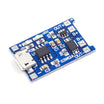
- TP4056 LiPo Charging Board - charges the 18650 cell from USB input.
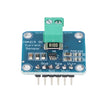
- INA219 Current/Power Monitor - measures voltage, current, and power inline on the 5V output path.
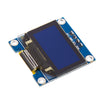
- 0.96" I b2C SSD1306 OLED - displays live electrical stats.
- MT3608 Boost Converter - boosts the 18650 voltage up to 5.0V for USB output.
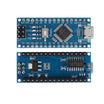
- Arduino Nano V3.0 - reads the INA219 over I b2C and drives the OLED.
- 120 PCS Dupont Jumper Wires - makes prototyping and wiring quick.
External
- 18650 LiPo cell + holder
- USB-A female socket (for output)
- Small project enclosure
Note: TP4056 charges the 18650 at 4.2V. MT3608 boosts the cell output to 5V for the USB load. INA219 sits inline to measure delivered current.
Step-by-Step Guide
Step 1 - Gather the components
Goal: Get all modules ready so you can wire power first, then I b2C.
What to do: Lay out the TP4056, 18650 holder, MT3608, INA219, Arduino Nano, and the SSD1306 OLED. Plan where they will sit in your enclosure before you start cutting wires.

Expected result: All parts are identified and positioned for a clean build.
Step 2 - Wire the power path
Goal: Create the charge and 5V output chain, with the INA219 measuring the USB output current.
What to do: Wire the modules in the order shown below, then adjust the MT3608 output to 5.0V before connecting a phone or other load.

- USB micro charging input TP4056 IN+/IN-
- TP4056 B+/B- 18650 cell holder
- 18650 MT3608 IN+/IN-, adjust MT3608 to output 5.0V
- MT3608 OUT+ INA219 Vin+
- INA219 Vin- USB-A 5V pin
- USB-A GND INA219 GND MT3608 OUT-
Expected result: You have a stable 5.0V output, and the INA219 is inline on the 5V path feeding the USB-A port.
Step 3 - Wire I b2C for the display and monitor
Goal: Put the INA219 and OLED on the Arduino Nano I b2C bus so the Nano can read measurements and display them.
What to do: Connect both devices to the same SDA/SCL lines and provide 5V and GND from the boosted (5V) side.
- INA219 SDA A4, SCL A5, VCC 5V (post-boost), GND GND
- OLED SDA A4, SCL A5 (shared bus), VCC 5V, GND GND
Expected result: Both the INA219 and OLED are connected to the Nano on I b2C and powered from 5V.
Step 4 - Upload the Arduino sketch
Goal: Read bus voltage, current, and power from the INA219 and print the live values to the OLED.
What to do: Compile and upload the following code to your Arduino Nano. It updates the display every 500 ms.
Code:
#include <Wire.h>
#include <Adafruit_INA219.h>
#include <Adafruit_GFX.h>
#include <Adafruit_SSD1306.h>
Adafruit_INA219 ina;
Adafruit_SSD1306 oled(128, 64, &Wire, -1);
void setup() {
  ina.begin();
  oled.begin(SSD1306_SWITCHCAPVCC, 0x3C);
  oled.setTextColor(SSD1306_WHITE); oled.setTextSize(1);
}
void loop() {
  float v = ina.getBusVoltage_V(), mA = ina.getCurrent_mA(), mW = ina.getPower_mW();
  oled.clearDisplay(); oled.setCursor(0, 0);
  oled.printf("V: %.2f V\nI: %.0f mA\nP: %.0f mW\n", v, mA, mW);
  oled.display();
  delay(500);
}
Expected result: The OLED shows live voltage (V), current (mA), and power (mW) from the INA219.
Step 5 - Assemble and use the power bank
Goal: Fit the modules into an enclosure and verify that the OLED updates while charging or powering a load.
What to do: Mount the modules securely, route the USB ports to the case openings, and double-check polarity on the battery and 5V rails. Plug in a USB load and confirm the display responds to changes in current draw.


Expected result: When you plug in a device, the OLED shows changing current and power values as the load changes.
Step 6 - Where to take it next
Goal: Identify safe, logical upgrade paths if you want more features.
What to do: Consider these optional enhancements:
- Add coulomb counting - integrate mA time for a state-of-charge estimate
- Switch to multiple 18650 cells in parallel for 10,000+ mAh
- Add a TP4056 with USB-C input for modern charging
- Replace Arduino with ESP32 and push stats to a phone dashboard
Expected result: You have a clear list of next steps for expanding the project.
Conclusion
You built an Arduino Nano-based DIY power bank using a TP4056 charger, MT3608 boost converter, and INA219 monitor to show live voltage, current, and power on an SSD1306 OLED. It is a practical way to learn what your USB loads actually draw instead of guessing.
Want the exact parts used in this build? Grab them from ShillehTek.com. If you want help customizing this project or building something for your product, check out our IoT consulting services.
Credit: This power bank meter concept was inspired by a reference guide on Instructables.



.png?v=25000753014097803521791168436)

.png?v=68677308723310773341791168436)


