


Project Overview
Arduino Nano + DS3231 + TM1637: Build a desktop alarm clock that stays accurate for years by using a DS3231 battery-backed real-time clock (RTC) to drive a bright TM1637 4-digit display.
The TM1637 4-digit red 7-segment display is a low-cost, high-brightness way to show time, temperature, or a numeric counter on an Arduino. Pair it with a DS3231 RTC module (battery-backed, about ±2 ppm accuracy) and you get a digital clock that holds time even when unplugged for years. Add a buzzer and a couple of push buttons and you have a full alarm clock.
This guide walks through wiring a TM1637 4-digit display, the DS3231 RTC, and an Arduino Nano into a working clock that includes alarm, temperature read-out (the DS3231 has an on-chip thermometer), and 12/24-hour toggling.
- Time: 30 to 60 minutes
- Skill level: Beginner to Intermediate
- What you will build: A TM1637-based desktop clock that reads accurate time and temperature from a DS3231 and supports buttons (and an optional buzzer alarm).
Parts List
From ShillehTek
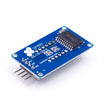
- TM1637 4-Bit Red LED Clock Display Module - 4-digit 7-segment display for showing time and temperature.
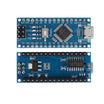
- Arduino Nano V3.0 - microcontroller to read the RTC and drive the display.
- 830-Point Breadboard - quick prototyping for the build.
- DuPont Wires - jumper wiring between modules and the Nano.
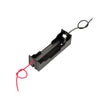
- 1x 18650 holder - optional portable power for a battery-powered clock.
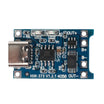
- TP4056 USB-C charger - optional charging board for a portable 18650-powered setup.
External
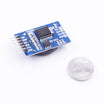
- DS3231 RTC module (with CR2032 battery) - keeps accurate time when unplugged.
- 2 momentary push buttons - set hour and set minute (wired with INPUT_PULLUP).
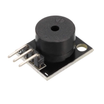
- Optional: small piezo buzzer - audible alarm output.
Note: This guide assumes a 5V Arduino Nano and 5V-compatible TM1637 and DS3231 modules. Wire buttons to GND and use INPUT_PULLUP as shown.
Step-by-Step Guide
Step 1 - Choose the DS3231 for long-term accuracy
Goal: Understand why the DS3231 is used in this clock build.
What to do: Use a DS3231 RTC for maker clock projects because it includes a temperature-compensated crystal oscillator (TCXO) that is typically accurate to about ±2 ppm, which is roughly 1 minute of drift per year. Cheaper options like the DS1307 use an external crystal and can drift much faster (around 1 minute per week). The DS3231 also provides two programmable alarms and an on-chip thermometer over I2C.
Expected result: You are set up to build a clock that stays accurate over long periods, even when unplugged (with a coin cell installed).
Step 2 - Wire the TM1637 display, DS3231 RTC, buttons, and buzzer
Goal: Connect the modules and inputs to the Arduino Nano with the correct pins.
What to do: Follow the wiring diagram and mapping below. The DS3231 uses I2C on the Nano (A4 SDA, A5 SCL). The TM1637 uses two digital pins (CLK and DIO). Buttons are wired to GND and use INPUT_PULLUP. The buzzer is optional.
TM1637      Arduino Nano
VCC      -> 5V
GND      -> GND
CLK      -> D2
DIO      -> D3

DS3231     Arduino Nano
VCC      -> 5V
GND      -> GND
SDA      -> A4
SCL      -> A5

Set button   -> D4 (other side to GND, INPUT_PULLUP)
Adv button   -> D5 (other side to GND, INPUT_PULLUP)
Buzzer       -> D6 (other side to GND)
Expected result: The Nano, TM1637, and DS3231 are fully connected and ready to run a basic time and temperature sketch.
Step 3 - Upload a sketch to show time and temperature
Goal: Display hours and minutes on the TM1637, and periodically show the DS3231 temperature.
What to do: Install the required libraries (TM1637 display library and an RtcDS3231 library), then upload the sketch below. If you need to set the time initially, uncomment the line that sets the RTC time, upload once, and then comment it back out so the RTC is not reset on every upload.
Code:
#include <Wire.h>
#include <RtcDS3231.h>
#include <TM1637Display.h>

#define CLK 2
#define DIO 3
TM1637Display disp(CLK, DIO);
RtcDS3231<TwoWire> rtc(Wire);

void setup() {
  disp.setBrightness(0x0a);
  rtc.Begin();
  // Uncomment to set time once:
  // rtc.SetDateTime(RtcDateTime(__DATE__, __TIME__));
}

void loop() {
  RtcDateTime now = rtc.GetDateTime();
  int hhmm = now.Hour() * 100 + now.Minute();
  disp.showNumberDecEx(hhmm, 0x40, true);   // colon ON

  if ((millis() / 5000) % 2 == 0) {
    // every 10 seconds, briefly show temp
    int tempC = rtc.GetTemperature().AsFloatDegC();
    disp.showNumberDecEx(tempC * 100 + 0, 0x80);
    delay(2000);
  }
  delay(500);
}
Expected result: The TM1637 shows the current time with the colon on, and occasionally switches to show temperature briefly.
Step 4 - Add the alarm using the DS3231 interrupt output
Goal: Use the DS3231 alarm feature to trigger an alarm event on the Arduino.
What to do: The DS3231 provides two hardware alarms that can pull its INT pin LOW at a programmed time. If you connect INT to an Arduino interrupt-capable pin, you can wake the MCU from sleep and drive a buzzer. Use a button to dismiss the alarm. In this design, the alarm clears itself after 1 minute regardless.

Expected result: At the configured alarm time, your Arduino can detect the DS3231 alarm event and activate the buzzer until dismissed or timed out.
Step 5 - Set the time using buttons instead of re-uploading
Goal: Adjust hour and minute from the device UI.
What to do: Implement a simple UI: hold the SET button for 2 seconds, the hour digits blink, press ADV to increment, press SET again, then the minute digits blink. The TM1637 library can create a blink indicator by toggling a colon state (for example, a colonState flag) while editing.
Expected result: You can update the displayed time directly on the clock without reprogramming the Arduino.
Step 6 - Install a CR2032 backup battery (optional portability)
Goal: Keep accurate time even when the clock is unplugged.
What to do: Insert a CR2032 coin cell into the DS3231 module battery holder. With the coin cell installed, the RTC continues running for months while the rest of the project is unpowered. For a portable clock, you can combine the RTC backup with Arduino sleep modes and an 18650 power supply using a battery holder and a USB-C charging board.
Expected result: The clock retains correct time through power loss, and can be adapted to portable power if desired.
Conclusion
A TM1637 + DS3231 + Arduino Nano is a simple way to build a clock that stays accurate long-term. With a coin cell in the DS3231 module, it keeps time even when unplugged, and you can expand it with buttons, temperature display, and an optional buzzer alarm.
Want the exact parts used in this build? Grab them from ShillehTek.com. If you want help customizing this project or building something for your product, check out our IoT consulting services.
Credit: Inspired by "7 Segment Clock With Alarm & Temperature" on Instructables.




.png?v=25000753014097803521791168436)

.png?v=68677308723310773341791168436)


