

Project Overview
Arduino + MAX7219 8×8 dot matrix scrolling marquee: In this build, an Arduino drives a MAX7219 LED dot matrix module (single 8×8 or chained 32×8) to display static text and smooth scrolling messages using only three control pins.
The MAX7219 can control 64 LEDs per module over an SPI-style interface. Chain multiple modules to make bright, readable desk clocks, IP-address readouts, retro scoreboards, or simple “OPEN/CLOSED” signs.
- Time: ~20 minutes
- Skill level: Beginner
- What you will build: An Arduino driving an 8×8 (or 32×8 chained) MAX7219 display with static and scrolling text.

Parts List
From ShillehTek
- MAX7219 8×8 Dot Matrix Module - single 8×8 display for testing static and scrolling text.
- MAX7219 4-in-1 Dot Matrix (32×8) - four MAX7219 modules pre-chained for a longer scrolling marquee.
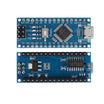
- Arduino Nano V3.0 Pre-Soldered - compact Arduino board that easily drives the MAX7219 via SPI-style pins.
- 120 PCS Dupont Jumper Wires - quick wiring between the Arduino and the display module.
External
- USB cable - for power and uploading sketches
- Arduino IDE - to compile and upload the code
Note: The MAX7219 module runs from 5 V. Each fully-lit module can pull about 150 mA at max brightness. USB power is usually fine for 1 to 2 modules; for 4 modules at max brightness, use a separate 5 V supply.
Step-by-Step Guide
Step 1 - Inspect the MAX7219 module and pin labels
Goal: Identify the MAX7219 board orientation and the five input pins you will wire to the Arduino.
What to do: Look for the 8×8 LED matrix on top and the MAX7219 driver IC on the PCB. Find the input header labeled VCC, GND, DIN, CS, and CLK. The opposite header is typically the output used to chain another module.


Expected result: You know which header is the input and which pins are required to connect to the Arduino.
Step 2 - Wire the MAX7219 to the Arduino
Goal: Connect power and the three control lines so the Arduino can send data to the MAX7219.
What to do: Wire the module to your Arduino using the connections below.

- VCC → 5 V, GND → GND
- DIN → D11 (MOSI)
- CS → D10 (any digital pin works)
- CLK → D13 (SCK)
To chain multiple modules, connect the OUTPUT header of module 1 to the INPUT header of module 2. All modules share the same CS, CLK, VCC, and GND.
Expected result: The module is powered and ready for Arduino sketches that use MD_MAX72XX and MD_Parola.
Step 3 - Install the Arduino libraries
Goal: Install the libraries needed to control the MAX7219 and display text animations.
What to do: In the Arduino IDE Library Manager, install MD_Parola and MD_MAX72XX by majicDesigns. MD_Parola provides high-level text and scrolling features, and it depends on MD_MAX72XX for the low-level driver.
Expected result: Both libraries are installed and available under your Arduino IDE examples and includes.
Step 4 - Upload a static text sketch
Goal: Verify wiring and confirm the module displays text on a single 8×8 matrix.
What to do: Upload the sketch below. If you are using a single 8×8 module, keep MAX_DEVICES set to 1.

Code:
#include <MD_Parola.h>
#include <MD_MAX72xx.h>
#include <SPI.h>

#define HARDWARE_TYPE MD_MAX72XX::FC16_HW
#define MAX_DEVICES 1     // change to 4 if using the 4-in-1 module
#define CS_PIN 10

MD_Parola display = MD_Parola(HARDWARE_TYPE, CS_PIN, MAX_DEVICES);

void setup() {
  display.begin();
  display.setIntensity(2);   // 0-15 brightness
  display.displayClear();
  display.print("HI");
}

void loop() {}
Expected result: The LED matrix displays “HI” on the module.
Step 5 - Upload a scrolling text sketch (for 32×8 / 4 modules)
Goal: Display smooth scrolling text across a chained 32×8 surface.
What to do: If you are using the 4-in-1 (32×8) module, set MAX_DEVICES to 4 and upload the sketch below.

Code:
#include <MD_Parola.h>
#include <MD_MAX72xx.h>
#include <SPI.h>

#define HARDWARE_TYPE MD_MAX72XX::FC16_HW
#define MAX_DEVICES 4     // 4-in-1 module = 32×8 surface
#define CS_PIN 10

MD_Parola display = MD_Parola(HARDWARE_TYPE, CS_PIN, MAX_DEVICES);

void setup() {
  display.begin();
  display.setIntensity(3);
  display.displayClear();
  display.displayScroll("ShillehTek - IoT for Builders",
                        PA_LEFT, PA_SCROLL_LEFT, 75);
}

void loop() {
  if (display.displayAnimate()) display.displayReset();
}
Expected result: Your message scrolls across the full 32×8 display.
Step 6 - Verify the marquee is running
Goal: Confirm the display is stable, readable, and scrolling smoothly.
What to do: Power the Arduino over USB, watch the text scroll, and adjust brightness with setIntensity() (0 to 15) if needed.

Expected result: A bright, steady scrolling marquee with no flicker or missing modules.
Step 7 - Explore next ideas
Goal: Use the same hardware and library approach to build other display projects.
What to do: Pick a direction and expand the code.
- Combine with the DS3231 RTC for a scrolling-time clock display
- Show live BME280 temperature/humidity readings on the marquee
- Pair with an ESP32 to display incoming Telegram messages over Wi-Fi
- Build a scoreboard for a custom 2-player Arduino game
- Make an “open/closed” sign for a makerspace with relay-controlled shop hours
Expected result: You have a clear path to extend the marquee into a real-world project.
Conclusion
You built an Arduino-driven MAX7219 dot matrix display that can show static text and scroll messages across a single 8×8 module or a chained 32×8 marquee. With the MD_MAX72XX and MD_Parola libraries, you can quickly turn the display into clocks, signs, scoreboards, and status dashboards.
Want the exact parts used in this build? Grab them from ShillehTek.com. If you want help customizing this project or building firmware for a product or installation, check out our IoT consulting services.
Credits: The MAX7219 photos and code in this tutorial are credited to Instructables, which served as a reference for this ShillehTek version.





.png?v=25000753014097803521791168436)

.png?v=68677308723310773341791168436)


