

Project Overview
Arduino + ILI9341 2.8 inch touchscreen: Build a simple touch UI that draws on-screen buttons and responds to taps using the ILI9341 SPI TFT and its resistive touch overlay.
You will use the Adafruit display libraries to draw text and shapes, then add touch input so you can map presses to UI actions like menus, gauges, or simple games.
- Time: ~30 minutes
- Skill level: Beginner / Intermediate
- What you will build: An Arduino driving a 2.8 inch ILI9341 touch screen with on-screen buttons that respond to taps.

Parts List
From ShillehTek
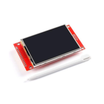
- 2.8 inch SPI TFT Touch Screen (ILI9341, 240x320) - the display module with resistive touch overlay.
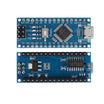
- Arduino Nano V3.0 Pre-Soldered - runs the SPI display and example UI sketch.
- 120 PCS Dupont Jumper Wires - quick breadboard wiring for SPI and control pins.
External
- USB cable - for powering and programming the Arduino
- Arduino IDE - for installing libraries and uploading the sketch
Note: On an Arduino UNO/Nano the ILI9341 runs comfortably; on an Arduino Mega you get more sketch memory and faster refresh. Either works.
Step-by-Step Guide
Step 1 - Wire It Up
Goal: Connect SPI plus a few control lines.
What to do: Wire the ILI9341 breakout to your Arduino using these connections:
- VCC -> 5 V (regulator on the breakout)
- GND -> GND
- CS -> D10
- RESET -> D9
- DC / RS -> D8
- SDI / MOSI -> D11
- SCK -> D13
- LED -> 3.3 V (backlight always on)
- SDO / MISO -> D12 (only needed if reading from the screen)
Expected result: The display is powered and the SPI/control pins are connected, ready for a test sketch.
Step 2 - Install Libraries
Goal: Add the required display and touch libraries to the Arduino IDE.
What to do: Install Adafruit GFX, Adafruit ILI9341, and TouchScreen via the Library Manager.
Expected result: The libraries are available so your sketch compiles without missing include errors.
Step 3 - Upload the Display Sketch
Goal: Draw text and two on-screen buttons on the ILI9341.
What to do: Upload the sketch below (adjust pins if you wired differently).
Code:
#include <SPI.h>
#include <Adafruit_GFX.h>
#include <Adafruit_ILI9341.h>

const int TFT_CS  = 10;
const int TFT_DC  = 8;
const int TFT_RST = 9;
Adafruit_ILI9341 tft = Adafruit_ILI9341(TFT_CS, TFT_DC, TFT_RST);

void drawButton(int x, int y, int w, int h, const char* label) {
  tft.fillRoundRect(x, y, w, h, 6, ILI9341_BLUE);
  tft.drawRoundRect(x, y, w, h, 6, ILI9341_WHITE);
  tft.setCursor(x + 14, y + 14);
  tft.setTextColor(ILI9341_WHITE);
  tft.setTextSize(2);
  tft.print(label);
}

void setup() {
  Serial.begin(9600);
  tft.begin();
  tft.setRotation(1);   // landscape
  tft.fillScreen(ILI9341_BLACK);

  tft.setTextColor(ILI9341_GREEN);
  tft.setTextSize(3);
  tft.setCursor(20, 20);
  tft.println("ShillehTek");
  tft.setTextSize(2);
  tft.setCursor(20, 60);
  tft.setTextColor(ILI9341_WHITE);
  tft.println("ILI9341 demo");

  drawButton(20,  140, 130, 50, "Start");
  drawButton(170, 140, 130, 50, "About");
}

void loop() {}

Expected result: The screen shows the header text and two drawn buttons.
Step 4 - Add Touch Input
Goal: Read the resistive touch overlay and detect taps.
What to do: The ILI9341 ships with a resistive touch overlay. The 4 touch pins (YP, XM, YM, XP) wire to analog pins. The TouchScreen library reads pressure and X/Y coordinates so you can map taps to your on-screen buttons.
Code:
#include <TouchScreen.h>

const int YP = A2, XM = A3, YM = 8, XP = 9;
TouchScreen ts(XP, YP, XM, YM, 300);

TSPoint p = ts.getPoint();
if (p.z > 50) {
  // tap detected at (p.x, p.y) - map to your buttons
}
Expected result: Your code can detect when the screen is pressed and read raw touch coordinates.
Step 5 - Display the Result
Goal: Use your drawing and touch logic to build a real UI screen.
What to do: Expand your sketch so taps trigger actions such as changing screens, selecting menu items, or updating values.

Expected result: A working interactive screen that responds to touch input.
Step 6 - Where to Take It Next
Goal: Identify practical next projects using the same display and touch approach.
What to do: Try one of these extensions:
- Build a thermostat with on-screen temperature setpoint sliders
- Retro-game console - the screen + buttons cover everything Pong needs
- Oscilloscope-style display for the ADS1115 readings
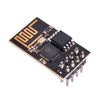
- IoT control panel - pair with ESP-01 for Wi-Fi-driven UI
Expected result: A clear direction for turning the demo UI into a more complete project.
Conclusion
With an Arduino and an ILI9341 2.8 inch touchscreen, you can render a full color UI and react to taps, which makes simple prototypes feel like real products instead of basic breadboard demos.
Want the exact parts used in this build? Grab them from ShillehTek.com. If you want help customizing this project or building something for your product, check out our IoT consulting services.
Credit: The photos and code in this tutorial are credited to Instructables. Their original guide served as a reference for this version.



.png?v=25000753014097803521788741467)

.png?v=68677308723310773341788741467)


