

Project Overview
Arduino DS3231 RTC alarm clock: Build an Arduino-based alarm clock using a DS3231 real-time clock module, an SSD1306 OLED display, and a KY-006 buzzer to keep accurate time and sound an alarm even after power loss.
The DS3231 is a precision real-time clock chip accurate to within about 2 minutes per year, and its coin-cell backup keeps time even when power is removed. With an OLED for display and a buzzer for the alarm, you get a complete bedside clock that is programmable and does not lose time across unplugging or outages.
- Time: ~45 minutes
- Skill level: Beginner / Intermediate
- What you will build: A digital alarm clock with OLED display, set-time buttons, audible alarm, and battery-backed timekeeping.

Parts List
From ShillehTek
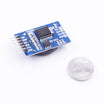
- DS3231 AT24C32 Precision RTC Module - keeps accurate time with battery backup.
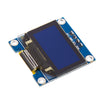
- 0.96″ I²C SSD1306 OLED - displays the current time and alarm status.
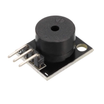
- KY-006 Passive Piezo Buzzer - sounds the alarm tone.
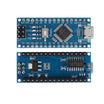
- Arduino Nano V3.0 Pre-Soldered - runs the clock and reads buttons.
- 120 PCS Dupont Jumper Wires - makes quick breadboard connections.
- 400-Point Breadboard - builds the circuit without soldering.
External
- 2 push-buttons (for set + mode)
- 2 x 10 kΩ pull-up resistors
Note: The DS3231 ships with a CR2032 battery. The chip keeps time even when the Arduino is unplugged. Set the clock once and it stays correct for years.
Step-by-Step Guide
Step 1 - Why DS3231 over millis()
Goal: Understand why a real-time clock module is better than timing with software.
What to do: Avoid using Arduino millis() as a clock source for real time. It drifts seconds per day and resets to zero on power loss. The DS3231 has a temperature-compensated crystal oscillator (TCXO) accurate to ±2 ppm (a few seconds per month), and the coin cell keeps it ticking through power outages. For any real-time project (clocks, scheduled relays, time-stamped data logging), DS3231 is the right choice.
Expected result: You are ready to wire and use I²C devices for accurate timekeeping.
Step 2 - Wire I²C (DS3231 + OLED share the bus)
Goal: Connect the DS3231 and SSD1306 OLED to the Arduino Nano using the shared I²C bus, plus the buzzer and two buttons.
What to do: Make the following connections:
- DS3231 VCC to 5 V, GND to GND, SDA to A4, SCL to A5
- OLED VCC to 5 V, GND to GND, SDA to A4 (shared), SCL to A5 (shared)
- Buzzer signal to D8, GND to GND
- Button 1 (set) to D2 with a 10 kΩ pull-up resistor to 5 V
- Button 2 (mode) to D3 with a 10 kΩ pull-up resistor to 5 V
I²C addresses: DS3231 = 0x68, OLED = 0x3C. No conflict.
Expected result: Both I²C modules are wired to A4/A5 and powered correctly, ready for code.
Step 3 - Set the clock once
Goal: Initialize the DS3231 with the correct current time.
What to do: Install RTClib by Adafruit. Upload this sketch once to set the DS3231 time to your computer compile time:
Code:
#include <Wire.h>
#include <RTClib.h>
RTC_DS3231 rtc;
void setup() {
  Wire.begin();
  rtc.begin();
  rtc.adjust(DateTime(F(__DATE__), F(__TIME__)));   // set to compile time
}
void loop() {}
Upload, wait 5 seconds, then re-flash with the real sketch in the next step. The clock keeps the time you set.
Expected result: The DS3231 is set and will retain time across power cycles using the CR2032 battery.
Step 4 - Upload the alarm clock sketch
Goal: Display time on the OLED and ring the buzzer when the alarm time matches the current time.
What to do: Install the required OLED libraries (Adafruit_GFX and Adafruit_SSD1306), then upload the sketch below:
Code:
#include <Wire.h>
#include <RTClib.h>
#include <Adafruit_GFX.h>
#include <Adafruit_SSD1306.h>

RTC_DS3231 rtc;
Adafruit_SSD1306 oled(128, 64, &Wire, -1);

const int BUZZ = 8;
const int BTN_SET = 2, BTN_MODE = 3;

int alarmHour = 7, alarmMin = 0;
bool alarmEnabled = true, alarmRinging = false;

void setup() {
  pinMode(BUZZ, OUTPUT);
  pinMode(BTN_SET, INPUT_PULLUP);
  pinMode(BTN_MODE, INPUT_PULLUP);
  Wire.begin();
  rtc.begin();
  oled.begin(SSD1306_SWITCHCAPVCC, 0x3C);
}

void loop() {
  DateTime now = rtc.now();

  oled.clearDisplay();
  oled.setTextColor(SSD1306_WHITE);
  oled.setTextSize(3);
  oled.setCursor(0, 4);
  if (now.hour() < 10) oled.print('0'); oled.print(now.hour()); oled.print(':');
  if (now.minute() < 10) oled.print('0'); oled.print(now.minute());

  oled.setTextSize(1);
  oled.setCursor(0, 48);
  oled.print("Alarm "); oled.print(alarmHour); oled.print(':');
  if (alarmMin < 10) oled.print('0'); oled.print(alarmMin);
  oled.print(alarmEnabled ? " ON" : " OFF");

  oled.display();

  if (alarmEnabled && now.hour() == alarmHour && now.minute() == alarmMin) {
    alarmRinging = true;
  }
  if (alarmRinging) {
    tone(BUZZ, 1000, 500);
    delay(600);
    if (digitalRead(BTN_SET) == LOW) { alarmRinging = false; noTone(BUZZ); }
  }

  if (digitalRead(BTN_MODE) == LOW) { alarmEnabled = !alarmEnabled; delay(300); }

  delay(200);
}
Expected result: The OLED shows the current time and alarm status. When the time hits the alarm hour and minute, the buzzer sounds until you press the set button.
Step 5 - Test the build
Goal: Confirm the clock keeps time and the alarm triggers as expected.
What to do: Power the Arduino, confirm the OLED time updates, and verify the alarm behavior. Unplug USB power briefly, then power it again to confirm the RTC kept time.

Expected result: The displayed time remains correct after power cycles, and the buzzer rings at the programmed alarm time.
Step 6 - Where to take it next
Goal: Identify safe, optional expansions you can add after the basic alarm clock works.
What to do: Consider these upgrades:
- Snooze button: silence the alarm for 9 minutes on a second button
- Add temperature display (the DS3231 has a built-in temperature sensor)
- Multiple alarms: store alarm times in the DS3231 EEPROM
- Time-trigger a relay-controlled coffee maker for a scheduled brew
Expected result: You have clear next steps for extending the project while keeping the DS3231 as the time source.
Conclusion
You built an Arduino alarm clock using the DS3231 RTC, an SSD1306 OLED display, and a buzzer so the time stays accurate and survives unplugging thanks to the coin-cell backup. Once you have reliable timekeeping, scheduled-action projects like timed relays, data loggers, and automation become much easier.
Want the exact parts used in this build? Grab them from ShillehTek.com. If you want help customizing this project or building timing and scheduling firmware for your product, check out our IoT consulting services.
Credit: The photos and code for this DS3231 alarm clock tutorial are credited to Instructables, which served as the reference for this ShillehTek version.




.png?v=25000753014097803521791168436)

.png?v=68677308723310773341791168436)


