

Project Overview
Programming the STM32 Black Pill with Arduino IDE: In this guide, you will set up and program the STM32F411 Black Pill development board using the Arduino IDE and the built-in DFU bootloader to upload a simple LED blink sketch.
The Black Pill is an upgraded version of the classic Blue Pill, featuring a more capable Cortex-M4F ARM processor with built-in DFU bootloader support.
- Time: 30 minutes to 1 hour
- Skill level: Beginner to Intermediate
- What you will build: A complete Arduino IDE setup for STM32 Black Pill programming, verified with a simple LED blink sketch uploaded via DFU bootloader.

Parts List
From ShillehTek
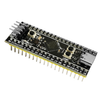
- STM32F411CEU6 Pre-Soldered Black Pill ARM Development Board - the main microcontroller board used in this tutorial
External
- USB-C cable - to connect the Black Pill to your computer for programming and power
- Computer with Windows OS and Arduino IDE installed
Note: This tutorial focuses on the STM32F411CE variant. If you have the STM32F401CC version, the steps are nearly identical - just select "BlackPill F401CC" instead of "BlackPill F411CE" when choosing the board part number. Both variants support the DFU bootloader covered here.
Step-by-Step Guide
Step 1 - Download and Install Arduino IDE
Goal: Get the Arduino IDE installed on your computer so you can write and upload code to the Black Pill.
What to do: Head over to the official Arduino website at arduino.cc/en/Main/Software and download the latest version of the Arduino IDE for your operating system. Follow the installation instructions for your platform - Windows users can find a guide at arduino.cc/en/Guide/Windows and Mac users at arduino.cc/en/Guide/MacOSX.
Expected result: Arduino IDE is installed and ready to launch on your computer.
Step 2 - Install the STM32 Board Package in Arduino IDE
Goal: Add STM32 board support to the Arduino IDE so it recognizes the Black Pill.
What to do: Open the Arduino IDE and navigate to File > Preferences. In the Additional Board Manager URLs field, paste the following URL:
https://github.com/stm32duino/BoardManagerFiles/raw/main/package_stmicroelectronics_index.jsonIf you already have other URLs in that field, separate them with a comma.

Next, go to Tools > Board > Boards Manager. Search for "STM32" and install the latest version of the STM32 MCU based boards package. This download is several hundred megabytes, so it may take a few minutes.


Once installation is complete, close and reopen the Arduino IDE to apply the changes.
Expected result: The STM32 board package is installed and you can see STM32 options under the Tools > Board menu.
Step 3 - Install STM32CubeProgrammer
Goal: Install the STM32CubeProgrammer tool, which is required for uploading code via the DFU bootloader.
What to do: Download STM32CubeProgrammer from the official ST website at st.com/en/development-tools/stm32cubeprog.html. Install it on your computer following the default settings.

Launch it once after installation to verify it works, then close it. The Arduino IDE will call it automatically during uploads.

Expected result: STM32CubeProgrammer is installed and launches without errors.
Step 4 - Configure the Arduino IDE for Black Pill
Goal: Set all the correct board and upload options in the Arduino IDE Tools menu.
What to do: In the Arduino IDE, configure the following settings under the Tools menu:
- Board: Go to Tools > Board > STM32 boards and select Generic STM32F4 series

- Board Part Number: Select BlackPill F411CE (or BlackPill F401CC if using the F401 variant)

- USB Support: Select CDC (generic \"Serial\" supersede U(S)ART)

- Upload Method: Select STM32CubeProgrammer (DFU)

Your final Tools configuration should look like this:

Expected result: All Tools menu settings are properly configured for uploading to the Black Pill via DFU.
Step 5 - Enter DFU Bootloader Mode and Upload a Sketch
Goal: Put the Black Pill into bootloader mode and upload a test blink sketch.
What to do: Connect the STM32 Black Pill to your computer using a USB cable. To enter DFU bootloader mode, use the onboard BOOT0 and NRST buttons with this sequence:
- Press and hold the BOOT0 button
- While still holding BOOT0, press and release the NRST (reset) button to power cycle the processor
- Release the BOOT0 button

Now create a new sketch in the Arduino IDE and paste the following code. This simple program blinks the onboard LED connected to pin PC13 at a fast 0.1-second interval:
/* Blink onboard LED at 0.1 second interval */

void setup() {
  // initialize digital pin PC13 as an output
  pinMode(PC13, OUTPUT);  // LED connected to pin PC13
}

void loop() {
  digitalWrite(PC13, HIGH);   // turn the LED on
  delay(100);                 // wait for 100ms
  digitalWrite(PC13, LOW);    // turn the LED off
  delay(100);                 // wait for 100ms
}
Click the Upload button in the Arduino IDE. The code will compile and then upload to the Black Pill through the DFU bootloader. You should see a successful upload confirmation in the output console.

Expected result: The blue onboard LED on the Black Pill blinks rapidly at 0.1-second intervals, confirming the upload was successful.
Conclusion
In this tutorial, you set up the Arduino IDE to work with the STM32F411 Black Pill development board using the DFU bootloader. You installed the STM32 board package, configured STM32CubeProgrammer, and successfully uploaded a blink sketch without needing an external programmer.
Want the exact parts used in this build? Grab them from ShillehTek.com. If you want help customizing this project or building something for your product, check out our IoT consulting services.
Credits: Photos and images are credited to SGBotic. Their original guide served as a reference for this version.


.png?v=25000753014097803521791168436)

.png?v=68677308723310773341791168436)


