

Video Tutorial (Optional)
Watch first if you want to follow the full build end to end.
Project Overview
In this project, you use a Raspberry Pi Pico W with a BME280 sensor to send real-time temperature, humidity, and pressure telemetry to Azure IoT Hub, ingest it into Azure Data Explorer (ADX), and query it with Kusto.
Azure IoT Hub is a fully managed service that lets you ingest, process, and route device telemetry at scale. This tutorial walks through a complete, working setup using HTTP to push sensor readings into Azure.
- Time: 60 to 120 minutes (depending on Azure setup)
- Skill level: Intermediate
- What you will build: A live sensor-to-cloud pipeline from Pico W to Azure IoT Hub and Azure Data Explorer
Parts List
From ShillehTek
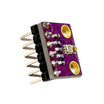
- ShillehTek BME280 sensor (temperature, humidity, pressure) - provides the environmental telemetry
- Jumper wires - connects the Pico W to the BME280 over I2C
- Breadboard (optional) - makes wiring easier without soldering
- Raspberry Pi Pico 2W - the WiFi microcontroller board used in this build
External
- Azure account (free tier works) - used to create IoT Hub and Azure Data Explorer resources
- Azure CLI - used to generate a SAS token from your terminal
- BME280 MicroPython library - https://github.com/SebastianRoll/mpy_bme280_esp8266/blob/master/bme280.py
- Azure Portal - https://portal.azure.com
Note: This wiring uses I2C0 on the Pico W (SDA = GP0, SCL = GP1) and powers the BME280 from 3.3V.
Step-by-Step Guide
Step 1 - Create an Azure IoT Hub
Goal: Create the IoT Hub that will receive telemetry from your Pico W.
What to do: In the Azure Portal, search for IoT Hub and click Create. Use these example settings:
-
Resource Group:
raspberry-pi-group -
Region:
East US -
Name:
mypicowhub - Networking: Public access


Expected result: The IoT Hub deploys successfully (this can take a few minutes).
Step 2 - Register your device in IoT Hub
Goal: Create a device identity for the Pico W so it can authenticate to IoT Hub.
What to do: In your IoT Hub, go to Devices and click + Add Device. Use:
-
Device ID:
picow1 - Auth Type: Symmetric Key (enable auto-generate keys)


Expected result: Your device picow1 is created and visible in the IoT Hub device list.
Step 3 - Generate a SAS token with Azure CLI
Goal: Generate the Authorization header value you will paste into the Pico W HTTP request.
What to do: In a terminal (with Azure CLI installed), sign in first, then run:
az iot hub generate-sas-token --hub-name mypicowhub --device-id picow1 --duration 3600Expected result: You get a SharedAccessSignature token that you can paste into the Pico code as the Authorization header.
Step 4 - Create an Azure Data Explorer cluster and database
Goal: Set up ADX to ingest and query the telemetry coming from IoT Hub.
What to do: In the Azure Portal, search for Azure Data Explorer Clusters and click + Create. Example values:
-
Cluster Name:
picocluster - Workload: Dev/test


After the cluster is created, add a database to the cluster.


Expected result: You have an ADX cluster and a database ready to receive data.
Step 5 - Create the ADX table and JSON mapping
Goal: Define where telemetry will land in ADX and how JSON fields map into columns.
What to do: Open your cluster, go to the Query editor, and run:
.create table iotdata (
  deviceId: string,
  temperature: real,
  humidity: real,
  pressure: real,
  timestamp: datetime
)
Then create the JSON ingestion mapping:
.create table iotdata ingestion json mapping 'iotmap' '[{"column":"deviceId","path":"$.deviceId"},{"column":"temperature","path":"$.temperature"},{"column":"humidity","path":"$.humidity"},{"column":"timestamp","path":"$.timestamp"}]'Expected result: ADX has an iotdata table and an iotmap mapping ready for JSON ingestion.
Step 6 - Create the IoT Hub to ADX data connection
Goal: Automatically route IoT Hub messages into your ADX table.
What to do: In your ADX database (example shown as picosensors), go to Data connections and select Add connection, then choose IoT Hub. Use:
-
IoT Hub:
mypicowhub -
Table:
iotdata -
Format:
JSON -
Mapping:
iotmap

Expected result: Your ADX database is connected to IoT Hub and ready to ingest incoming device messages.
Step 7 - Wire the Raspberry Pi Pico W to the BME280
Goal: Connect the BME280 sensor to the Pico W over I2C so MicroPython can read temperature, humidity, and pressure.
What to do: Wire the BME280 like this:
- BME280 VCC to Pico 3.3V
- BME280 GND to Pico GND
- BME280 SDA to Pico GP0
- BME280 SCL to Pico GP1

Expected result: The Pico W powers the sensor at 3.3V and the I2C lines are connected to GP0/GP1.
Step 8 - Upload the MicroPython code to send telemetry to Azure
Goal: Connect the Pico W to WiFi, read the BME280, and send JSON telemetry to Azure IoT Hub over HTTP.
What to do: Download the BME280 MicroPython library file and place it on the Pico as bme280.py:
Then upload the following code to your Raspberry Pi Pico W (update WiFi credentials and paste your SAS token into HEADERS):
import network
import time
import urequests
import json
from machine import Pin, I2C
import bme280

WIFI_SSID = 'SMA'
WIFI_PASS = 'mmmyellow'

IOTHUB_NAME = 'mypicowhub'
DEVICE_ID = 'picow1'
HEADERS = {
    'Authorization': 'SharedAccessSignature sr=mypicowhub.azure-devices.net%2Fdevices%2Fpicow1&sig=YOUR_SIG_HERE',
    'Content-Type': 'application/json'
}
URL = f'https://{IOTHUB_NAME}.azure-devices.net/devices/{DEVICE_ID}/messages/events?api-version=2020-09-30'

def connect_wifi():
    wlan = network.WLAN(network.STA_IF)
    wlan.active(True)
    wlan.connect(WIFI_SSID, WIFI_PASS)
    while not wlan.isconnected():
        print("Connecting...")
        time.sleep(1)
    print("WiFi connected:", wlan.ifconfig())

def get_iso_timestamp():
    t = time.localtime()
    return "{}-{:02d}-{:02d}T{:02d}:{:02d}:{:02d}Z".format(t[0], t[1], t[2], t[3], t[4], t[5])

i2c = I2C(0, sda=Pin(0), scl=Pin(1), freq=400000)
bme = bme280.BME280(i2c=i2c)

def send_to_azure():
    temp, pressure, humidity = bme.read_compensated_data()
    temp = round(temp / 100, 2)
    pressure = round(pressure / 25600, 2)
    humidity = round(humidity / 1024, 2)

    payload = {
        'deviceId': DEVICE_ID,
        'temperature': temp,
        'humidity': humidity,
        'pressure': pressure,
        'timestamp': get_iso_timestamp()
    }

    print("Sending:", payload)
    try:
        res = urequests.post(URL, headers=HEADERS, json=payload)
        print("Response:", res.status_code)
        res.close()
    except Exception as e:
        print("Error:", e)

connect_wifi()
while True:
    send_to_azure()
    time.sleep(1)
Expected result: The Pico W connects to WiFi and prints HTTP status codes while posting JSON telemetry to IoT Hub once per second.
Step 9 - Query and visualize the data in Azure Data Explorer
Goal: Confirm ingestion is working and view recent telemetry.
What to do: In Azure Data Explorer, run this query:
iotdata
| where timestamp > ago(10m)
| order by timestamp desc
To visualize temperature over time, run:
iotdata
| summarize avg(temperature) by bin(timestamp, 1m)
| render timechart
Expected result: You see recent rows in iotdata, and the time chart renders as new messages arrive.
Conclusion
You built a real-time cloud telemetry pipeline using a Raspberry Pi Pico W and a BME280 sensor, sending live readings into Azure IoT Hub and querying them in Azure Data Explorer. This is a solid foundation for learning, prototyping, or scaling into a commercial monitoring project.
Want the exact parts used in this build? Grab them from ShillehTek.com. If you want help customizing this pipeline, hardening it for production, or designing an end-to-end IoT architecture, check out our IoT consulting services.







.png?v=25000753014097803521791168436)

.png?v=68677308723310773341791168436)


