

Video Tutorial
Watch first if you want to see the physical setup and Thonny configuration for reading MPU6050 data on the Raspberry Pi Pico W.
Project Overview
In this tutorial, you will connect a Raspberry Pi Pico (or Pico W) to an MPU6050 accelerometer and run MicroPython code in Thonny to start getting live sensor readings (acceleration, gyro, and temperature) in the console.
The MPU6050 is a low-cost and accurate acceleration sensor commonly used with microcontrollers like the Raspberry Pi Pico and Arduino.
- Time: 20 to 40 minutes
- Skill level: Beginner
- What you will build: A wired MPU6050-to-Pico setup that prints motion and temperature readings in Thonny
Parts List
From ShillehTek
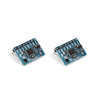
- MPU6050 pre-soldered module (GY-521) - the 6-axis motion sensor used to read acceleration, gyroscope, and temperature data over I2C
- Breadboard - quick solderless wiring for prototyping
- Jumper wires - connect the MPU6050 sensor pins to Raspberry Pi Pico headers
- Raspberry Pi Pico 2W - the WiFi microcontroller board used in this build
You can also purchase the bundle for this project here.
External
- Thonny IDE - https://thonny.org/
Note: This tutorial uses four wires (power, ground, and I2C SDA/SCL). Wire color does not affect signal transmission.
Step-by-Step Guide
Step 1 - Gather the components
Goal: Make sure you have everything needed to wire the MPU6050 to the Raspberry Pi Pico and run MicroPython.
What to do: Collect the MPU6050, jumper wires, a Raspberry Pi Pico (or Pico W) with MicroUSB, and a breadboard.
Expected result: All hardware and your USB cable are ready before you start wiring.
Step 2 - Attach the Raspberry Pi Pico to the breadboard
Goal: Seat the Pico firmly so you can wire it easily.
What to do: Press the Raspberry Pi Pico into the breadboard so it sits securely. Pin depth is fine even if the pins insert fully. Placement on the board is flexible, but aligning it across the center can make wiring clearer.

Expected result: The Pico is stable on the breadboard and you can access its pins easily.
Step 3 - Wire the MPU6050 to the Pico
Goal: Provide power and connect the I2C communication lines (SDA and SCL) between the Pico and the MPU6050.
What to do: Plug your MicroUSB cable from your computer into the Raspberry Pi Pico. Then take four jumper wires and connect them using the same pin numbers shown in the original build:
- Red wire: Pin 39
- Black wire: Pin 38
- White wire: Pin 1
- Yellow wire: Pin 2

The pins on the Pico are arranged like this:

On the MPU6050, connect the wires to the matching pins for power and I2C. VCC provides power, GND is ground, and SCL/SDA are the communication lines between the Raspberry Pi Pico and the accelerometer module.

Expected result: The MPU6050 powers up and the module LED lights up red, indicating it is receiving power.
Step 4 - Add the library and main script in Thonny
Goal: Put the required MicroPython files onto the Pico and run the script that prints MPU6050 readings.
What to do: In Thonny, create two files on your Pico: one for the library (do not change the library filename) and one for your main script. Copy the code from these links into the matching files:
If you do not have Thonny installed yet, you can download it here:
If Thonny is set up properly with your Raspberry Pi Pico, you should see a file browser showing your Pico files on the bottom left.

Run the main file to start getting readings.
Expected result: MPU6050 readings for all 6 degrees of acceleration plus temperature begin printing in the Thonny console.
Conclusion
You now have an MPU6050 connected to a Raspberry Pi Pico (or Pico W) and can read acceleration, gyro, and temperature values in Thonny using MicroPython. This setup is a solid starting point for motion-based projects and DIY sensor logging.
Want the exact parts used in this build? Grab what you need from ShillehTek.com. If you want help customizing this project or building something similar for your product, check out our IoT consulting services.





.png?v=25000753014097803521791168436)

.png?v=68677308723310773341791168436)


