

Video Tutorial (Optional)
Watch first if you want the full setup and code walkthrough for measuring altitude with a BME280 on a Raspberry Pi Pico.
Project Overview
Measure Altitude with BME280 and Raspberry Pi Pico: In this project, you use a Raspberry Pi Pico with a BME280 sensor in CircuitPython to read temperature, humidity, and pressure, and estimate altitude from air pressure.
The Adafruit BME280 CircuitPython library includes built-in altitude estimation. After setting your local sea-level pressure, the printed altitude should be close to your actual altitude and will change as you move the sensor up or down.
- Time: 15 to 30 minutes
- Skill level: Beginner
- What you will build: A Pico + BME280 I2C sensor setup that prints environmental data and estimated altitude over USB serial
Parts List
From ShillehTek
- Breadboard and jumper wires (optional) - helps with quick solderless wiring between the Pico and BME280
- Raspberry Pi Pico 2W - the microcontroller board used in this build
Additional parts
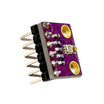
- BME280 sensor module - measures temperature, humidity, and pressure for altitude estimation
- Micro USB cable - powers the Pico and provides serial output to your computer
- Computer with Thonny IDE - used to install CircuitPython and run the code
Note: BME280 I2C addresses can vary by module. If 0x76 does not work, try 0x77 in the code.
Step-by-Step Guide
Step 1 - Install CircuitPython on your Pico
Goal: Get CircuitPython installed so you can use the Adafruit BME280 library.
What to do: Hold the BOOTSEL button on your Pico while plugging it into your computer. In Thonny, go to Tools > Interpreter, select CircuitPython, then click Install or Update CircuitPython. Choose the correct volume and the version you want to install.
Expected result: CircuitPython is installed and the Pico shows up as a CircuitPython device in Thonny.
Step 2 - Download and copy the BME280 libraries
Goal: Add the required library folders so your Pico can import the BME280 driver.
What to do: Open the library guide here: https://learn.adafruit.com/circuitpython-libraries-on-micropython-using-the-raspberry-pi-pico/bme280-library-example.
Click Download Project Bundle and unzip it. Copy these folders into the /lib folder on your Pico:
- adafruit_bme280
- adafruit_bus_device
Expected result: The two library folders are present in /lib on the Pico.
Step 3 - Wire the BME280 to the Pico (I2C)
Goal: Connect the BME280 so the Pico can read it over I2C.
What to do: Wire the BME280 to match the diagram and the I2C pins used in the code:
- BME280 VCC to Pico 3V3
- BME280 GND to Pico GND
- BME280 SCL to Pico GP1
- BME280 SDA to Pico GP0

Expected result: The BME280 is powered from 3V3 and connected to GP1 (SCL) and GP0 (SDA).
Step 4 - Run the CircuitPython code to print altitude
Goal: Print temperature, humidity, pressure, and estimated altitude over serial.
What to do: Copy the code below into your CircuitPython script and run it.
Code:
import time
import board
import busio
from adafruit_bme280 import basic as adafruit_bme280

# Create sensor object, using the board's default I2C bus.
i2c = busio.I2C(board.GP1, board.GP0)  # SCL, SDA
# address can change based on bme device
# if 0x76 does not work try 0x77 :)
bme280 = adafruit_bme280.Adafruit_BME280_I2C(i2c, address=0x76)
# change this to match the location's pressure (hPa) at sea level
bme280.sea_level_pressure = 1009.9

while True:
    print("\nTemperature: %0.1f C" % bme280.temperature)
    print("Humidity: %0.1f %%" % bme280.relative_humidity)
    print("Pressure: %0.1f hPa" % bme280.pressure)
    print("Altitude = %0.2f meters" % bme280.altitude)
    time.sleep(1)
Adjust sea_level_pressure for your location. You can search the sea-level pressure in your area and substitute that value.
Expected result: The serial output shows temperature, humidity, pressure, and an altitude estimate that changes as you move the sensor up and down.
Conclusion
You now have a working altitude estimator using a Raspberry Pi Pico and a BME280 in CircuitPython, with readings printed for temperature, humidity, pressure, and altitude. After calibrating sea_level_pressure, the altitude estimate should be close to your real altitude and respond quickly to small height changes.
If you learned something, you can also check out the YouTube channel here: https://www.youtube.com/channel/UCD13UWk3lJtjka7BoA0KZ5w.
Want the exact parts used in this build? Grab them from ShillehTek.com. If you want help customizing this project or building something similar for your product, check out our IoT consulting services.







.png?v=25000753014097803521791168436)

.png?v=68677308723310773341791168436)


