

Project Overview
Pro Micro USB MIDI Controller: Use a Pro Micro (ATmega32U4) with buttons and 10kΩ potentiometers to create a USB MIDI device that sends notes and control changes to any DAW.
The ATmega32U4 has native USB, so it can identify as a class-compliant MIDI controller. After wiring the inputs and flashing a MIDIUSB sketch, you plug it into your computer and map the buttons and knobs in Ableton, FL Studio, Logic, or any other DAW.
- Time: ~3 hours
- Skill level: Intermediate
- What you will build: A USB MIDI controller with 8 buttons and 4 knobs that your DAW recognizes natively.

Parts List
From ShillehTek
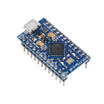
- Pro Micro ATmega32U4 - the microcontroller board that appears to your computer as a USB MIDI device.
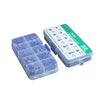
- 200pcs Tactile Button Switches - used for the 8 digital note triggers.
- Dupont Jumper Wires - for prototyping and internal wiring between the Pro Micro, buttons, and pots.
External
- 4× 10kΩ linear potentiometers - for the 4 analog control knobs.
- Enclosure (3D-printed or wooden) - to mount the buttons, pots, and board.
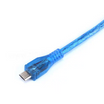
- USB Micro-B cable - to connect the Pro Micro to your computer.
Note: The Pro Micro is what many commercial MIDI controllers are built around. Same chip, your firmware.
Step-by-Step Guide
Step 1 - Plan the layout
Goal: Decide where the Pro Micro, 8 buttons, and 4 potentiometers will sit before you solder or mount anything.
What to do: Arrange the components in your enclosure (or on your work surface) so the wiring runs are short and the USB port remains accessible.

Expected result: You have a clear physical plan for where parts mount and where wires will route.
Step 2 - Wire the buttons and potentiometers
Goal: Connect the 8 buttons to digital inputs and the 4 knobs to analog inputs so the sketch can read them reliably.
What to do: Wire each button between a Pro Micro digital pin and GND. The code uses INPUT_PULLUP, so the button reads LOW when pressed.
Wire each potentiometer with the wiper (middle pin) to an analog input, and the two outer pins to 5V and GND.

- 8 buttons to D2-D9
- 4 pots: wiper to A0-A3, outer pins to 5V and GND
Expected result: All buttons and knobs are physically connected to the correct pins and share common 5V and GND as needed.
Step 3 - Install the MIDIUSB library
Goal: Add the library that makes the Pro Micro enumerate as a USB MIDI class device.
What to do: In the Arduino IDE, go to Tools → Manage Libraries and install MIDIUSB.
Expected result: Your Arduino environment can compile sketches that use MIDIUSB.h.
Step 4 - Upload the sketch
Goal: Flash firmware that sends MIDI note on/off messages from buttons and MIDI control change (CC) messages from potentiometers.
What to do: Paste the sketch below into the Arduino IDE and upload it to your Pro Micro.
Code:
#include <MIDIUSB.h>
const int BTN_PINS[] = {2, 3, 4, 5, 6, 7, 8, 9};
const int POT_PINS[] = {A0, A1, A2, A3};
bool prev[8];
int lastPot[4];
void noteOn(byte note) {
  midiEventPacket_t e = {0x09, 0x90, note, 100};
  MidiUSB.sendMIDI(e); MidiUSB.flush();
}
void noteOff(byte note) {
  midiEventPacket_t e = {0x08, 0x80, note, 0};
  MidiUSB.sendMIDI(e); MidiUSB.flush();
}
void cc(byte ctl, byte val) {
  midiEventPacket_t e = {0x0B, 0xB0, ctl, val};
  MidiUSB.sendMIDI(e); MidiUSB.flush();
}
void setup() {
  for (int p : BTN_PINS) pinMode(p, INPUT_PULLUP);
}
void loop() {
  for (int i = 0; i < 8; i++) {
    bool now = digitalRead(BTN_PINS[i]) == LOW;
    if (now && !prev[i]) noteOn(60 + i);
    if (!now && prev[i]) noteOff(60 + i);
    prev[i] = now;
  }
  for (int i = 0; i < 4; i++) {
    int v = analogRead(POT_PINS[i]) >> 3;   // 0-127 MIDI range
    if (abs(v - lastPot[i]) > 1) {
      cc(20 + i, v); lastPot[i] = v;
    }
  }
  delay(5);
}
Expected result: When plugged into your computer, the Pro Micro shows up as a USB MIDI device.
Step 5 - Build and assemble the enclosure
Goal: Mount the buttons and pots securely and package the controller for regular use.
What to do: Cut or print a faceplate, mount the buttons and potentiometers, then fix the Pro Micro inside so the USB port is reachable.


Expected result: A finished USB MIDI controller you can plug in and map inside your DAW.
Step 6 - Optional upgrades
Goal: Identify straightforward ways to extend the same Pro Micro MIDI controller design.
What to do: If you want to expand beyond the basic build, consider these add-ons:
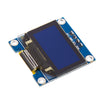
- Add an OLED to display current MIDI mode or preset
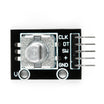
- Use encoder knobs (KY-040) for relative-value controls
- Add banks: hold a shift button to send a second layer of notes/CCs
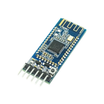
- Add Bluetooth MIDI (HM-10) for wireless connection to iOS GarageBand
Expected result: You have clear next-step ideas without changing the core wiring and sketch approach.
Conclusion
This project turns a Pro Micro (ATmega32U4) plus simple buttons and potentiometers into a class-compliant USB MIDI controller that can drive notes and CCs in your DAW.
Want the exact parts used in this build? Grab them from ShillehTek.com. If you want help customizing this project or building something for your product, check out our IoT consulting services.



.png?v=25000753014097803521791168436)

.png?v=68677308723310773341791168436)


