

Video Tutorial (Optional)
Watch first if you want to see the full process of saving Raspberry Pi Pico data to a file on your computer using serial and Python.
Project Overview
Raspberry Pi Pico (or Pico W) + BME280: In this project, you stream sensor readings from a Pico over serial so a Python script on your local computer can save the data to a file, without using Pico storage.
This is useful for logging large amounts of sensor data or transferring bytes/files programmatically from your Pico to your PC.
- Time: 15 to 30 minutes
- Skill level: Beginner
- What you will build: A Pico to PC serial data pipeline that writes incoming data to a file on your computer
Parts List
From ShillehTek
- Shop - the BME280 sensor used in the video can be found here
- Raspberry Pi Pico 2W - the WiFi microcontroller board used in this build
External
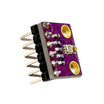
- BME280 sensor module - optional, used here as an example data source
- USB cable - powers the Pico and provides the serial connection
- Local computer with Python installed - runs the receiver script and writes the file
- Thonny IDE - used to find the Pico port and copy files to the Pico
- Python package:
pyserial- used by the local script to read serial data - MicroPython library:
bme280- only needed if you are using a BME280 sensor
Note: You cannot have Thonny connected to the Pico while your local Python script is using the same serial port. The Pico code should be saved as main.py and run on boot (after unplugging and replugging the Pico).
Step-by-Step Guide
Step 1 - Install pyserial on your computer
Goal: Install the Python package needed to read serial data from the Pico.
What to do: Make sure Python is installed on your local computer, then install pyserial:
Code:
pip install pyserialExpected result: Your computer can import serial in Python without errors.
Step 2 - Create the local Python receiver script
Goal: Read bytes from the Pico over serial and write them to a file on your computer.
What to do: Create a Python script on your local computer and paste in the code below. Update the serial port and destination file path to match your machine.
Code:
import serial

# Configure the serial connection
port = "/dev/cu.usbmodem1101"
baudrate = 115200
serial_connection = serial.Serial(port, baudrate)

# Open a file on your computer to write the received data
destination_file = open("/Users/mahmoodshilleh/Desktop/store_info.txt", "wb")

# Read and write data until the transfer is complete
while True:
    data = serial_connection.read(128)
    if data == b"EOF":
        break
    print(data)
    destination_file.write(data)

# Close the files and serial connection
destination_file.close()
serial_connection.close()
What to know:
- Replace port with the port for your Pico. You can find this in Thonny at the bottom right corner.
- baudrate does not need to be changed for this example.
- destination_file should be the full path to the file on your computer. You can create an empty file first if you want.
-
serial_connection.read(128)controls how many bytes your computer accumulates before printing and writing. Smaller values write more frequently. - An
EOFexit condition is shown, but this example may run indefinitely unless you implement an exit or stop it manually.
Expected result: The script is saved, but you do not run it yet.
Step 3 - Create main.py on the Pico and stream data
Goal: Have the Pico send data over the serial port so your computer can capture it.
What to do: On the Pico, create (or edit) main.py in the root of the Pico filesystem and paste in the code below.
In MicroPython, main.py runs automatically on boot. This matters because Thonny uses the serial connection too, so you cannot run the Pico script in Thonny while also running your local receiver script on the same port.
After saving main.py to the Pico, unplug and replug the Pico so it boots and starts running the script without Thonny holding the port.
Code:
import machine
from machine import I2C, Pin
import time
import uos

import bme280

# need this UART to read from BME and be able to send data to local computer
uart = machine.UART(0, baudrate=115200)
uart.init(115200, bits=8, parity=None, stop=1, tx=Pin(0), rx=Pin(1))
uos.dupterm(uart)
i2c=I2C(0, sda=Pin(0), scl=Pin(1), freq=400000)
bme = bme280.BME280(i2c=i2c)

while True:
    temperature, pressure, humidity = bme.read_compensated_data()
    print('{:.1f} C,{:.1f} %,{:.1f} hPa'.format(temperature/100, humidity/1024, pressure/25600))
    time.sleep(1)
What to know:
- You only need the
bme280library if you are using a BME280 sensor. You can download it from the package manager in Thonny. -
machineinteracts with Pico hardware, anduosinteracts with the Pico operating system features used here. -
time.sleep(1)controls how often readings are sent. - The
print(...)line is the data being sent to your computer. Edit this line to send different data.
Expected result: After you replug the Pico, it starts printing data over serial, ready for your computer script to capture.
Step 4 - Run the receiver script and write the file
Goal: Start capturing the Pico output on your local computer and write it into a file.
What to do: Run your local script from a terminal using the correct path.
Code:
python <path to file>
python3 <path to file>
If you want to stop the script, you can break the loop with control + c (or implement your own exit condition).
Expected result: You see incoming data printed in your terminal, and the destination file on your computer fills with the received bytes.
Conclusion
You set up a Raspberry Pi Pico (or Pico W) to stream BME280 sensor data over serial and a local Python script to save that data directly to a file on your computer. This approach lets you log large datasets without relying on the Pico filesystem.
Want the parts used in this build? Grab what you need from ShillehTek.com. If you want help adapting this for your own sensors, file formats, or a product workflow, check out our consulting at https://shillehtek.com/pages/iot-consulting.



.png?v=25000753014097803521791168436)

.png?v=68677308723310773341791168436)


