

Project Overview
W1209 Temperature Relay Controller Guide: In this tutorial, you will learn how to use the W1209 digital temperature controller module to automatically switch devices on and off based on temperature readings. This versatile module works without a microcontroller and is perfect for beginners who want to add temperature-based automation to their projects.
- Time: 30 minutes to 1 hour
- Skill level: Beginner
- What you will build: A temperature-controlled switching system using the W1209 module that can operate in both heating and cooling modes.

Parts List
From ShillehTek
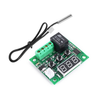
- W1209 12V Digital Temperature Controller Thermostat Module — the main controller board with built-in relay, LED display, and NTC temperature sensor probe
External
- 12V DC power supply — required to power the W1209 module
- AC or DC load to control (fan, heater, light bulb, etc.) — the device you want the relay to switch
- Hookup wire — for connecting the power supply and load to the module terminals
Note: The W1209 module operates on 12V DC input and its onboard relay can switch loads up to 240V AC at 10A or 14V DC at 10A. Always exercise extreme caution when working with mains voltage. If you are not comfortable with AC wiring, stick to low-voltage DC loads for safety.
Step-by-Step Guide
Step 1 — Understand the W1209 Module
Goal: Get familiar with the W1209 board layout, its buttons, and its included temperature sensor.
What to do: The W1209 is a self-contained digital thermostat module. It includes a 7-segment LED display that shows the current temperature, three control buttons (SET, +, and −), a 10A relay for switching external loads, and an NTC thermistor probe on a cable approximately 50 cm long. The module does not require a microcontroller like an Arduino — it operates completely on its own once powered.
Possible projects you can build with the W1209 include egg incubators, temperature-controlled brewing systems, reptile enclosure climate controllers, automated greenhouse environments, and simple refrigerator temperature monitors.

Expected result: You can identify the display, buttons, relay terminals, power terminals, and sensor connector on your W1209 board.
Step 2 — Wire the Power Supply
Goal: Connect 12V DC power to the W1209 module.
What to do: Locate the DC input terminals on the W1209 board (marked + and −). Connect the positive wire from your 12V DC power supply to the + terminal and the negative wire to the − terminal. Once powered, the LED display will light up and show the current temperature reading from the NTC sensor.
Make sure the NTC temperature sensor probe is plugged into the 2-pin connector on the board. Without the sensor, the display will show an error code.
Expected result: The W1209 powers on and the LED display shows the ambient temperature in degrees Celsius.
Step 3 — Connect Your Load to the Relay
Goal: Wire a device (fan, heater, light, etc.) to the W1209 relay output so it can be switched automatically.
What to do: The W1209 has three relay terminals: COM (common), NO (normally open), and NC (normally closed). For most applications, you will use COM and NO so the load turns on when the relay activates.
For a DC load (such as a 12V fan): connect one wire from the load to the COM terminal, and run a wire from the NO terminal back to the positive side of your power supply. Connect the other wire from the load directly to the negative side of the supply.
For an AC load (such as a light bulb): interrupt the live wire going to the device. Connect the incoming live wire to the COM terminal and run the outgoing live wire from the NO terminal to the load. The neutral wire passes through directly to the load without going through the relay. Use extreme caution when working with mains voltage.
Expected result: Your load is wired through the relay and will turn on or off when the relay clicks.
Step 4 — Set the Target Temperature
Goal: Program the desired switching temperature on the W1209.
What to do: Press the SET button once. The display will flash, indicating you can now adjust the target temperature. Use the + button to increase the temperature or the − button to decrease it. After a few seconds of inactivity, the module saves your setting and returns to displaying the current temperature.
For example, if you set the target to 30°C in heating mode, the relay will turn on when the temperature drops below 30°C and turn off once it reaches 30°C (plus any backlash offset you configure).
Expected result: The target temperature is set and saved. The relay will now switch based on this threshold.
Step 5 — Configure Advanced Parameters (P0 through P6)
Goal: Adjust the operating mode and fine-tune the controller behavior using the P-settings menu.
What to do: Press and hold the SET button for about 5 seconds to enter the parameter settings menu. The display will show \"P0\" and you can cycle through parameters using the + and − buttons. Press SET to edit the value of each parameter.
-
P0 — Heat/Cool mode: Set to
Hfor heating mode (relay activates when temperature drops below the target) orCfor cooling mode (relay activates when temperature rises above the target). - P1 — Backlash (hysteresis): The temperature difference between the set point and the relay switch-off point. A value of 2 means the relay turns off 2°C past the target, preventing rapid on/off cycling.
- P2 — Upper temperature limit: The maximum temperature the module will display or respond to.
- P3 — Lower temperature limit: The minimum temperature the module will display or respond to.
- P4 — Temperature correction: An offset value to calibrate the sensor reading if it differs from a known accurate thermometer.
- P5 — Delay timer: A delay (in minutes) before the relay activates after the threshold is crossed.
- P6 — High temperature alarm: Sets an alarm threshold. The display will flash if the temperature exceeds this value.
After setting each parameter, press SET to confirm. The module returns to normal display mode after you cycle past P6 or after a period of inactivity.
Expected result: Your W1209 is configured for your specific use case — heating or cooling mode with appropriate hysteresis, limits, and alarm settings.
Step 6 — Test the Setup
Goal: Verify that the relay switches your load on and off at the correct temperatures.
What to do: With everything wired and configured, test the system by changing the temperature around the sensor. You can warm the NTC probe with your fingers or a heat source (such as a heat gun at a safe distance) to raise the temperature, or place it in a cooler environment to lower the reading. Watch the LED display and listen for the relay click when the temperature crosses your set threshold.
In heating mode (H), the relay should activate (click on) when the temperature drops below the target and deactivate once the temperature rises past the target plus the backlash value. In cooling mode (C), the relay activates when the temperature rises above the target and deactivates once it falls below the target minus the backlash.
Expected result: The relay switches your connected load on and off at the correct temperature thresholds, and the LED display accurately reflects the current temperature.
W1209 Specifications
- Operating voltage: 12V DC
- Temperature range: −50°C to +110°C
- Temperature accuracy: ±0.1°C
- Relay capacity: 10A @ 240V AC or 10A @ 14V DC
- Sensor type: NTC thermistor (10K, waterproof probe)
- Sensor cable length: approximately 50 cm
- Display: 3-digit 7-segment LED (red)
- Board dimensions: approximately 48 mm × 40 mm
Conclusion
You now know how to wire, configure, and use the W1209 digital temperature controller module. This compact thermostat board can operate in both heating and cooling modes, making it useful for a wide range of projects — from egg incubators and fermentation setups to greenhouse automation and reptile enclosures. The built-in relay, LED display, and NTC sensor probe make it a complete standalone temperature switching solution without the need for any programming.
Want the exact parts used in this build? Grab them from ShillehTek.com. If you want help customizing this project or building something for your product, check out our IoT consulting services.
Credits
The original tutorial and images are credited to Belal Nejrabi on Robojax. The original guide served as the reference for this ShillehTek version. We thank them for their excellent work in the maker community.


.png?v=25000753014097803521789973449)

.png?v=68677308723310773341789973449)


