


Project Overview
ESP32 + LVGL touchscreen display smart switch UI: Build a slick touchscreen interface on an ESP32 LVGL 2.8-inch Smart Display that can toggle a relay, show live temperature data, and publish state to Home Assistant over MQTT.
Using the LVGL graphics library gets you modern UI widgets (buttons, sliders, gauges, charts) and smooth partial redraws that feel closer to commercial panels. The trade-off is higher RAM usage, but the ESP32 has enough SRAM for typical LVGL projects.
- Time: About 30 minutes
- Skill level: Intermediate
- What you will build: A working ESP32 touchscreen smart switch UI with relay control, sensor display, and MQTT publishing
Parts List
From ShillehTek
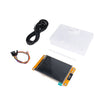
- ESP32 LVGL 2.8" Smart Display (Resistive Touch) - ESP32 + TFT + touch controller on one board for LVGL UI builds.
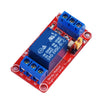
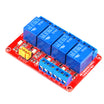
- 1-Channel 5V Relay Module - for switching a load from the touchscreen (or use the 4-channel version for multiple loads).
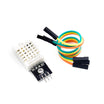
- DHT22 Sensor - provides the temperature reading for the on-screen gauge.
- DuPont Wires - for quick sensor and relay connections.
External
- USB-C cable - to power and program the ESP32 display board.
- An MQTT broker - Mosquitto on a Raspberry Pi or Home Assistant's built-in broker.
- Arduino IDE 2.x with the ESP32 board package and LVGL / TFT_eSPI libraries.
Note: The ESP32 LVGL display board referenced here is a single PCB with ESP32-WROOM-32, a 240x320 ILI9341 TFT, and an XPT2046 resistive touch controller. Use the product page pinout and library configuration for your specific board revision.
Step-by-Step Guide
Step 1 - Understand why LVGL is a better UI toolkit
Goal: Pick the right graphics approach for a touchscreen smart switch UI.
What to do: If you are coming from direct-draw libraries like Adafruit_GFX (or raw TFT_eSPI drawing calls), note that those are great for simple primitives. LVGL is a retained-mode UI toolkit where widgets keep state, redraws are partial and smooth, and you can design layouts visually with SquareLine Studio and export C code.
Expected result: You understand the main trade-off: LVGL uses more RAM (around 30 KB minimum), but the ESP32's SRAM is typically sufficient for this class of UI.

Step 2 - Set up the ESP32 LVGL display hardware
Goal: Confirm what is already integrated on the display board and what you need to wire.
What to do: The ShillehTek ESP32 LVGL display is a single PCB with the ESP32 module, ILI9341 240x320 TFT, XPT2046 resistive touch, and USB-C. Plug in USB-C to power and program the board. Use the board's product page for the correct library and pin configuration.
Expected result: Your board powers up over USB-C and you are ready to compile and upload an Arduino sketch.
Step 3 - Upload a quick "Hello LVGL" sketch
Goal: Initialize LVGL and draw a basic button on the display.
What to do: Install the required libraries (LVGL and TFT_eSPI) in Arduino IDE, then upload a minimal LVGL example that initializes the display driver, sets up a draw buffer, and creates a centered button with a label.
Code:
#include <lvgl.h>
#include <TFT_eSPI.h>
#include "touch.h"   // XPT2046 helper

static lv_disp_draw_buf_t draw_buf;
static lv_color_t buf1[240 * 10];

void my_disp_flush(lv_disp_drv_t *d, const lv_area_t *a, lv_color_t *p) {
  tft.startWrite();
  tft.setAddrWindow(a->x1, a->y1, a->x2-a->x1+1, a->y2-a->y1+1);
  tft.pushColors((uint16_t*)&p->full, (a->x2-a->x1+1)*(a->y2-a->y1+1), true);
  tft.endWrite();
  lv_disp_flush_ready(d);
}

void setup() {
  tft.begin(); tft.setRotation(1);
  lv_init();
  lv_disp_draw_buf_init(&draw_buf, buf1, NULL, 240*10);
  static lv_disp_drv_t drv;
  lv_disp_drv_init(&drv);
  drv.flush_cb = my_disp_flush;
  drv.hor_res = 320; drv.ver_res = 240;
  drv.draw_buf = &draw_buf;
  lv_disp_drv_register(&drv);

  lv_obj_t* btn = lv_btn_create(lv_scr_act());
  lv_obj_center(btn);
  lv_obj_t* lbl = lv_label_create(btn);
  lv_label_set_text(lbl, "Hello LVGL!");
}
void loop() { lv_timer_handler(); delay(5); }
Expected result: The screen shows a centered LVGL button with the text "Hello LVGL!".
Step 4 - Add a relay-toggle button to the UI
Goal: Toggle a GPIO that controls a relay module from the touchscreen button.
What to do: Choose the relay GPIO (example below uses GPIO 32). Create an LVGL button, attach an event callback, and update both the relay output level and the on-screen label when the user taps.

Code:
const int RELAY = 32;
bool relayOn = false;

static void toggle_cb(lv_event_t* e) {
  relayOn = !relayOn;
  digitalWrite(RELAY, relayOn ? HIGH : LOW);
  lv_obj_t* btn = lv_event_get_target(e);
  lv_label_set_text(lv_obj_get_child(btn, 0),
                     relayOn ? "Light ON" : "Light OFF");
}

void setup() {
  pinMode(RELAY, OUTPUT);
  // ... LVGL init from step 3 ...
  lv_obj_t* btn = lv_btn_create(lv_scr_act());
  lv_obj_set_size(btn, 200, 80);
  lv_obj_center(btn);
  lv_obj_add_event_cb(btn, toggle_cb, LV_EVENT_CLICKED, NULL);
  lv_obj_t* lbl = lv_label_create(btn);
  lv_label_set_text(lbl, "Light OFF");
}
Expected result: Tapping the on-screen button flips the relay GPIO and updates the label between "Light OFF" and "Light ON".
Step 5 - Display live data with an animated gauge
Goal: Show a live temperature reading on the UI.
What to do: Read the DHT22 periodically (for example, every 2 seconds) and feed the value into an lv_meter widget. This gives you a swept-needle style gauge that updates smoothly.
Expected result: The screen shows a temperature gauge that updates on a timed interval as new DHT22 readings arrive.
Step 6 - Publish state to Home Assistant over MQTT
Goal: Send button/relay state changes to your MQTT broker so Home Assistant can track and control the entity.
What to do: Add the PubSubClient library, connect the ESP32 to WiFi, and publish a message (example topic: home/livingroom/light) whenever the LVGL button is pressed. You can also subscribe to the same topic (or a command topic) to reflect state changes initiated in Home Assistant back on the display.

Expected result: Home Assistant detects the MQTT messages and you can control or monitor the smart switch state from other devices.
Step 7 - Use SquareLine Studio for more complex UIs
Goal: Speed up multi-screen UI creation without manually calculating layout positions.
What to do: For multi-page interfaces (settings, dashboards, animated transitions), use SquareLine Studio to design the UI visually, then export the generated C code and integrate it into your Arduino project.
Expected result: You can iterate on a polished UI faster, while still running everything locally on the ESP32.
Conclusion
You built an ESP32 LVGL touchscreen smart switch UI that can toggle a relay, display live DHT22 temperature data, and publish state changes over MQTT for Home Assistant integration. This workflow gives you a modern, smooth UI on inexpensive hardware while keeping the firmware fully under your control.
Want the exact parts used in this build? Grab them from ShillehTek.com. If you want help customizing this project or building something for your product, check out our IoT consulting services.
Attribution: This guide was inspired by "Building an ESP32-based Smart Switch With LVGL Display" on Instructables.



.png?v=25000753014097803521791168436)

.png?v=68677308723310773341791168436)


