

Video Tutorial (Optional)
Watch first if you want to follow the full ESP32 AP Mode setup and see the Hello World web page load in a browser.
Project Overview
ESP32 AP Mode walkthrough: You will use an ESP32 in WiFi Access Point (AP) mode to host a simple HTTP web server that returns a Hello World page, even when there is no Internet connection.
This is useful for local-only control pages, device configuration portals, and short-range communication between devices as long as the ESP32 network is running.
Subscribe and support (original links):
- Time: 15 to 30 minutes
- Skill level: Beginner
- What you will build: An ESP32-hosted WiFi network (AP) with a basic web server that serves a Hello World page at the ESP32 IP address
Parts List
From ShillehTek
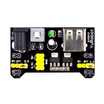
- Breadboard, jumper wires, and ESP32-friendly accessories - optional helpers for prototyping and powering your ESP32 setup
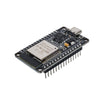
- ESP-WROOM-32 ESP32 Dev Board CP2102 USB-C Pre-Soldered - the development board used in this build
External
- USB cable for your ESP32 board (often Micro-USB or USB-C depending on the board)
- Computer with Arduino IDE installed
Note: This project uses the ESP32 WiFi library in the Arduino IDE and runs a web server on port 80. The AP IP address is read from the Arduino Serial Monitor.
Step-by-Step Guide
Step 1 - Upload the AP mode web server code in Arduino IDE
Goal: Turn the ESP32 into a WiFi Access Point (AP) and start a web server that responds with a Hello World HTML page.
What to do: Open Arduino IDE, select the correct ESP32 board and COM port, then upload the sketch below. Update the ssid and password values if you want different credentials.

Code:
#include <WiFi.h>

// Replace with your network credentials
const char* ssid     = "ESP32-Access-Point";
const char* password = "123456789";

// Set web server port number to 80
WiFiServer server(80);

void setup() {
  Serial.begin(115200);

  // Connect to Wi-Fi network with SSID and password
  Serial.print("Setting AP (Access Point)…");
  // Remove the password parameter, if you want the AP (Access Point) to be open
  WiFi.softAP(ssid, password);

  IPAddress IP = WiFi.softAPIP();
  Serial.print("AP IP address: ");
  Serial.println(IP);

  server.begin();
}

void loop(){
  WiFiClient client = server.available();   // Listen for incoming clients

  if (client) {                             // If a new client connects,
    Serial.println("New Client.");          // print a message out in the serial port
    String currentLine = "";                // make a String to hold incoming data from the client
    while (client.connected()) {            // loop while the client's connected
      if (client.available()) {             // if there's bytes to read from the client,
        char c = client.read();             // read a byte, then
        Serial.write(c);                    // print it out the serial monitor
        currentLine += c;
        if (c == '\n') {                    // if the byte is a newline character
          // if the current line is blank, you got two newline characters in a row.
          // that's the end of the client HTTP request, so send a response:
          if (currentLine.length() == 2) {
            // HTTP headers always start with a response code (e.g. HTTP/1.1 200 OK)
            // and a content-type so the client knows what's coming, then a blank line:
            client.println("HTTP/1.1 200 OK");
            client.println("Content-type:text/html");
            client.println("Connection: close");
            client.println();

            // Send your "Hello World" HTML response
            client.println("<html><head><meta name=\"viewport\" content=\"width=device-width, initial-scale=1\"></head>");
            client.println("<body><h1>Hello World</h1></body></html>");

            // The HTTP response ends with another blank line
            client.println();
            // Break out of the while loop
            break;
          } else { // if you got a newline, then clear currentLine
            currentLine = "";
          }
        } else if (c != '\r') {  // if you got anything else but a carriage return character,
          currentLine += c;      // add it to the end of the currentLine
        }
      }
    }
    // Close the connection
    client.stop();
    Serial.println("Client disconnected.");
    Serial.println("");
  }
}
Expected result: After upload, open the Serial Monitor (115200 baud). You should see the Access Point IP address printed (commonly 192.168.4.1).
Step 2 - Connect to the ESP32 network and open the web page
Goal: Join the ESP32-created WiFi network and load the Hello World web page from the ESP32 web server.
What to do: On your phone or computer, find and connect to the WiFi network name (SSID) you set in the sketch. Enter the password if required.

Next, enter the ESP32 IP address in your browser using the http protocol. You can read the IP address from the Arduino IDE Serial Monitor. For example:
http://192.168.4.1/
Expected result: Your browser loads a page that displays Hello World.
Conclusion
You set up an ESP32 in AP mode and hosted a simple HTTP web server that serves a Hello World page at the ESP32 IP address, with no Internet connection required. This is a solid base for local dashboards, configuration pages, and device-to-device communication.
Want the parts and project essentials for your next ESP32 build? Grab them from ShillehTek.com. If you want help customizing this into a real product flow (captive portal, configuration UI, multi-client behavior, or a larger IoT architecture), check out our IoT consulting services.






.png?v=25000753014097803521791168436)

.png?v=68677308723310773341791168436)


