

Project Overview
WCS1700 Hall-Effect Current Sensor with Arduino: In this tutorial, you will use an Arduino Uno with the WCS1700 Hall-effect current sensor module to measure DC and AC current (with galvanic isolation) and display amperage in the Arduino Serial Monitor. The WCS1700 is a through-hole style sensor capable of measuring up to 70 A, making it ideal for monitoring motors, battery banks, solar panels, and other high-current applications.
- Time: 30 minutes to 1 hour
- Skill level: Intermediate
- What you will build: A current measurement system that reads amperage through the WCS1700 sensor and displays it on the Arduino Serial Monitor.
Parts List
From ShillehTek
-
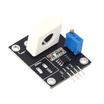
WCS1700 70A Hall-Effect Current Sensor Module - a through-hole current sensor with overcurrent detection, capable of measuring up to 70 A
- 120pcs Dupont Jumper Wires - for connecting the sensor signal pins to the Arduino
External
- USB cable - to connect the Arduino to your computer
- Computer with Arduino IDE installed
- LED and a 300 to 1 kΩ resistor - for zero-current calibration indication
- High-current load (motor, electronic load, or resistor bank) - to test current measurement
- Appropriately rated wire (10 AWG or thicker) - for the high-current path through the sensor
- Arduino Uno R3 - the microcontroller that reads the sensor output and processes measurements
Note: The WCS1700 is a through-hole sensor, meaning the high-current wire passes through the sensor’s core rather than connecting to screw terminals. The low-voltage signal pins (VCC, GND, VOUT) connect to the Arduino using standard jumper wires.
Step-by-Step Guide
Step 1 - Understand the WCS1700 Sensor
Goal: Learn what the WCS1700 does and how it works before wiring anything.
What to do: The WCS1700 belongs to the Winson WCS family of Hall-effect current sensors. It uses the Hall effect to detect the magnetic field generated by current flowing through its core, then outputs a proportional analog voltage. Key specifications of the WCS1700 include a measurement range up to 70 A, a supply voltage of 3 to 12 V (5 V with Arduino is standard), an output voltage centered at approximately VCC/2 at zero current, and galvanic isolation of around 4 kV between the high-current path and the signal electronics. Because the WCS1700 is a through-hole sensor, you thread the high-current cable through the sensor’s circular opening rather than using screw terminals.
Expected result: You understand that the sensor outputs an analog voltage proportional to the current flowing through its core, and that VCC/2 represents zero current.
Step 2 - Wire the Circuit
Goal: Connect the WCS1700 sensor and an indicator LED to the Arduino.
What to do: The WCS1700 has three low-voltage signal pins: VCC, GND, and VOUT. Make the following connections:
- WCS1700 VCC → Arduino 5V
- WCS1700 GND → Arduino GND
- WCS1700 VOUT → Arduino A0
For the zero-current indicator LED:
- Arduino pin 2 → 300 to 1 kΩ resistor → LED anode (long leg)
- LED cathode (short leg) → Arduino GND
For the high-current path, thread a suitably rated wire (10 AWG or thicker) through the WCS1700’s circular core. Connect this wire in series with your load: power supply positive → through sensor core → load → back to power supply negative. The direction of current through the core determines whether readings are positive or negative.

Expected result: The WCS1700 signal pins are connected to the Arduino, the LED is wired to pin 2, and the high-current cable passes through the sensor core.
Step 3 - Install the Robojax WCS Library
Goal: Add the Arduino library that handles sensor calibration and current calculations.
What to do: The Robojax WCS library supports the entire Winson WCS sensor family and simplifies offset calibration, scaling, and averaging. To install it:
- Download the Robojax WCS library ZIP file from the Robojax website.
- Open the Arduino IDE and go to Sketch > Include Library > Add .ZIP Library...
- Browse to the downloaded ZIP file and click Open.
- Close and reopen the Arduino IDE to ensure the library is loaded.
You can verify the installation by going to File > Examples and looking for “Robojax WCS Current Sensor” in the list.
Expected result: The Robojax WCS library is installed and visible in the Arduino IDE examples menu.
Step 4 - Upload the Arduino Sketch
Goal: Program the Arduino to read current from the WCS1700 and print it to the Serial Monitor.
What to do: Create a new sketch and paste the following code. This program initializes the WCS1700 sensor, performs a zero-current calibration on startup, and continuously reads and displays the current in amperes.
#include <Wire.h>
#include <Robojax_WCS.h>

// WCS1700 is model index 11 in the Robojax library
#define MODEL 11
#define SENSOR_PIN A0
#define SENSOR_VCC_PIN 8
#define ZERO_CURRENT_LED_PIN 2
#define ZERO_CURRENT_WAIT_TIME 5000
#define CORRECTION_VLALUE 164
#define MEASUREMENT_ITERATION 100
#define VOLTAGE_REFERENCE 5000.0
#define BIT_RESOLUTION 10
#define DEBUT_ONCE true

Robojax_WCS sensor(
  MODEL,
  SENSOR_PIN,
  SENSOR_VCC_PIN,
  ZERO_CURRENT_WAIT_TIME,
  ZERO_CURRENT_LED_PIN,
  CORRECTION_VLALUE,
  MEASUREMENT_ITERATION,
  VOLTAGE_REFERENCE,
  BIT_RESOLUTION,
  DEBUT_ONCE
);

void setup() {
  Serial.begin(9600);
  Serial.println("Robojax WCS Library");
  sensor.start();
  Serial.print("Sensor: ");
  Serial.println(sensor.getModel());
}

void loop() {
  sensor.readCurrent();
  sensor.printCurrent();

  // Example: trigger an action when current exceeds 12.3 A
  if (sensor.getCurrent() >= 12.3) {
    // Add your logic here (relay, alarm, logging, etc.)
  }

  delay(500);
  // Uncomment to see detailed debug info:
  // sensor.printDebug();
}
The key difference from other WCS models is the MODEL constant. Setting it to 11 tells the library to use the WCS1700’s specific sensitivity and scaling values. The library handles everything else: zero-current offset measurement during the 5-second startup window, analog-to-digital conversion, and the math to convert raw ADC readings into amperes.
Select Arduino UNO under Tools > Board, choose your COM port, and click Upload.
Expected result: The sketch compiles and uploads without errors.
Step 5 - Calibrate and Test
Goal: Perform zero-current calibration and verify that the sensor reads current accurately.
What to do: After uploading, make sure no current is flowing through the sensor (disconnect or turn off your load). The Arduino will spend 5 seconds measuring the zero-current voltage and storing the offset. When calibration finishes, the LED on pin 2 will light up to confirm success. Now open the Serial Monitor at 9600 baud. You should see the sensor model name and current readings of approximately 0 A.
Next, connect and turn on your load. The Serial Monitor will display the measured current in amperes, updating every 500 milliseconds. Move the current up and down to verify that the readings track the actual current. The WCS1700 provides good accuracy across its rated range, though readings near the upper limit may show slightly more error.
Important: If the Arduino resets while current is flowing, the sensor will record that current level as its zero point, causing all future readings to be offset. Always ensure zero current during the startup calibration period.
Expected result: The Serial Monitor displays accurate current readings that update in real time as you vary the load.
Conclusion
You wired a WCS1700 Hall-effect current sensor to an Arduino, installed the Robojax WCS library, calibrated the zero-current offset, and built a working current measurement system that displays readings on the Serial Monitor. This setup can serve as the foundation for overcurrent protection systems, battery monitoring, solar charge tracking, motor current logging, or any project that needs accurate, isolated current measurement up to 70 A.
Want the exact parts used in this build? Grab them from ShillehTek.com. If you want help customizing this project or building something for your product, check out our IoT consulting services.



.png?v=25000753014097803521791168436)

.png?v=68677308723310773341791168436)


