

Project Overview
Arduino Uno + HX711 load cell amplifier + load cell: In this tutorial, you will connect an HX711 load cell amplifier module to an Arduino Uno and read weight data from a load cell using the Arduino IDE Serial Monitor.
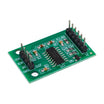
The HX711 is a popular 24-bit ADC designed for weight sensing applications. It is commonly used with load cells in digital scales, force measurement projects, and other high-precision sensor builds.
- Time: 20 to 45 minutes
- Skill level: Beginner
- What you will build: A simple Arduino-based weight sensing setup using an HX711 module and a load cell
Note: The HX711 module is built specifically for low-level load cell signals and helps amplify and digitize the small voltage changes coming from the strain gauge bridge.
Parts List
From ShillehTek
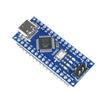
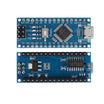
- Arduino-compatible board - used to read weight data from the HX711 module
- HX711 load cell amplifier module - converts the tiny analog signal from the load cell into digital data
- Male-to-female jumper wires - for wiring the HX711 to the Arduino
- Alligator clip wires - useful for temporary load cell connections during testing
External
- Load cell - can be 20kg, 60kg, 100kg, or another supported type
- Arduino IDE - used to upload code and monitor the readings
- USB cable - for programming and powering the Arduino Uno
Note: The HX711 works well with common 4-wire load cells used in DIY weighing scales and force sensing applications.
Step-by-Step Guide
Step 1 - Gather the required materials

Goal: Make sure you have everything needed before wiring the circuit.
What you need:
- Arduino Uno board
- HX711 balance sensor module
- Load cell
- Male-to-female jumper wires
- Alligator clip wires
- Arduino IDE
- USB cable
Expected result: You have all hardware and software ready for setup.
Step 2 - Understand the HX711 module

Step 3 - Identify the load cell wires

Goal: Match the load cell wire colors to the correct HX711 terminals.
What to know: Most 4-wire load cells use the following color convention:
- Red: Excitation+ (E+ or VCC)
- Black: Excitation- (E- or GND)
- White: Output+ / Signal+ / Amplifier+
- Green: Output- / Signal- / Amplifier-
Expected result: You know which wire goes to each HX711 input.
Step 4 - Wire the load cell to the HX711

Goal: Connect the load cell directly to the HX711 amplifier board.
What to do: Connect the four load cell wires to the HX711 as follows:
- E+ to Red
- E- to Black
- A- to White
- A+ to Green
Expected result: The load cell is connected to the HX711 and ready to send weight signal data.
Step 5 - Wire the HX711 to the Arduino Uno

Goal: Connect the amplifier board to the Arduino so it can read the digital output.
What to do: Make the following connections from the HX711 to the Arduino Uno:
- VCC to 5V
- GND to GND
- SCK to D5
- DT to D6
Then connect your Arduino Uno to your computer through USB.
Expected result: The entire hardware setup is wired and ready for code upload.
Step 6 - Install the HX711 library

Goal: Add the software library needed for the Arduino to communicate with the HX711.
What to do: Download and install an HX711 Arduino library. If you have a ZIP file version, extract it and place it in your Arduino libraries folder, or install it through the Arduino IDE Library Manager if your preferred HX711 library is available there.
Expected result: Your Arduino IDE is ready to compile sketches that use the HX711 module.
Step 7 - Upload the sample code

Goal: Test the HX711 and load cell using a basic Arduino sketch.
What to do: Open the sample sketch in the Arduino IDE, verify the HX711 data and clock pins match your wiring, and upload it to your Arduino Uno.
Note: You can change the calibration factor before uploading the code, or adjust it later through the Serial Monitor if your example sketch supports that feature.
Example sketch:
#include "HX711.h"

#define DOUT  6
#define CLK   5

HX711 scale;

float calibration_factor = -7050;

void setup() {
  Serial.begin(9600);
  scale.begin(DOUT, CLK);

  scale.set_scale();
  scale.tare();

  Serial.println("HX711 scale test");
  Serial.println("Remove all weight from the scale");
  Serial.println("After readings begin, place a known weight on the scale");
}

void loop() {
  scale.set_scale(calibration_factor);

  Serial.print("Reading: ");
  Serial.print(scale.get_units(), 2);
  Serial.println(" units");

  delay(500);
}
Expected result: The code uploads successfully and starts printing live readings in the Serial Monitor.
Step 8 - Open the Serial Monitor and calibrate

Goal: Confirm the sensor is working and fine-tune the calibration factor.
What to do: Open the Arduino IDE Serial Monitor after uploading the sketch. You should see values changing as weight is applied or removed from the load cell.
If the reading is inaccurate, adjust the calibration factor in your code or use a calibration-enabled example that lets you increase or decrease it while the sketch is running.
Expected result: The Serial Monitor displays live output that changes when weight is placed on the load cell.
Step 9 - Verify the result
Goal: Make sure the setup is working consistently.
What to check:
- The Arduino powers up normally
- The HX711 wiring matches the code
- The load cell wires are connected to the correct HX711 terminals
- The Serial Monitor shows stable readings
- The calibration factor gives reasonable measurements
Expected result: You have a working Arduino weight sensing setup that can detect and report changes in load.
Conclusion
You now have an Arduino Uno connected to an HX711 amplifier and load cell for basic weight measurement. This is a great beginner project for understanding load cells, analog front-end modules, and digital sensor calibration.
Want the exact parts used in this build? Grab them from ShillehTek.com. If you want help customizing this project or building something for your product, check out our IoT consulting services.




.png?v=25000753014097803521791038641)

.png?v=68677308723310773341791038641)


