

Project Overview
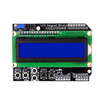
Using the 1602 LCD Keypad Shield with Arduino: In this tutorial, you will learn how to use the 1602 LCD Keypad Shield with an Arduino board. This convenient shield combines a 16x2 character LCD with five navigation buttons and a reset button, all in one compact package that plugs directly into your Arduino — no wiring needed.
- Time: 1 to 2 hours
- Skill level: Beginner
- What you will build: Three practical projects: detecting button presses, scrolling text across the LCD, and displaying custom-designed characters.

Parts List
From ShillehTek
- LCD1602 16x2 Keypad Shield for Arduino & Raspberry Pi — 16x2 LCD with five navigation buttons; plugs directly onto Arduino Uno-style headers
External
- Arduino Uno or compatible Uno-form-factor board — ShillehTek does not sell Arduino boards; use any standard Uno for this tutorial
- USB cable — to program the Arduino and provide power
- Computer with Arduino IDE installed
Note: The LCD Keypad Shield is designed for Arduino Uno form factor boards. It uses pins 4-10 for the LCD and analog pin A0 for the buttons, so keep that in mind if you plan to add other components.
Step-by-Step Guide
Step 1 — Understanding the 1602 LCD Keypad Shield
Goal: Get familiar with the shield's layout, features, and how it connects to the Arduino.
What to do: The 1602 LCD Keypad Shield is one of the most popular accessories for Arduino projects. It features a 16-column by 2-row character LCD along with five tactile buttons (Select, Left, Up, Down, Right) and a Reset button. The entire shield mounts directly onto the Arduino's header pins, which means zero external wiring is required.

Character LCDs are among the most affordable and straightforward ways to display data from a microcontroller. They work well for showing sensor readings, menus, status messages, and more. The shield version eliminates the need for breadboard wiring, making it ideal for rapid prototyping.
Expected result: You understand what the shield offers and are ready to explore its pinout.
Step 2 — Review the Pinout and Connections
Goal: Learn which Arduino pins the shield uses so you can plan your projects accordingly.
What to do: Simply plug the shield onto your Arduino Uno. All pin connections are handled through the header pins. The shield uses the following Arduino pins:


Key pins to remember: digital pins 4 through 7 carry LCD data, pin 8 is RS (Register Select), pin 9 is Enable, and pin 10 controls the backlight. All five buttons are read through a single analog pin — A0 — using a resistive voltage divider circuit.
Expected result: The shield is mounted on your Arduino and you know which pins it occupies.
Step 3 — Detect Button Presses
Goal: Read the five navigation buttons and display which one is pressed on the LCD.
What to do: All five buttons share analog pin A0 through a resistive voltage divider network. Each button produces a different analog reading when pressed, which lets you identify them using simple threshold comparisons in your code.

Upload the following sketch to your Arduino. It initializes the LCD, prints a header message, and then continuously reads the analog value from A0 to determine which button is being pressed.
#include <LiquidCrystal.h>

// LCD pin assignments matching the shield
const int pin_RS = 8;
const int pin_EN = 9;
const int pin_d4 = 4;
const int pin_d5 = 5;
const int pin_d6 = 6;
const int pin_d7 = 7;
const int pin_BL = 10;

LiquidCrystal lcd(pin_RS, pin_EN, pin_d4, pin_d5, pin_d6, pin_d7);

void setup() {
  lcd.begin(16, 2);
  lcd.setCursor(0, 0);
  lcd.print("ShillehTek.com");
  lcd.setCursor(0, 1);
  lcd.print("Press Key:");
}

void loop() {
  int x;
  x = analogRead(0);
  lcd.setCursor(10, 1);
  if (x < 60) {
    lcd.print("Right ");
  } else if (x < 200) {
    lcd.print("Up    ");
  } else if (x < 400) {
    lcd.print("Down  ");
  } else if (x < 600) {
    lcd.print("Left  ");
  } else if (x < 800) {
    lcd.print("Select");
  }
}
Here is a quick breakdown of the key LCD functions used in this sketch:

-
lcd.begin(16, 2)— initializes the LCD with 16 columns and 2 rows -
lcd.setCursor(col, row)— moves the cursor to a specific position -
lcd.print("text")— prints a string at the current cursor location -
analogRead(0)— reads the voltage on A0, which varies depending on which button is pressed
Expected result: The LCD shows "ShillehTek.com" on the first line and displays the name of whichever button you press on the second line.
Step 4 — Scroll Text Across the Display
Goal: Make text scroll left and right across the LCD screen.
What to do: The LiquidCrystal library includes built-in functions for scrolling the display contents. The scrollDisplayLeft() and scrollDisplayRight() functions shift everything on the screen by one position each time they are called. By putting them in a loop with a delay, you get smooth scrolling text.
#include <LiquidCrystal.h>

const int RS = 8;
const int EN = 9;
const int d4 = 4;
const int d5 = 5;
const int d6 = 6;
const int d7 = 7;
const int pin_BL = 10;

LiquidCrystal lcd(RS, EN, d4, d5, d6, d7);

void setup() {
  lcd.begin(16, 2);
  lcd.print("ShillehTek");
  delay(1000);
}

void loop() {
  // Scroll 10 positions to the left
  for (int i = 0; i < 10; i++) {
    lcd.scrollDisplayLeft();
    delay(400);
  }

  // Scroll 26 positions to the right
  for (int i = 0; i < 26; i++) {
    lcd.scrollDisplayRight();
    delay(400);
  }

  // Scroll 16 positions back to the left quickly
  for (int i = 0; i < 16; i++) {
    lcd.scrollDisplayLeft();
    delay(50);
  }

  delay(1000);
}
The text scrolls left off the visible area, then bounces back to the right, and quickly snaps back to its starting position. Adjust the delay values to control the scrolling speed.
Expected result: The text "ShillehTek" scrolls smoothly left and right across the LCD in a repeating loop.
Step 5 — Display Custom Characters
Goal: Create and display your own custom icons on the LCD.
What to do: Each character cell on the LCD is a 5x8 pixel grid. You can define up to 8 custom characters by specifying the pixel pattern as a byte array. To make designing easier, you can use an online tool like LCD Character Creator to visually draw your character and copy the generated code.


#include <LiquidCrystal.h>

const int RS = 8;
const int EN = 9;
const int d4 = 4;
const int d5 = 5;
const int d6 = 6;
const int d7 = 7;
const int pin_BL = 10;

LiquidCrystal lcd(RS, EN, d4, d5, d6, d7);

// Smiley face
byte smiley[8] = {
  B00000, B10001, B00000, B00000,
  B10001, B01110, B00000,
};

// Battery icon
byte battery[] = {
  B01110, B01010, B11011, B10001,
  B11111, B11111, B11111, B11111
};

// Right arrow
byte R_arrow[8] = {
  B00000, B00100, B00010, B11111,
  B00010, B00100, B00000, B00000
};

// Left arrow
byte L_arrow[8] = {
  B00000, B00100, B01000, B11111,
  B01000, B00100, B00000, B00000
};

// Ohm symbol
byte ohm[8] = {
  B00000, B01110, B10001, B10001,
  B10001, B01010, B11011, B00000
};

// Heart
byte heart[8] = {
  B00000, B01010, B10101, B10001,
  B10001, B01010, B00100, B00000
};

void setup() {
  lcd.begin(16, 2);
  lcd.createChar(0, smiley);
  lcd.createChar(1, battery);
  lcd.createChar(2, R_arrow);
  lcd.createChar(3, L_arrow);
  lcd.createChar(4, ohm);
  lcd.createChar(5, heart);

  for (int n = 0; n < 6; n++) {
    lcd.setCursor(n * 2, 0);
    lcd.write(n);
  }
}

void loop() {
}
The lcd.createChar(index, array) function stores your custom pixel pattern in one of 8 available memory slots (0–7). You then display it with lcd.write(index). This is a great way to add icons like battery indicators, arrows, or status symbols to your projects.
Expected result: The LCD shows six custom characters on the top row — a smiley face, battery, right arrow, left arrow, ohm symbol, and heart.
Conclusion
In this tutorial, you learned how to use the 1602 LCD Keypad Shield with an Arduino Uno to detect button presses through a resistive voltage divider, scroll text across the display, and create custom characters from scratch. This shield is an excellent starting point for building interactive menus, sensor dashboards, and any project that needs a simple user interface.
Want the exact parts used in this build? Grab them from ShillehTek.com. If you want help customizing this project or building something for your product, check out our IoT consulting services.
Credits
All photos and images in this tutorial are credited to ElectroPeak on Hackster.io. The original guide by Saeed Hosseini at ElectroPeak served as the reference for this ShillehTek version. We thank them for their excellent work in the maker community.




.png?v=25000753014097803521791168436)

.png?v=68677308723310773341791168436)


