

Project Overview
Arduino Uno + SSD1306 0.96 in I2C OLED Pong: Build a two-player Pong game on a 128x64 OLED using two potentiometers for paddles and a buzzer for bounce and score sounds. The ball speeds up over time and takes spin based on where it hits the paddle, teaching the classic game loop: read inputs, update positions, check collisions, then draw.
- Time: ~1 hour
- Skill level: Intermediate
- What you will build: A two-player Pong with knob-controlled paddles, sound, score to 8, angle-changing paddle hits, and a win screen.

Parts List
From ShillehTek
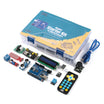
- Arduino Uno R3 Super Starter Kit - Uno plus the two potentiometers
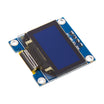
- SSD1306 0.96" I2C OLED - the original used a color SPI OLED; the I2C one needs just four wires
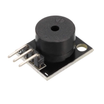
- KY-006 Passive Buzzer - bounce and score sounds
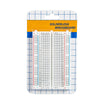
- 400-Point Breadboard - quick prototyping and wiring
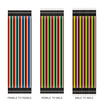
- Dupont Jumper Wires - connections between the Uno, OLED, pots, and buzzer
External
- None
Note: The OLED is 128x64 pixels. The game keeps the ball position as floating-point numbers so it can move at fractional speeds and angles, and only rounds to whole pixels when drawing, which makes the motion look smooth on a tiny screen.
Step-by-Step Guide
Step 1 - Wire the Console
Goal: Two knobs, one screen, one speaker.
What to do: Wire the left potentiometer: ends to 5V and GND, wiper to A0. Wire the right potentiometer: ends to 5V and GND, wiper to A1.
What to do: Wire the SSD1306 I2C OLED: SDA to A4, SCL to A5, VCC to 5V, and GND to GND. Wire the buzzer to D8.
Expected result: A two-player control panel.
Step 2 - Think in Frames
Goal: Understand the game loop.
What to do: Treat every pass through loop() as one frame: read both pots into paddle positions, move the ball by its velocity, bounce off the top and bottom, check whether it hit a paddle (reverse and speed up if so), check whether it left the screen (score), then redraw everything. Run that 30 to 60 times a second and it becomes a game.
Expected result: You can describe Pong as five bullet points, which is the sketch structure.
Step 3 - Upload the Sketch
Goal: Get the full game running on the OLED.
Code:
#include <Wire.h>
#include <Adafruit_GFX.h>
#include <Adafruit_SSD1306.h>

Adafruit_SSD1306 oled(128, 64, &Wire, -1);
const int POT_L = A0, POT_R = A1, BUZZ = 8;
const int PADDLE_H = 14, PADDLE_W = 3, WIN = 8;
float bx = 64, by = 32, vx = 1.6, vy = 1.0;     // ball position and velocity (pixels/frame)
int scoreL = 0, scoreR = 0;

void beep(int f) { tone(BUZZ, f, 30); }

void resetBall(int dir) {                       // serve toward the player who just scored
  bx = 64; by = random(10, 54);
  vx = 1.6 * dir; vy = random(-10, 11) / 10.0;
}

void setup() {
  oled.begin(SSD1306_SWITCHCAPVCC, 0x3C);
  oled.setTextColor(SSD1306_WHITE);
  randomSeed(analogRead(A3));
  resetBall(1);
}

void loop() {
  int pl = map(analogRead(POT_L), 0, 1023, 0, 64 - PADDLE_H);   // paddle top edges
  int pr = map(analogRead(POT_R), 0, 1023, 0, 64 - PADDLE_H);

  bx += vx; by += vy;
  if (by <= 0 || by >= 63) { vy = -vy; beep(400); }             // top / bottom walls

  // paddle hits: reverse, speed up 5%, add spin from where it struck the paddle
  if (bx <= 5 && by >= pl && by <= pl + PADDLE_H) {
    vx = -vx * 1.05; vy += (by - (pl + PADDLE_H / 2)) / 8.0; beep(800);
  }
  if (bx >= 122 && by >= pr && by <= pr + PADDLE_H) {
    vx = -vx * 1.05; vy += (by - (pr + PADDLE_H / 2)) / 8.0; beep(800);
  }
  vy = constrain(vy, -2.5, 2.5);

  if (bx < 0)   { scoreR++; beep(150); resetBall(1);  }         // missed on the left
  if (bx > 127) { scoreL++; beep(150); resetBall(-1); }         // missed on the right

  oled.clearDisplay();
  oled.fillRect(2,   pl, PADDLE_W, PADDLE_H, SSD1306_WHITE);
  oled.fillRect(123, pr, PADDLE_W, PADDLE_H, SSD1306_WHITE);
  oled.fillRect((int)bx, (int)by, 2, 2, SSD1306_WHITE);
  for (int y = 0; y < 64; y += 6) oled.drawFastVLine(64, y, 3, SSD1306_WHITE);   // the net
  oled.setTextSize(1);
  oled.setCursor(50, 2); oled.print(scoreL);
  oled.setCursor(72, 2); oled.print(scoreR);
  oled.display();

  if (scoreL >= WIN || scoreR >= WIN) {
    oled.clearDisplay(); oled.setTextSize(2); oled.setCursor(4, 24);
    oled.print(scoreL >= WIN ? "LEFT WINS" : "RIGHT WINS");
    oled.display(); delay(3000);
    scoreL = scoreR = 0; resetBall(1);
  }
}
What to do: Install the Adafruit SSD1306 and Adafruit GFX libraries, upload the sketch, then use the two knobs to control the paddles.
Expected result: Smooth paddles, a ball that gets faster with every rally and curves off the paddle edges, chirps on every hit, and first to 8 wins.
Step 4 - Add a Computer Opponent
Goal: Add single-player mode.
What to do: Replace the right potentiometer with an AI: each frame, move pr one pixel toward the ball Y, but only when the ball is heading right (vx > 0). Cap its speed to make it beatable, and add a little random error for realism.
Expected result: A rival that never gets tired but can still be outsmarted.
Step 5 - Juice It
Goal: Add small details that make it feel like a finished game.
What to do: Add a one-second countdown before each serve, a screen flash when someone scores, a "press to start" title screen, and a two-frame ball trail. Swap the pots for a joystick or two buttons per player.
Expected result: A game people ask to play again.
Conclusion
Pong teaches the game loop, collision detection, and simple physics in one sitting. These skills transfer directly to Snake, Breakout, Flappy Bird, and to non-game projects like animated gauges and radar-style displays.
Want the exact parts used in this build? Grab them from ShillehTek.com. If you want help customizing this project or building something for your product, check out our IoT consulting services.
Credit: Photos and the original reference guide are credited to Nick Koumaris on Hackster.io.


.png?v=25000753014097803521791168436)

.png?v=68677308723310773341791168436)


