

Project Overview
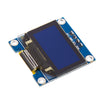
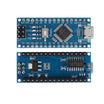
Arduino + SSD1306 0.96 inch OLED display: In this project, you will wire an SSD1306 128x64 I2C OLED to an Arduino (Nano shown) and upload a sketch that prints text and draws simple graphics on the screen.
The SSD1306 OLED is a low-cost, sharp, low-power way to add a status display for menus, sensor readouts, and small dashboards. Most modules work on 3.3 V or 5 V and do not require a backlight.
- Time: ~15 minutes
- Skill level: Beginner
- What you will build: An Arduino displaying live text and graphics on a 128x64 OLED.

Parts List
From ShillehTek
- 0.96 inch I2C Blue OLED (SSD1306) - the 128x64 OLED display module used in this build
- Arduino Nano V3.0 Pre-Soldered - example Arduino board for wiring and uploading the sketch
- 120 PCS Dupont Jumper Wires - quick I2C connections between the Arduino and OLED pins
External
- USB cable - to power the Arduino and upload code
- Arduino IDE - to install libraries and upload the sketch
Note: Most SSD1306 modules use I2C address 0x3C; a few use 0x3D. If begin() fails, try the other address.
Step-by-Step Guide
Step 1 - Inspect the SSD1306 module pins
Goal: Confirm the module pin labels and identify the I2C connections.
What to do: Look for the four pins on the OLED module: VCC, GND, SCL, and SDA. These are standard I2C power and signal pins.


Expected result: You can clearly identify VCC, GND, SDA, and SCL on your display module.
Step 2 - Wire the OLED to the Arduino using I2C
Goal: Connect power and I2C lines so the Arduino can communicate with the SSD1306.
What to do: Make these connections:
- VCC to 5 V
- GND to GND
- SDA to A4
- SCL to A5

Expected result: The OLED is powered and connected to the Arduino I2C pins.
Step 3 - Install the required Arduino libraries
Goal: Add the display libraries needed to compile the sketch.
What to do: In the Arduino IDE Library Manager, install Adafruit SSD1306. It will also pull in Adafruit GFX as a dependency, and you should accept that install.
Expected result: The Arduino IDE has both Adafruit SSD1306 and Adafruit GFX installed.
Step 4 - Upload the OLED sketch
Goal: Initialize the SSD1306 and draw text and graphics to confirm everything works.
What to do: Paste the sketch below into the Arduino IDE, verify it, and upload it to your board. If your module uses address 0x3D, update the address in oled.begin(...).
Code:
#include <Wire.h>
#include <Adafruit_GFX.h>
#include <Adafruit_SSD1306.h>

#define WIDTH 128
#define HEIGHT 64
Adafruit_SSD1306 oled(WIDTH, HEIGHT, &Wire, -1);

void setup() {
  Serial.begin(9600);
  if (!oled.begin(SSD1306_SWITCHCAPVCC, 0x3C)) {
    Serial.println("SSD1306 init failed");
    while (1);
  }
  oled.clearDisplay();
  oled.setTextSize(2);
  oled.setTextColor(SSD1306_WHITE);
  oled.setCursor(0, 0);
  oled.println("ShillehTek");
  oled.setTextSize(1);
  oled.println("Hello, OLED!");
  oled.drawRect(0, 40, 128, 20, SSD1306_WHITE);
  oled.fillRect(2, 42, 60, 16, SSD1306_WHITE);
  oled.display();
}

void loop() {}
Expected result: The sketch uploads without errors and the OLED initializes (no "SSD1306 init failed" message in Serial).
Step 5 - Verify the display output
Goal: Confirm the OLED is rendering both text and shapes.
What to do: After the Arduino resets, look for the printed text and the rectangle graphics on the OLED.


Expected result: You see crisp white pixels forming the text and the drawn rectangles.
Step 6 - Extend the sketch for your own projects
Goal: Identify practical next uses for the same SSD1306 setup.
What to do: Use the same wiring and library setup to build one of these ideas:
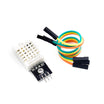
- Show DHT22 readings live on the OLED for a small climate widget
- Display ESP32 Wi-Fi RSSI for a signal-strength meter
- Build a multi-screen rotary menu with a rotary encoder
- Render a small game (Pong, Snake) with the GFX library
Expected result: You have a clear direction for turning the demo sketch into a useful status screen.
Conclusion
You wired an Arduino (Nano shown) to an SSD1306 0.96 inch I2C OLED and uploaded a sketch that prints text and draws simple graphics on the 128x64 display. Once you have it working, you can move status output from Serial to a standalone screen in your projects.
Want the exact parts used in this build? Grab them from ShillehTek.com. If you want help customizing this project or building something for your product, check out our IoT consulting services.



.png?v=25000753014097803521788741467)

.png?v=68677308723310773341788741467)


