

Project Overview
Arduino + IR Obstacle Avoidance Sensor: In this build, you will wire an IR obstacle avoidance sensor module to an Arduino (like the Arduino Nano) so the built-in LED turns on and the Serial Monitor prints a message when an object is detected.
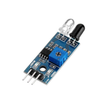
The module has an IR LED that fires forward, a phototransistor that catches the reflection, and an on-board comparator that outputs a clean HIGH/LOW signal. Adjust the detection threshold with the trim-pot to set the approximate trigger range (about 2 to 30 cm depending on surface and lighting).
- Time: ~15 minutes
- Skill level: Beginner
- What you will build: An Arduino that blinks an LED when something gets within range of the IR sensor.

Parts List
From ShillehTek
- IR Infrared Obstacle Avoidance Sensor - provides a digital HIGH/LOW obstacle signal you can read with a GPIO pin
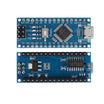
- Arduino Nano V3.0 Pre-Soldered - reads the sensor output and controls the onboard LED/Serial output
- 120 PCS Dupont Jumper Wires - quick wiring between the sensor and Arduino
External
- USB cable - to power/program the Arduino
- Arduino IDE - to upload the sketch and view Serial Monitor output
Note: This is a binary (yes/no) obstacle sensor, not a distance measurement sensor. For true distance measurement, use HC-SR04 (budget) or VL53L0X (more precise).
Step-by-Step Guide
Step 1 - Inspect the Module
Goal: Identify the sensor parts and the adjustment you will tune later.
What to do: Locate the IR LED (clear) and phototransistor (black) facing forward. Find the trim-pot, which adjusts the comparator threshold used to decide when the output triggers.

Expected result: You can identify VCC, GND, and OUT, and you know where the sensitivity adjustment is.
Step 2 - Wire It Up
Goal: Connect power and the digital output pin to the Arduino.
What to do: Wire the module to the Arduino using these connections:

- VCC -> 5 V
- GND -> GND
- OUT -> D2 (digital input)
Expected result: The sensor is powered and its OUT pin is connected to Arduino digital pin D2.
Step 3 - Understand What the Output Means
Goal: Know how the module decides when an obstacle is detected.
What to do: Use the diagram below as a reference. The IR LED emits light, the phototransistor receives reflections, and the comparator switches the OUT pin based on the trim-pot threshold. In this module, the output goes LOW when reflection exceeds the set threshold (active-low detection).

Expected result: You understand why the code checks for LOW to indicate an object is detected.
Step 4 - Upload the Arduino Sketch
Goal: Read the sensor output and drive the Arduino built-in LED when an obstacle is detected.
What to do: Open the Arduino IDE, select your board/port, paste the sketch below, and upload it.
Code:
const int IR  = 2;
const int LED = LED_BUILTIN;

void setup() {
  pinMode(IR, INPUT);
  pinMode(LED, OUTPUT);
  Serial.begin(9600);
}

void loop() {
  if (digitalRead(IR) == LOW) {   // active LOW = obstacle detected
    digitalWrite(LED, HIGH);
    Serial.println("Object detected!");
  } else {
    digitalWrite(LED, LOW);
  }
  delay(50);
}
Expected result: The sketch uploads successfully, and Serial Monitor is ready at 9600 baud.
Step 5 - Tune and Test
Goal: Adjust the trim-pot so the sensor triggers at the distance you want.
What to do: Open the Serial Monitor (9600 baud). Place your hand or an object in front of the sensor and turn the trim-pot:
- Turn clockwise (CW) to make the sensor more sensitive (longer detection range).
- Turn counterclockwise (CCW) for less sensitivity (shorter detection range).


Expected result: When an object is within your tuned range, the Arduino LED turns on and the Serial Monitor prints “Object detected!”.
Step 6 - Where to Take It Next
Goal: Reuse the same sensor output logic in other projects.
What to do: Try one of these follow-on ideas using the same VCC/GND/OUT wiring and active-low logic:
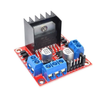
- Pair two sensors with an L298N + motors for an obstacle-avoiding robot
- Build a hand-wave-controlled tap dispenser using the IR sensor as a trigger
- Combine with HC-SR501 motion sensor for two-stage human detection
- Replace door-bumper switches in a Roomba-style robot
Expected result: You have a clear next build direction that still uses a simple digital trigger signal.
Conclusion
You built an Arduino IR obstacle detection circuit using an IR obstacle avoidance sensor module, with an active-low digital output that turns on the built-in LED and prints a message when something is in front of the sensor.
Want the exact parts used in this build? Grab them from ShillehTek.com. If you want help customizing this project or building something for your product, check out our IoT consulting services.



.png?v=25000753014097803521791168436)

.png?v=68677308723310773341791168436)


