

Project Overview
Arduino + HC-05 Bluetooth module wireless serial: The HC-05 is a Bluetooth 2.0+EDR module that exposes a serial port profile (SPP) to any phone, laptop, or other HC-05. From your sketch’s perspective it’s an extra UART; from a phone’s perspective it’s a paired Bluetooth serial terminal. Four wires, the standard SoftwareSerial library, and a free Bluetooth terminal app are everything you need to remote-control an Arduino from your pocket.
- Time: About 25 minutes
- Skill level: Beginner
- What you will build: An Arduino reading characters from a phone over Bluetooth and toggling an LED in response.
Note: HC-05 is Bluetooth Classic, not BLE. iPhones don’t pair with it for hobby projects - use an Android phone, a Bluetooth-equipped laptop, or pair two HC-05 modules together. For iOS support, the HM-10 (BLE) is the right pick instead.
Parts List
From ShillehTek
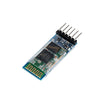
- HC-05 6-Pin Bluetooth Module - provides Bluetooth Classic SPP as a UART bridge
- Arduino Nano V3.0 Pre-Soldered CH340G ATmega328P - runs the sketch and talks UART to the module
- 830-Point Solderless Breadboard - quick, no-solder wiring
- 120 PCS 20 cm Dupont Jumper Wires - connections between Arduino and HC-05
- 820 PCS Metal Film Resistor Kit - for the 1 kΩ / 2 kΩ voltage divider on RX
External
- An Android phone with a free Bluetooth terminal app (e.g. Serial Bluetooth Terminal)
- USB cable + computer running the Arduino IDE
Note: The HC-05’s VCC pin tolerates 5 V because of an on-board regulator, but its RX pin is 3.3 V logic. Drop the Arduino’s 5 V TX through a simple 1 kΩ/2 kΩ resistor divider before it reaches the module’s RX. Many people skip this and the module survives anyway, but the divider is correct.
Step-by-Step Guide
Step 1 - What the HC-05 Actually Is
Goal: Build the right mental model.
What to do: The HC-05 is a CSR BC417 chip running JNHuaMao’s firmware. The chip handles the entire Bluetooth Classic stack and exposes a transparent UART bridge plus an AT-command interface for configuration. By default it advertises as HC-05 with PIN 1234 at 9600 baud. Once paired, anything written to its RX pin is forwarded over Bluetooth, and anything received over Bluetooth comes out on its TX pin.
- Bluetooth profile: SPP (Serial Port Profile)
- Default name: HC-05; default PIN: 1234 (sometimes 0000)
- Default data baud: 9600; default AT-mode baud: 38400
- Range: ~10 m line of sight
- Class 2 radio, ~2.5 mW transmit power
Expected result: You know the four pins you need (VCC, GND, TX, RX) and what to expect from the LED blink pattern.
Step 2 - Wire the Module to the Arduino
Goal: Get the module powered and ready to pair.
What to do: Wire the four pins like this:
- VCC → Arduino 5V
- GND → Arduino GND
- TXD (HC-05) → Arduino D2 (will be SoftwareSerial RX)
- RXD (HC-05) → through 1 kΩ in series, with 2 kΩ from the module side to GND, → Arduino D3 (SoftwareSerial TX)
Using SoftwareSerial leaves the hardware UART (D0/D1) free for the Serial Monitor. After power-up the on-board LED blinks rapidly - that’s the “not paired yet” pattern.


Expected result: The HC-05’s LED is blinking rapidly (advertising) and your Arduino is powered.
Step 3 - Bridge Sketch + Pair from a Phone
Goal: Open a serial pipe between your laptop and your phone via the HC-05.
What to do: Upload the small bridge sketch below. It forwards bytes between the Arduino’s USB Serial Monitor and the HC-05’s SoftwareSerial port.
Code:
#include <SoftwareSerial.h>

// SoftwareSerial(rxPin, txPin)
SoftwareSerial bt(2, 3);

void setup() {
  Serial.begin(9600);
  bt.begin(9600);
  Serial.println(F("Type something on phone or here."));
}

void loop() {
  while (bt.available())     Serial.write(bt.read());
  while (Serial.available()) bt.write(Serial.read());
}
On Android, open Settings → Bluetooth, tap HC-05, enter PIN 1234 (or 0000). Then open Serial Bluetooth Terminal (or any equivalent), connect to the HC-05, and start typing. Whatever you send arrives in your Arduino IDE’s Serial Monitor, and whatever you type into the Serial Monitor pops up in the phone app. Once a connection is established the LED switches from rapid blinks to a slow double-blink.
Expected result: Live two-way text exchange between your phone and your Arduino over Bluetooth.
Step 4 - Toggle an LED from Your Phone
Goal: Replace the bridge with a tiny command parser.
What to do: Buffer characters until you see a newline, then dispatch on the result. The sketch below treats the on-board L LED on D13 as the target.
Code:
#include <SoftwareSerial.h>

SoftwareSerial bt(2, 3);
const int LED = 13;
String line;

void setup() {
  pinMode(LED, OUTPUT);
  bt.begin(9600);
  Serial.begin(9600);
}

void loop() {
  while (bt.available()) {
    char c = bt.read();
    if (c == '\n' || c == '\r') {
      line.trim();
      if      (line == "on")  digitalWrite(LED, HIGH);
      else if (line == "off") digitalWrite(LED, LOW);
      else if (line == "status") bt.println(digitalRead(LED) ? "ON" : "OFF");
      line = "";
    } else {
      line += c;
    }
  }
}
Set your terminal app’s send mode to “Newline” (LF). Type on, off, and status. The on-board LED reacts instantly.
Expected result: Phone → Arduino remote control with three commands. Swap D13 for a relay and you have a phone-controlled outlet.
Step 5 - AT Mode (Rename, Change PIN, Set Baud)
Goal: Configure the module’s name, password, and speed.
What to do: Hold the small button on the back of the module while powering it on (or, if your variant has no button, pull the EN pin HIGH at boot). The LED slows to a 2-second blink - that’s AT mode at 38400 baud. Re-open the Serial Monitor at 38400 with line ending set to “Both NL & CR.” Then send:
-
AT→OK -
AT+NAME=ShillehTek→ rename the module -
AT+PSWD="5678"→ change pairing PIN (older firmware usesAT+PIN=5678) -
AT+UART=115200,0,0→ faster data-mode baud -
AT+ROLE=0for slave /AT+ROLE=1for master

Expected result: Power-cycle the module and it boots back into data mode using your new name, PIN, and baud rate.
Step 6 - Where to Take It Next
- Drive a relay instead of the LED → phone-controlled lamp or door lock
- Pair two HC-05s (one slave, one master with
AT+CMODE=1+AT+BIND) for a wireless serial cable between two Arduinos - Stream sensor readings (DS18B20, BME280, MPU6050) to a phone graphing app over the same UART link
- Build a custom Android app with the standard Bluetooth Classic SPP API for richer UI than a terminal app
Conclusion
The HC-05 is a simple, low-cost way to add Bluetooth Classic wireless serial to an Arduino when iPhone support isn’t a requirement. With four wires, SoftwareSerial, and a terminal app, you can reliably send commands and read data over a UART link.
Want the exact parts used in this build? Grab them from ShillehTek.com. If you want help customizing this project or building something for your product, check out our IoT consulting services.



.png?v=25000753014097803521791168436)

.png?v=68677308723310773341791168436)


