Overview
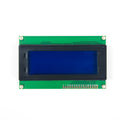
This 0.91-inch OLED is a 128x32 monochrome display driven by the ubiquitous SSD1306 controller over I2C — four pins, two of them power. OLED pixels emit their own light, so there is no backlight, contrast is razor-sharp from any angle, and anything you don't light simply stays pure black. The slim 128x32 strip format is made for one or two lines of status: a clock, a sensor readout, an IP address, a VU meter, a tiny menu.
Because it speaks standard I2C at address 0x3C, it shares the bus happily with sensors like the MPU6050 or BME280 — no extra pins needed beyond SDA and SCL. The module runs from 3.3V or 5V (the board carries a regulator and level tolerance), draws only a few milliamps with typical content, and refreshes fast enough for smooth animations and scrolling text.
Library support is everywhere: Adafruit SSD1306 and U8g2 on Arduino and ESP32, the built-in ssd1306 module in MicroPython on ESP32 and Pico, and luma.oled or Adafruit Blinka on Raspberry Pi. If you've used the 0.96-inch 128x64 version, everything here will feel identical — just half the rows, so double-size fonts fill the screen nicely.
At a Glance
Specifications
| Parameter | Value |
| Screen Size | 0.91 inch diagonal |
| Resolution | 128 x 32, monochrome |
| Driver IC | SSD1306 |
| Interface | I2C (up to 400 kHz fast mode) |
| I2C Address | 0x3C (some batches 0x3D) |
| Supply Voltage | 3.3V - 5V DC |
| Current Draw | ~4-10 mA typical content, ~20 mA all-on |
| Viewing Angle | >160 degrees |
| Backlight | None needed — pixels self-emit |
| Operating Temperature | -30°C to +70°C |
| Pinout | GND, VCC, SCL, SDA |
Pinout Diagram
Four pads on the left edge: GND, VCC, SCL, SDA (the silkscreen labels each one). VCC accepts 3.3V or 5V; SCL and SDA are the I2C bus and connect straight to your board's I2C pins — most host boards already have the required pull-up resistors on the bus.

Wiring Guide
Arduino Wiring
| OLED Pin | Arduino Pin |
|---|---|
| GND | GND |
| VCC | 5V (or 3.3V) |
| SCL | A5 (SCL) |
| SDA | A4 (SDA) |
ESP32 Wiring
| OLED Pin | ESP32 Pin | Details |
|---|---|---|
| GND | GND | |
| VCC | 3V3 | |
| SCL | GPIO 22 | Default I2C clock |
| SDA | GPIO 21 | Default I2C data |
Raspberry Pi Wiring
| OLED Pin | Pi Pin | Details |
|---|---|---|
| GND | Pin 6 (GND) | |
| VCC | Pin 1 (3.3V) | |
| SCL | Pin 5 (GPIO 3) | I2C1 SCL |
| SDA | Pin 3 (GPIO 2) | I2C1 SDA |
Raspberry Pi Pico Wiring
| OLED Pin | Pico Pin | Details |
|---|---|---|
| GND | GND (pin 38) | |
| VCC | 3V3(OUT) (pin 36) | |
| SCL | GP5 (pin 7) | I2C0 SCL |
| SDA | GP4 (pin 6) | I2C0 SDA |
Code Examples
Each example initializes the display at 128x32, draws a title, a live counter, and a moving progress bar — exercising text, graphics primitives, and refresh in one small demo.
Arduino
// 0.91" SSD1306 128x32 I2C OLED - Arduino Example
// SDA->A4, SCL->A5, VCC->5V, GND->GND
// Libraries: Adafruit SSD1306 + Adafruit GFX (Library Manager)

#include <Wire.h>
#include <Adafruit_GFX.h>
#include <Adafruit_SSD1306.h>

#define SCREEN_WIDTH 128
#define SCREEN_HEIGHT 32
#define OLED_ADDR 0x3C

Adafruit_SSD1306 display(SCREEN_WIDTH, SCREEN_HEIGHT, &Wire, -1);
unsigned int count = 0;

void setup() {
  Serial.begin(9600);
  if (!display.begin(SSD1306_SWITCHCAPVCC, OLED_ADDR)) {
    Serial.println("SSD1306 not found at 0x3C");
    for (;;);
  }
  display.clearDisplay();
  display.setTextColor(SSD1306_WHITE);
}

void loop() {
  display.clearDisplay();

  display.setTextSize(1);
  display.setCursor(0, 0);
  display.println("ShillehTek 128x32");

  display.setTextSize(2);
  display.setCursor(0, 12);
  display.print("N=");
  display.print(count);

  int barWidth = (count * 4) % SCREEN_WIDTH;   // moving bar
  display.fillRect(0, 30, barWidth, 2, SSD1306_WHITE);

  display.display();
  count++;
  delay(200);
}
ESP32 (MicroPython)
# 0.91" SSD1306 128x32 I2C OLED - ESP32 MicroPython Example
# SDA->GPIO 21, SCL->GPIO 22, VCC->3V3
# The ssd1306 module ships with MicroPython; if missing:
#   import mip; mip.install("ssd1306")

from machine import Pin, SoftI2C
import ssd1306
import time

i2c = SoftI2C(scl=Pin(22), sda=Pin(21), freq=400000)
print("I2C scan:", [hex(a) for a in i2c.scan()])

oled = ssd1306.SSD1306_I2C(128, 32, i2c, addr=0x3C)

count = 0
while True:
    oled.fill(0)
    oled.text("ESP32 128x32", 0, 0)
    oled.text("N = {}".format(count), 0, 12)
    bar = (count * 4) % 128
    oled.fill_rect(0, 30, bar, 2, 1)
    oled.show()
    count += 1
    time.sleep(0.2)
Raspberry Pi (Python)
#!/usr/bin/env python3
# 0.91" SSD1306 128x32 I2C OLED - Raspberry Pi Example
# SDA->GPIO2 (pin 3), SCL->GPIO3 (pin 5), VCC->3.3V
# Install: pip3 install adafruit-circuitpython-ssd1306 pillow

import time
import board
import busio
import adafruit_ssd1306
from PIL import Image, ImageDraw, ImageFont

i2c = busio.I2C(board.SCL, board.SDA)
oled = adafruit_ssd1306.SSD1306_I2C(128, 32, i2c, addr=0x3C)

font = ImageFont.load_default()
count = 0

try:
    while True:
        image = Image.new("1", (128, 32))
        draw = ImageDraw.Draw(image)

        draw.text((0, 0), "Raspberry Pi 128x32", font=font, fill=255)
        draw.text((0, 12), "N = {}".format(count), font=font, fill=255)
        bar = (count * 4) % 128
        draw.rectangle((0, 30, bar, 31), fill=255)

        oled.image(image)
        oled.show()
        count += 1
        time.sleep(0.2)
except KeyboardInterrupt:
    oled.fill(0)
    oled.show()
    print("Stopped by user")
Raspberry Pi Pico (MicroPython)
# 0.91" SSD1306 128x32 I2C OLED - Pico MicroPython Example
# SDA->GP4 (pin 6), SCL->GP5 (pin 7), VCC->3V3(OUT)
# In Thonny: Tools > Manage Packages > install "ssd1306" if needed

from machine import Pin, I2C
import ssd1306
import time

i2c = I2C(0, sda=Pin(4), scl=Pin(5), freq=400000)
print("I2C scan:", [hex(a) for a in i2c.scan()])

oled = ssd1306.SSD1306_I2C(128, 32, i2c, addr=0x3C)

count = 0
while True:
    oled.fill(0)
    oled.text("Pico 128x32", 0, 0)
    oled.text("N = {}".format(count), 0, 12)
    bar = (count * 4) % 128
    oled.fill_rect(0, 30, bar, 2, 1)
    oled.show()
    count += 1
    time.sleep(0.2)