

Video Tutorial (Optional)
Watch first if you want to see the ESP32 and MPU6050 wiring and code setup in real time.
Project Overview
ESP32 + MPU6050: In this project, you connect an ESP32 to an MPU6050 accelerometer/gyroscope so you can start reading motion data for IoT and embedded system projects using the Arduino IDE.
This guide focuses on the physical wiring basics and the code setup you need to integrate the MPU6050 with an ESP32.
- Time: 20 to 40 minutes
- Skill level: Beginner
- What you will build: A working ESP32 + MPU6050 setup that compiles and runs in the Arduino IDE and outputs usable accelerometer and gyroscope readings
Parts List
From ShillehTek
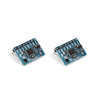
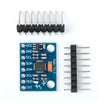
- ShillehTek Pre-Soldered MPU6050 IMU Accelerometer Sensor - 6-axis accelerometer/gyroscope for motion and tilt over I2C
- ShillehTek 830-Point Breadboard - for quick solderless prototyping
- ShillehTek 120pcs 20cm Dupont Wires - for making stable I2C and power connections
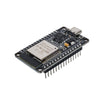
- ESP-WROOM-32 ESP32 Dev Board CP2102 USB-C Pre-Soldered - the development board used in this build
External
- USB cable for programming the ESP32
Note: MPU6050 modules are typically used over I2C. Always confirm your specific module pin labels and voltage requirements before powering it from the ESP32.
Step-by-Step Guide
Step 1 - Prepare your ESP32 and Arduino IDE
Goal: Get the Arduino IDE ready to compile and upload code to your ESP32.
What to do: Install and open the Arduino IDE, connect your ESP32 to your computer over USB, and make sure you can select an ESP32 board and the correct serial port.
Expected result: The Arduino IDE recognizes your ESP32 and is ready to upload sketches.
Step 2 - Wire the MPU6050 to the ESP32
Goal: Make the physical connections required for power and I2C communication between the ESP32 and the MPU6050.
What to do: Connect the MPU6050 module to the ESP32 using the module pin labels (power, ground, and I2C lines). Use your module documentation to match the MPU6050 SDA and SCL pins to the ESP32 I2C pins you plan to use.

Expected result: The MPU6050 is powered correctly and connected to the ESP32 over I2C (SDA/SCL).
Step 3 - Add MPU6050 support in the Arduino IDE
Goal: Ensure your Arduino environment has the library support needed to talk to the MPU6050.
What to do: In the Arduino IDE, install an MPU6050-compatible library (or open an example sketch from your chosen library) so you can initialize the sensor and read accelerometer and gyroscope values.
Expected result: Your sketch compiles with the required includes and MPU6050 initialization code available.
Step 4 - Upload a test sketch and read sensor data
Goal: Verify the ESP32 can communicate with the MPU6050 and produce usable readings.
What to do: Install the Adafruit MPU6050 and Adafruit Unified Sensor libraries via the Arduino Library Manager (Sketch → Include Library → Manage Libraries). Then paste the code below into a new sketch, upload it to your ESP32, and open the Serial Monitor at 115200 baud.
Code:
// Basic demo for accelerometer readings from Adafruit MPU6050

#include <Adafruit_MPU6050.h>
#include <Adafruit_Sensor.h>
#include <Wire.h>

Adafruit_MPU6050 mpu;

void setup(void) {
  Serial.begin(115200);
  while (!Serial)
    delay(10); // will pause Zero, Leonardo, etc until serial console opens

  Serial.println("Adafruit MPU6050 test!");

  // Try to initialize!
  if (!mpu.begin()) {
    Serial.println("Failed to find MPU6050 chip");
    while (1) {
      delay(10);
    }
  }
  Serial.println("MPU6050 Found!");

  mpu.setAccelerometerRange(MPU6050_RANGE_8_G);
  Serial.print("Accelerometer range set to: ");
  switch (mpu.getAccelerometerRange()) {
  case MPU6050_RANGE_2_G:
    Serial.println("+-2G");
    break;
  case MPU6050_RANGE_4_G:
    Serial.println("+-4G");
    break;
  case MPU6050_RANGE_8_G:
    Serial.println("+-8G");
    break;
  case MPU6050_RANGE_16_G:
    Serial.println("+-16G");
    break;
  }
  mpu.setGyroRange(MPU6050_RANGE_500_DEG);
  Serial.print("Gyro range set to: ");
  switch (mpu.getGyroRange()) {
  case MPU6050_RANGE_250_DEG:
    Serial.println("+- 250 deg/s");
    break;
  case MPU6050_RANGE_500_DEG:
    Serial.println("+- 500 deg/s");
    break;
  case MPU6050_RANGE_1000_DEG:
    Serial.println("+- 1000 deg/s");
    break;
  case MPU6050_RANGE_2000_DEG:
    Serial.println("+- 2000 deg/s");
    break;
  }

  mpu.setFilterBandwidth(MPU6050_BAND_21_HZ);
  Serial.print("Filter bandwidth set to: ");
  switch (mpu.getFilterBandwidth()) {
  case MPU6050_BAND_260_HZ:
    Serial.println("260 Hz");
    break;
  case MPU6050_BAND_184_HZ:
    Serial.println("184 Hz");
    break;
  case MPU6050_BAND_94_HZ:
    Serial.println("94 Hz");
    break;
  case MPU6050_BAND_44_HZ:
    Serial.println("44 Hz");
    break;
  case MPU6050_BAND_21_HZ:
    Serial.println("21 Hz");
    break;
  case MPU6050_BAND_10_HZ:
    Serial.println("10 Hz");
    break;
  case MPU6050_BAND_5_HZ:
    Serial.println("5 Hz");
    break;
  }

  Serial.println("");
  delay(100);
}

void loop() {

  /* Get new sensor events with the readings */
  sensors_event_t a, g, temp;
  mpu.getEvent(&a, &g, &temp);

  /* Print out the values */
  Serial.print("Acceleration X: ");
  Serial.print(a.acceleration.x);
  Serial.print(", Y: ");
  Serial.print(a.acceleration.y);
  Serial.print(", Z: ");
  Serial.print(a.acceleration.z);
  Serial.println(" m/s^2");

  Serial.print("Rotation X: ");
  Serial.print(g.gyro.x);
  Serial.print(", Y: ");
  Serial.print(g.gyro.y);
  Serial.print(", Z: ");
  Serial.print(g.gyro.z);
  Serial.println(" rad/s");

  Serial.print("Temperature: ");
  Serial.print(temp.temperature);
  Serial.println(" degC");

  Serial.println("");
  delay(500);
}
Expected result: The Serial Monitor shows live motion readings from the MPU6050 when connected to the ESP32.
Conclusion
You now have an ESP32 communicating with an MPU6050 accelerometer/gyroscope so you can start using motion data in Arduino IDE based projects. This setup is a solid foundation for motion sensing, stabilization, and other embedded applications.
Want the exact parts used in this kind of build? Grab what you need from ShillehTek.com. If you want help customizing this project or building something similar for your product, check out our consulting: https://shillehtek.com/pages/iot-consulting.






.png?v=25000753014097803521791168436)

.png?v=68677308723310773341791168436)


