

Video Tutorial
Watch first if you want to follow along with the full setup.
Link to Youtube Video, don't forget to subscribe if you learned something!
Project Overview
In this tutorial, you connect a Seeed Studio XIAO RP2040 to an MPU6050 accelerometer so you can start getting accelerometer readings in MicroPython.
The Seeed Studio XIAO RP2040 is a compact and powerful development board based on the RP2040 microcontroller chip, which is designed by the Raspberry Pi Foundation. The RP2040 chip is a dual-core microcontroller that is optimized for low-power applications and offers high-performance computing capabilities. The XIAO RP2040 is a small form-factor board that measures just 20mm x 17.5mm and features a range of communication protocols, including UART, SPI, I2C, and PWM, making it ideal for a variety of projects such as robotics, IoT, and DIY electronics. It also has built-in power management features, which help to reduce power consumption, making it suitable for battery-powered applications.
The XIAO RP2040 is easy to use and supports a range of programming languages, including C++, Python, and MicroPython. Additionally, it features a programmable RGB LED that can be used for status indication or other creative purposes. Overall, the XIAO RP2040 is a versatile and powerful development board that offers a range of features and capabilities in a compact and affordable package.
- Time: 20 to 40 minutes
- Skill level: Beginner
- What you will build: A working XIAO RP2040 + MPU6050 MicroPython setup that outputs accelerometer values
Parts List
From ShillehTek
- Raspberry Pi Pico 2W - the microcontroller board used in this build
Additional parts
- Seeed Studio RP2040 Soldered With USB Cable
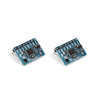
- MPU6050 Pre Soldered
- DIYables Jumper Wires
- DIYables Breadboard
Note: This tutorial uses MicroPython on the XIAO RP2040 and follows the wiring shown in the diagram for the MPU6050 connections.
Step-by-Step Guide
Step 1 - Wire the XIAO RP2040 to the MPU6050
Goal: Connect the MPU6050 to the XIAO RP2040 so it can be read from MicroPython.
What to do: Use four jumper wires and mimic the connections shown in the diagram.

Expected result: Your XIAO RP2040 and MPU6050 are connected with four jumper wires matching the diagram.
Step 2 - Download Thonny
Goal: Install a MicroPython-friendly IDE to manage files and run code on the board.
What to do: Download and install Thonny from:
Expected result: Thonny is installed and ready to use.
Step 3 - Install MicroPython on the XIAO RP2040
Goal: Flash MicroPython onto the device so you can run the MPU6050 script.
What to do: Before you plug in your RP2040 to your computer, hold the boot button on the device as you plug in the USB-C.

Once plugged in, click Tools in the menu above and go to Interpreter.
Click install on the bottom right, and select the target volume and the variant you would like. The Pico H variant is fine for this project.
It should be installed after you click Install.
You can now select the device from the bottom right of the screen in Thonny to start creating files.
Expected result: Thonny is connected to the XIAO RP2040 running MicroPython.
Step 4 - Copy the MPU6050 library files and run the script
Goal: Add the required driver libraries and run a script that prints MPU6050 values.
What to do: Open this GitHub page and copy the needed files to your RP2040:
https://github.com/shillehbean/youtube-channel
You need two library files, vector3d.py and imu.py, both found on my GitHub page. These are libraries I found on other pages but I just centralized them to my GitHub page. I do not take credit for that code.
You can then copy the following file into your device as well:
https://github.com/shillehbean/youtube-channel/blob/main/main_mpu6050_xiao.py
Once everything is copied you can run this script and start getting values.
Expected result: Running the script in Thonny outputs MPU6050 readings.
Conclusion
You connected a Seeed Studio XIAO RP2040 to an MPU6050 and set up MicroPython in Thonny so you can read accelerometer values. With the wiring in place and the library files copied over, you can run the provided script and start collecting sensor data.
Want the exact parts used in this build? Grab what you need from ShillehTek.com. If you want help customizing this project or building something for your product, check out our consulting: https://shillehtek.com/pages/iot-consulting.






.png?v=25000753014097803521791168436)

.png?v=68677308723310773341791168436)


