

Video Tutorial (Optional)
Watch first if you want to follow the full setup in real time.
Project Overview
In this tutorial, you will connect a Seeed Studio XIAO RP2040 to a BME280 environmental sensor and read temperature, humidity, and barometric pressure over I2C using MicroPython.
The XIAO RP2040 is a versatile RP2040-based microcontroller board with a dual-core Arm Cortex-M0+ and plenty of peripherals, making it a great fit for sensor monitoring and data logging.
- Time: 20 to 40 minutes
- Skill level: Beginner
- What you will build: A working BME280-to-XIAO RP2040 I2C setup that prints sensor readings continuously
Parts List
From ShillehTek
- Breadboard (optional) - makes the wiring quick and reusable
- Jumper wires - connect the XIAO RP2040 to the BME280
- Raspberry Pi Pico 2W - the microcontroller board used in this build
Additional parts
Note: This guide uses I2C on the XIAO RP2040 with SDA on Pin 6 and SCL on Pin 7, matching the MicroPython code below.
Step-by-Step Guide
Step 1 - Gather components
Goal: Make sure you have the board, sensor, and wiring ready.
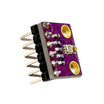
What to do: Collect the Seeed Studio XIAO RP2040, a BME280 module, and 4 jumper wires (plus a breadboard if you want a cleaner setup).
Expected result: All parts are on-hand and ready to wire.
Step 2 - Wire the BME280 to the XIAO RP2040 (I2C)
Goal: Create the physical I2C connection so the RP2040 can read sensor data.
What to do: Use 4 jumper wires to connect the device as shown.

Expected result: The BME280 is powered and connected for I2C communication.
Step 3 - Install MicroPython on the XIAO RP2040 using Thonny
Goal: Flash MicroPython to the RP2040 so you can run the sensor code.
What to do: Download and install Thonny:
Open Thonny. Plug in the RP2040, but before you plug it into your computer, hold the BOOT button on the device as you plug in the USB-C.

In Thonny, go to Tools and select Interpreter. Click Install (bottom right), select the target volume and the variant you would like. The Pico H variant is fine for this tutorial. Click Install.
You can now select the device from the bottom right of the screen in Thonny to start creating files.
Expected result: MicroPython is installed and Thonny can connect to the board.
Step 4 - Install the BME280 MicroPython library
Goal: Add the driver needed to talk to the BME280 from MicroPython.
What to do: In Thonny, go to Tools > Manage Packages, then download the micropython-bme280 library.
Expected result: The bme280 module is available for import in your MicroPython code.
Step 5 - Run the MicroPython code to print sensor readings
Goal: Read BME280 values over I2C and print them continuously.
What to do: Save the following code to a file on your device and run it in Thonny.
Code:
from machine import Pin, I2C        #importing relevant modules & classes
from time import sleep
import bme280       #importing BME280 library

i2c=I2C(1,sda=Pin(6), scl=Pin(7), freq=400000)    #initializing the I2C method


while True:
  bme = bme280.BME280(i2c=i2c)          #BME280 object created
  print(bme.values)
  sleep(1)           #delay of 10s
Expected result: The serial output prints the BME280 sensor values repeatedly.
Conclusion
You connected a Seeed Studio XIAO RP2040 to a BME280 sensor over I2C and used MicroPython to continuously read and print temperature, humidity, and pressure values.
Want the parts for this build in one place? Grab what you need from ShillehTek.com. If you want help customizing this project for data logging, dashboards, or a product prototype, check out our IoT consulting services.
Do not forget to like, comment, and subscribe to the channel.






.png?v=25000753014097803521791168436)

.png?v=68677308723310773341791168436)


