

Project Overview
Wemos D1 Mini (ESP8266) with the Arduino IDE: In this guide you will set up a Wemos D1 Mini ESP8266 in the Arduino IDE to blink the on-board LED and connect to Wi-Fi in STA mode while printing the assigned IP address to the Serial Monitor.
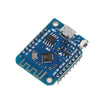
The D1 Mini is a small, low-cost way to add Wi-Fi to a project. It is an ESP8266 board with a CH340 USB-to-serial chip, a 3.3 V regulator, and Wemos-shield-compatible 1×8 pin headers on each side, in a footprint barely bigger than a US quarter.
- Time: ~20 minutes
- Skill level: Beginner
- What you will build: A blinking on-board LED, then a Wi-Fi STA that prints its IP to the Serial Monitor.

Parts List
From ShillehTek
- Wemos D1 Mini V3 (ESP8266-12F) - the ESP8266 development board used for the Arduino IDE setup, LED blink, and Wi-Fi test.
- 120 PCS Dupont Jumper Wires - useful for later add-on wiring to sensors, relays, and breadboards.
External
- Micro-USB cable (data, not just power)
- Computer running the Arduino IDE 1.8.x or 2.x
- A 2.4 GHz Wi-Fi network (the ESP8266 is 2.4 GHz only)
Note: If your computer does not see a serial port when you plug the board in, you are missing the CH340 driver. Install CH340/CH341 from WCH, reboot, and try again.
Step-by-Step Guide
Step 1 - What’s on the Board
Goal: Know which pin does what.
What to do: The D1 Mini brings out 11 GPIOs, an analog input (A0, 0 to 1 V max), 3.3 V and 5 V rails, and ground. Note that the silk-screened “D1, D2, D3…” labels are not the same numbers the chip uses internally. That is why the Arduino-ESP8266 core defines symbolic constants like D1, D2, etc.

D<n> constants in code, not raw numbers.- 3.3 V logic only - do not wire 5 V signals into a GPIO
- D4 is also the on-board blue LED (active LOW)
- D3 (GPIO0) is held HIGH at boot - pulling it LOW puts the chip in flash mode
Expected result: You can read a pin by name in your sketches.
Step 2 - Add ESP8266 Boards to the Arduino IDE
Goal: Teach the IDE about the ESP8266 toolchain.
What to do: Open File → Preferences and paste this URL into Additional Boards Manager URLs:
https://arduino.esp8266.com/stable/package_esp8266com_index.json
Then open Tools → Board → Boards Manager, search esp8266, and click Install on the package by ESP8266 Community. It pulls down about 150 MB of toolchain, so give it a minute on slow connections.
Expected result: A new ESP8266 Boards section under Tools → Board.
Step 3 - Select the D1 Mini and Port
Goal: Point the IDE at your specific board.
What to do: Choose Tools → Board → ESP8266 Boards → LOLIN(WEMOS) D1 R2 & mini. The defaults work for V3: 80 MHz, 4 MB flash, 921600 baud upload.

Plug the board in and select the new COM/tty port that just appeared.
Expected result: Board and port both show in the IDE’s status bar.
Step 4 - Blink the On-Board LED
Goal: Confirm the toolchain works end-to-end.
What to do: Upload this sketch to blink the built-in LED.
Code:
void setup() {
  pinMode(LED_BUILTIN, OUTPUT);
}

void loop() {
  digitalWrite(LED_BUILTIN, LOW);   // LOW = on (active-LOW LED on D4)
  delay(300);
  digitalWrite(LED_BUILTIN, HIGH);
  delay(300);
}
Hit Upload. The first time, the IDE will compile a few hundred files of ESP8266 core. Subsequent uploads are faster. The blue LED next to the antenna should blink at about 1.5 Hz.
Expected result: Blue LED blinks. You have verified the chip, USB-serial bridge, and toolchain.
Step 5 - Connect to Wi-Fi and Print the IP
Goal: Join a Wi-Fi network and confirm connectivity.
What to do: Update the SSID and password, upload the sketch, then open Serial Monitor.
Code:
#include <ESP8266WiFi.h>

const char* SSID = "your-network";
const char* PASS = "your-password";

void setup() {
  Serial.begin(115200);
  delay(200);
  Serial.println();
  WiFi.mode(WIFI_STA);
  WiFi.begin(SSID, PASS);
  Serial.print("Connecting");
  while (WiFi.status() != WL_CONNECTED) {
    delay(300);
    Serial.print(".");
  }
  Serial.println();
  Serial.print("IP: ");
  Serial.println(WiFi.localIP());
}

void loop() {}

If you only see garbage, your Serial Monitor baud is wrong. The ESP8266 boot ROM uses 74880 baud, but this sketch is 115200.
Expected result: A 192.168.x.x address printed. From here you can host an HTTP server, talk to MQTT, fire off webhooks, and more.
Step 6 - Where to Take It Next
Goal: Choose a next project using the same Arduino IDE setup.
What to do: Pick one of these next steps:
- Plug in a DHT22 or BME280 and POST readings to a server every minute
- Run an
ESP8266WebServerwith HTML controls for a relay or LED strip - Use ArduinoOTA so you never have to walk over with a USB cable again
- Pair with MQTT (Mosquitto, HiveMQ) and stream sensor data to Home Assistant
Expected result: You have a clear direction for expanding your D1 Mini project beyond the basics.
Conclusion
You set up the Wemos D1 Mini (ESP8266) in the Arduino IDE, verified uploads by blinking the on-board LED, and connected to Wi-Fi while printing the assigned IP address to Serial Monitor. With this foundation, you can move on to sensors, web servers, MQTT, and OTA updates.
Want the exact parts used in this build? Grab them from ShillehTek.com. If you want help customizing this project or wiring it into a larger system, check out our IoT consulting services.


.png?v=25000753014097803521791168436)

.png?v=68677308723310773341791168436)


