

Project Overview
STM8S + ST-Link V2 programming in Arduino IDE: In this tutorial, you will set up the Arduino IDE to program STM8S microcontroller development boards using the Sduino board package and an ST-Link V2 programmer, then upload a blink sketch over the SWIM interface.
- Time: 1 to 2 hours
- Skill level: Intermediate
- What you will build: A fully configured Arduino IDE environment for programming STM8S dev boards via the ST-Link V2 SWIM interface.

Parts List
From ShillehTek
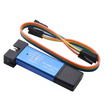
- ST-LINK V2 Programmer/Debugger for STM8 & STM32 - the USB programmer dongle used to upload code via the SWIM interface
External
- STM8S103F3P6 or STM8S003F3P6 minimum development board - the target microcontroller board
- STM8S103K3T6 core development board (optional alternative) - a larger STM8 dev board variant
- Dupont jumper wires - for connecting the ST-Link to the dev board SWIM pins
- USB cable - to connect the ST-Link V2 to your computer
- Computer with Arduino IDE installed
Note: The STM8S dev boards run at 3.3V. Some boards can be powered directly from the ST-Link V2 dongle, while others require a separate USB power connection. The ST-Link connects through the SWIM interface pins (RST, SWIM, GND, 3.3V), not through the SWD pins which are for different chip families.
Step-by-Step Guide
Step 1 - Get Familiar with the STM8 Dev Board
Goal: Understand what the STM8S minimal development board is and how it compares to other microcontrollers.
What to do: The STM8S minimal dev boards are compact boards similar in concept to an Arduino Nano. They feature an STM8S microcontroller from STMicroelectronics with 1kB of RAM and 8kB of flash memory for your programs. As an 8-bit processor, it is comparable to an ATtiny or 8051 chip. The boards come in two common variants:
- STM8S103F3P6 / STM8S003F3P6 - the small board with the built-in LED on pin B5
- STM8S103K3T6 - the larger board with the built-in LED on pin C3
Both boards have the same specifications and compile with the same programs. They need to be programmed through the SWIM interface pins until a bootloader is added for USB programming.

Expected result: You understand the STM8S dev board basics and know which LED pin your board uses.
Step 2 - Connect the ST-Link V2 Programmer
Goal: Wire the ST-Link V2 to your STM8 dev board through the SWIM interface.
What to do: The ST-Link V2 is a USB programmer dongle that uploads compiled code to the STM8 chip. Look at the label printed on the programmer and identify the SWIM pins (not the SWD pins which are for other chip families). Connect four wires between the ST-Link and your dev board:
- RST - Reset
- SWIM - Single Wire Interface Module (data line)
- GND - Ground
- 3.3V - Power (some boards can be powered from the ST-Link)


Expected result: Your ST-Link V2 is wired to the STM8 dev board and ready for programming.
Step 3 - Add the Sduino Boards Manager URL
Goal: Configure the Arduino IDE to access the Sduino board package for STM8 support.
What to do: Open the Arduino IDE and go to File > Preferences (or press Ctrl+comma). In the Preferences dialog, find the "Additional Boards Manager URLs" field and add the following URL:
https://github.com/tenbaht/sduino/raw/master/package_sduino_stm8_index.jsonAlso enable "Show verbose output during compilation and upload" by ticking both checkboxes. This will help you see detailed build messages later. Click OK to save your settings.


Expected result: The Sduino board package URL is saved in your Arduino IDE preferences.
Step 4 - Install the Sduino Core and Select Your Board
Goal: Install the Sduino software package and configure the IDE for your STM8 board.
What to do: Go to Tools > Board > Boards Manager. In the search field, type "STM8" and you should see the Sduino package appear. Click Install and wait for the download to complete. This adds all the tools and libraries needed to compile code for STM8 processors.


After installation, go to Tools > Board > STM8S Boards and select the STM8S103F3 Breakout Board.

Then go to Tools > Programmer and select ST-Link/V2.


Expected result: Sduino is installed, your board is selected as STM8S103F3, and the programmer is set to ST-Link/V2.
Step 5 - Write and Upload a Blink Sketch
Goal: Create a simple blink program and upload it to the STM8 board via the ST-Link V2.
What to do: Create a new sketch in the Arduino IDE and paste the following code. This program configures all GPIO ports as outputs and toggles every IO pin, which will blink the built-in LED on your dev board.
// STM8S blink Sduino ST-Link/V2
void setup() {
  GPIOA->DDR = 0XFF;
  GPIOB->DDR = 0XFF;
  GPIOC->DDR = 0XFF;
  GPIOD->DDR = 0XFF;
  GPIOE->DDR = 0XFF; // all ports output
}
void loop() {
  --GPIOA->ODR;
  GPIOB->ODR++;
  GPIOC->ODR--;
  GPIOD->ODR++;
  GPIOE->ODR--; // toggle all IO ports
  {int n = 20000; while(n-- >0);} // nop loop delay
}
This code uses STM8-specific GPIO register access rather than Arduino's digitalWrite() function. The DDR registers set pin direction (output), and the ODR registers control pin state. The delay is a simple decrement loop; adjust the value of n to change the blink speed.
Upload the sketch normally using the Upload button. The Arduino IDE knows to use the ST-Link V2 based on your programmer selection. You can also use Sketch > Export Compiled Binary to generate a .hex file for manual uploading.


Expected result: The sketch uploads successfully and the built-in LED on your STM8 board blinks.
Step 6 - Understand the Toolchain Behind the Scenes
Goal: Learn what software components make the Sduino build process work.
What to do: When you installed the Sduino package, it added several key components to your Arduino IDE. Since you enabled verbose output, you can inspect the build messages to understand what happens during compilation and upload.
SDCC (Small Device C Compiler): Instead of the GCC compiler used for AVR Arduinos, Sduino uses SDCC to compile your code into a .hex file. SDCC supports multiple 8-bit architectures including 8051, PIC, and STM8 processors.


Standard Peripheral Library (SPL): Sduino gives you access to STMicroelectronics' open-source SPL, which provides hardware abstraction functions for all STM8 peripherals. You can include any SPL file in your projects and reuse them with other development tools as well.


stm8flash: The firmware upload is handled by the stm8flash utility. In the verbose upload output, you can see it being called with the circuit type (stlinkv2) and target part (stm8s103) to transfer your compiled .hex file to the chip.


A note on bootloaders: You may notice a "Burn Bootloader" option in the Tools menu. For STM8 boards with limited flash memory, burning a bootloader is generally not recommended. Bootloader programs allow USB programming but consume precious flash space on these small chips.
Expected result: You understand that Sduino uses SDCC for compilation, SPL for peripheral access, and stm8flash for uploading firmware via the ST-Link V2.
Conclusion
You set up the Arduino IDE to program STM8S microcontrollers using the Sduino board package and an ST-Link V2 programmer. You connected the SWIM interface, installed and selected the correct board and programmer settings, and uploaded a blink sketch that toggles GPIO pins. You also learned how SDCC, SPL, and stm8flash work together behind the scenes.
Want the exact parts used in this build? Grab them from ShillehTek.com. If you want help customizing this project or building something for your product, check out our IoT consulting services.
Credits
All photos and images in this tutorial are credited to Patrick Fitzgerald on Hackster.io. The original guide served as the reference for this ShillehTek version. We thank them for their excellent work in the maker community.


.png?v=25000753014097803521791168436)

.png?v=68677308723310773341791168436)


