

Video Tutorial (Optional)
Watch first if you want to follow the full Raspberry Pi Squid proxy setup in real time.
Project Overview
Raspberry Pi 4 + Squid proxy server: In this project, you set up a simple proxy server on a Raspberry Pi using the open-source Squid software, then test it from a local computer to route a web scraping request through the Pi.
Beyond web scraping, a proxy server can help with improved security, caching, faster repeated requests, and centralized connection management.
If you want to support the creator, here are the original links: Youtube, https://www.buymeacoffee.com/mmshilleh, and https://www.upwork.com/freelancers/~017060e77e9d8a1157.
- Time: 20 to 45 minutes
- Skill level: Beginner
- What you will build: A Squid proxy on Raspberry Pi and a simple Python client script that uses it
Parts List
From ShillehTek
- No ShillehTek parts are required for this software-based project.
External
- Raspberry Pi 4 with Raspberry Pi OS (Raspbian) or another compatible OS
- Internet connection for the Raspberry Pi
- SSH access or a monitor and keyboard connected to the Raspberry Pi
- Squid proxy package (installed via apt)
- Local computer with Python for testing the proxy
- Python libraries: requests, BeautifulSoup (bs4)
Note: The Squid configuration in this tutorial is set up to only allow devices on your local network to connect (example subnet: 192.168.1.0/24). Adjust the subnet to match your own LAN.
Step-by-Step Guide
Step 1 - Prepare your Raspberry Pi
Goal: Ensure your Raspberry Pi is online and you can run terminal commands.
What to do: Set up your Raspberry Pi 4 with Raspberry Pi OS (Raspbian) or another compatible OS and confirm it is connected to the internet. Access the terminal via SSH or by using a monitor and keyboard.
Expected result: You can open a terminal session and run commands on the Pi.
Step 2 - Update and upgrade packages
Goal: Make sure your system packages are up to date before installing Squid.
What to do: Run the following commands.
Code:
sudo apt-get update
sudo apt-get upgrade
Expected result: Package lists update successfully, and installed packages are upgraded if needed.
Step 3 - Install Squid
Goal: Install the Squid proxy service on the Raspberry Pi.
What to do: Install Squid using apt.
Code:
sudo apt-get install squidExpected result: Squid installs, and the Squid service starts automatically.
Step 4 - Backup and edit the Squid configuration
Goal: Configure Squid to allow proxy access from your local network.
What to do: First, back up the original config, then open it for editing.
Code:
sudo cp /etc/squid/squid.conf /etc/squid/squid.conf.backup
sudo nano /etc/squid/squid.conf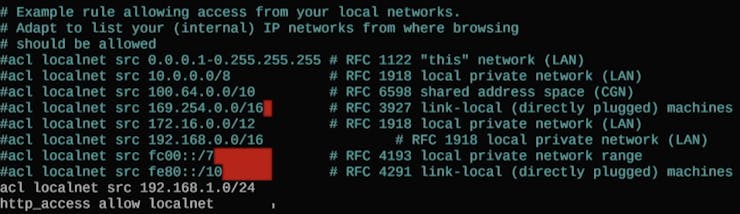
In the configuration file, ensure these lines are enabled (uncommented) and match your LAN subnet:
Code:
acl localnet src 192.168.1.0/24
http_access allow localnet
This is needed to only allow devices on your local home network to connect to the proxy. For this tutorial, the configuration is kept simple, but you can expand it to filter IPs and tune security settings as needed.
Expected result: Squid is configured to accept proxy connections from your local network range (for example, 192.168.1.0/24).
Step 5 - Restart Squid
Goal: Apply the configuration changes.
What to do: Restart the Squid service.
Code:
sudo systemctl restart squidExpected result: Squid restarts without errors.
Step 6 - Verify Squid is running
Goal: Confirm the proxy service is active.
What to do: Check the service status.
Code:
sudo systemctl status squidExpected result: The status output shows Squid is running/active.
Step 7 - Get the Raspberry Pi IP address
Goal: Identify the IP address your local computer will use as the proxy endpoint.
What to do: Run ifconfig and look for the inet address on the network interface connected to your LAN.
Code:
ifconfigExpected result: You find the Raspberry Pi IP address to substitute into your local Python script.
Step 8 - Run the local computer Python script through the proxy
Goal: Verify requests are routed through the Raspberry Pi proxy by running a test scraping request.
What to do: On your local computer, create a Python script and use the provided example. Make sure you substitute your Raspberry Pi IP address in the proxy settings.
The original script link is here: https://github.com/shillehbean/youtube-p2/blob/main/test_proxy.py.
This script scrapes web content from a specified URL (example: an eBay search results page for laptops) using the Python requests library for HTTP and BeautifulSoup from bs4 for parsing HTML. The key point is that it uses your Squid proxy server to make the request.
Expected result: The script completes successfully, indicating the request is being made through the proxy on your Raspberry Pi.
Conclusion
You set up a Squid proxy server on a Raspberry Pi and validated it from a local computer using a Python script that sends web requests through the Pi. This approach is useful for web scraping workflows and can also support caching, security, and centralized request management on your network.
Want parts and tools for your next build? Browse ShillehTek.com. If you want help customizing this setup or building an end-to-end IoT solution, check out our IoT consulting services.


.png?v=25000753014097803521790645985)

.png?v=68677308723310773341790645985)


