

Video Tutorial (Optional)
Watch first if you want to see the Raspberry Pi Pico W sending data into Google Sheets using IFTTT Webhooks.
Project Overview
In this project, you use a Raspberry Pi Pico W with a BME280 sensor (or any data source) to upload readings to Google Sheets using IFTTT Webhooks, creating a simple cloud CSV-style log.
This approach helps when the Pico W storage is limited, since you can continuously offload data to Google Drive.
- Time: 20 to 40 minutes
- Skill level: Beginner
- What you will build: A Pico W script that posts values over Wi-Fi to an IFTTT Webhook, which appends rows to a Google Sheet
Parts List
From ShillehTek
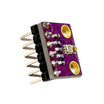
- ShillehTek BME280 sensor (example) - used in the demo to send temperature, humidity, and pressure as three columns
- Raspberry Pi Pico 2W - the WiFi microcontroller board used in this build
External
- Google account - to create and store Google Sheets in Google Drive
- IFTTT account - provides the Webhooks endpoint and Google Sheets integration
- Internet-connected Wi-Fi network (SSID and password)
- BME280 sensor (optional) - you can replace it with any data source
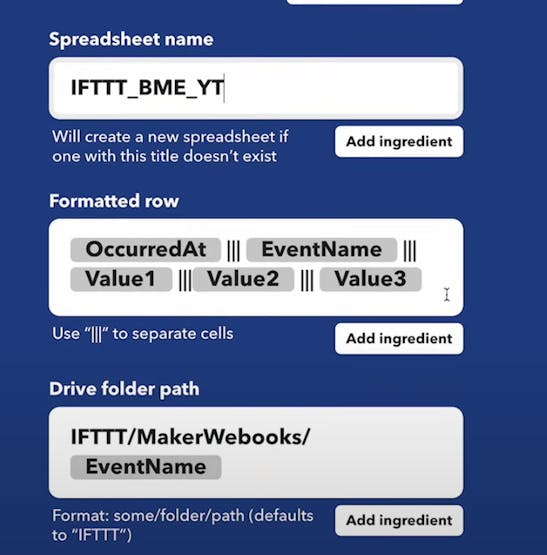
Note: The example code reads a BME280 over I2C and sends three values (value1, value2, value3). If you send a different number of columns, update the Google Sheets action formatting in IFTTT.
Step-by-Step Guide
Step 1 - Create an IFTTT Webhooks trigger
Goal: Create an HTTP endpoint that your Pico W can call from the internet.
What to do: Go to ifttt.com and create a free account. From the IFTTT dashboard, create a new applet.

Select If This, search for Webhooks, and select it.

Choose Receive a web request. This creates the endpoint the Pico W will access.

Name the event however you like. In the example, the event is related to BME280 because the demo sends three columns of BME280 data.

Expected result: You have a Webhooks trigger with an event name that your Pico W will call.
Step 2 - Connect Webhooks to Google Sheets and test
Goal: Append a new row into a Google Sheet whenever the Webhooks event is triggered.
What to do: Select Then That, search for Google Sheets, and choose the action to add a row to a spreadsheet.


Substitute the setup information accordingly. Make sure the formatted row matches how many columns of data you will send.
To test, go to ifttt.com/my_services, select Webhooks, and use the test page. Substitute your values in the JSON body and click Test It. If successful, a new spreadsheet should appear in your Google Drive.
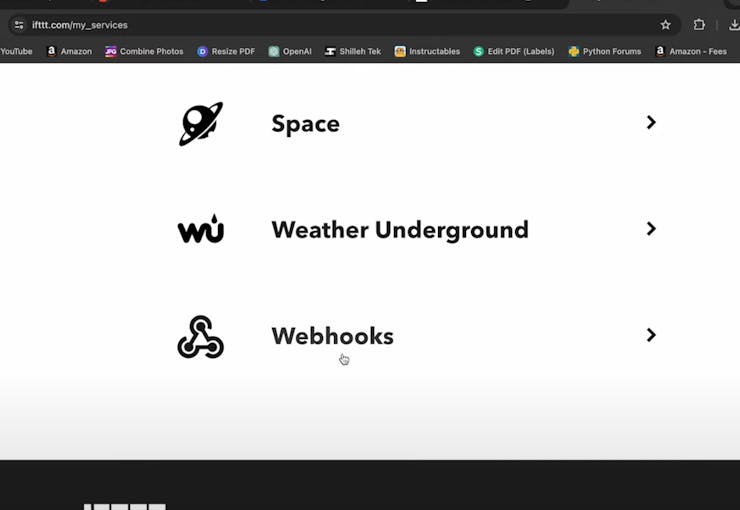

This page contains your IFTTT secret key. Save it somewhere safe because you will need it in the MicroPython code.
Expected result: Your applet is connected to Google Sheets, the test button creates or updates a Google Sheet, and you have your IFTTT key.
Step 3 - Run the MicroPython script on the Pico W
Goal: Connect the Pico W to Wi-Fi and repeatedly POST data to the IFTTT Webhooks endpoint.
What to do: Copy the following code to your Pico W. Update EVENT_NAME, IFTTT_KEY, and your Wi-Fi credentials (SSID and WIFI_PASSWORD). This example loads Wi-Fi credentials from a config file, but you can also hardcode them as strings.
Code:
import urequests
import time
import machine
import network
from machine import Pin, I2C
import bme280

import config


SSID = config.SSID
WIFI_PASSWORD = config.WIFI_PASSWORD

EVENT_NAME = 'BME280_YT'
IFTTT_KEY = 'czLk7ytVFFpRQZuAeEOeiXi7h18XaGANp3oi1oy_MNm'
IFTTT_URL = f'/trigger/{EVENT_NAME}/with/key/{IFTTT_KEY}'
server = 'maker.ifttt.com'

i2c = I2C(0, sda=Pin(20), scl=Pin(21), freq=400000)
bme = bme280.BME280(i2c=i2c)


def connect_wifi():
  try:
    sta_if = network.WLAN(network.STA_IF)
    sta_if.active(True)
    sta_if.connect(SSID, WIFI_PASSWORD)

    for i in range(0, 10):
      if not sta_if.isconnected():
        time.sleep(1)
    print("Connected to Wi-Fi")
  except Exception as e:
    print('There was an issue connecting to WIFI')
    print(e)


def make_ifttt_request():
    json_data = '{"value1":"' + bme.values[0] + '","value2":"' + bme.values[1]  + \
        '","value3":"' + bme.values[2] + '"}'
    headers = {'Content-Type': 'application/json'}
    response = urequests.post('https://' + server + IFTTT_URL, data=json_data, headers=headers)
    print('Response:', response.content.decode())
    response.close()
    print('Closing Connection')


connect_wifi()
counter = 0
while True:
    counter += 1
    time.sleep(1)
    print(f'Uploading Value: {str(counter)}')
    make_ifttt_request()
Expected result: After the Pico W connects to Wi-Fi, you should see continuous uploads, and your Google Sheet should populate with new rows every second (or at your chosen interval).
Conclusion
You built a simple cloud logger using a Raspberry Pi Pico W that posts data (example: BME280 readings) to IFTTT Webhooks, which then appends rows into Google Sheets. This is a practical way to store lots of sensor data when on-device storage is limited.
Want the parts used in this build? Grab sensors and prototyping gear from ShillehTek.com. If you want help tailoring this workflow for your product or a custom IoT data pipeline, check out our IoT consulting services.
Subscribe: https://www.youtube.com/@mmshilleh
Support: https://www.buymeacoffee.com/mmshilleh
Shop ShillehTek: Shop ShillehTek



.png?v=25000753014097803521791168436)

.png?v=68677308723310773341791168436)


