

Video Tutorial (Optional)
Watch first if you want to follow the Raspberry Pi Pico W obstacle-avoidance robot build in real time.
Project Overview
In this course, you build a Wi-Fi-controlled obstacle-avoidance robot using a Raspberry Pi Pico W, an HC-SR04 ultrasonic sensor, and an L298N motor driver, then control it through a web interface.
You will assemble and program a robot with motors, sensors, and RGB lights, while learning MicroPython basics plus practical robotics and IoT concepts.
"This course is perfect for hobbyists, educators, and anyone looking to take their first steps into the world of robotics."
- Time: 30 to 60 minutes for environment setup and first test
- Skill level: Beginner
- What you will build: A Pico W robot platform prepared for obstacle detection and Wi-Fi web control
Parts List
From ShillehTek
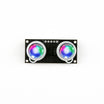
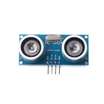
- ShillehTek HC-SR04 Ultrasonic Sensor with RGB LEDs - measures distance for obstacle detection
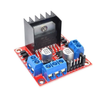
- ShillehTek L298N Motor Driver - drives the DC motors for movement
- ShillehTek 400 Point Breadboard - quick prototyping and testing
- ShillehTek Assorted Jumper Wires - connects Pico W, sensor, and driver
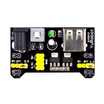
- ShillehTek MB102 Supply - powers the Pico W from a battery pack for remote capability (paired with the cable below)
- Raspberry Pi Pico 2W - the WiFi microcontroller board used in this build
External
- Cable - used with the MB102 supply to deliver power from the battery pack to the Pico W
- Rechargeable Battery Pack - powers the Pico W
- 8 piece 1.5 Volt Battery Holder - powers the motor driver separately
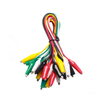
- Alligator Jumper Wires - connects battery leads and DC motors (alligator clip to breadboard-friendly end)
- Wheels, Chassis, and DC Motors - mechanical base and drive system
- Screwdriver, Tape, Zip Ties, and Velcro (Optional) - mounting and cable management
Note: This build powers the Pico W and the motor driver from separate sources (battery pack for Pico W, battery holder for motors) as listed above.
Step-by-Step Guide
Step 1 - Install Thonny
Goal: Install the IDE used to program the Raspberry Pi Pico W with MicroPython.
What to do: Install Thonny on your computer.

Expected result: Thonny opens successfully on your computer.
Step 2 - Put the Pico W into BOOTSEL mode
Goal: Make the Pico W appear as a USB drive so you can install MicroPython firmware.
What to do: Hold the BOOTSEL button on the Raspberry Pi Pico W and plug it into your computer while holding the button.

Expected result: Your computer detects the Pico W as a removable drive.
Step 3 - Select the Pico W interpreter and install MicroPython
Goal: Configure Thonny for the Pico W and flash the correct MicroPython firmware.
What to do: Open Thonny and select the Raspberry Pi Pico W from the interpreter options.


Click Install or update firmware and follow the prompts to install MicroPython. Choose the correct firmware for your Pico W, click Install, wait for it to finish, then click OK.
Unplug and replug the Pico W into your computer.
Expected result: Thonny connects to the Pico W running MicroPython.
Step 4 - Create a new file and blink the onboard LED
Goal: Confirm your Pico W and MicroPython setup works by running a basic GPIO test.
What to do: Create a new Python file in Thonny (name it however you like), then paste and run the code below.

Code:
from machine import Pin
from time import sleep

# The onboard LED on the Pico W is connected to GP25
led = Pin("LED", Pin.OUT)

# Blink the LED
while True:
    led.value(1)  # Turn the LED on
    sleep(1)      # Wait for 1 second
    led.value(0)  # Turn the LED off
    sleep(1)      # Wait for 1 second
Run the code with the green play button in Thonny and watch the LED blink.

Expected result: The Pico W onboard LED blinks continuously, confirming MicroPython and GPIO control are working.
Step 5 - Continue to robot assembly and Wi-Fi control
Goal: Understand what comes next in the course.
What to do: After your environment is working, move on to assembling the robot with motors, sensors, and RGB lights, then add obstacle detection and remote control through a web interface.
Expected result: You are ready for Part 2 (Robot Assembly) with a working Pico W development setup.
Conclusion
You have set up a Raspberry Pi Pico W for MicroPython development and confirmed it works by blinking the onboard LED. This is the foundation you need before wiring the HC-SR04 ultrasonic sensor, the L298N motor driver, and the rest of the robot hardware for obstacle avoidance and Wi-Fi control.
Want the exact parts used in this build? Grab them from ShillehTek.com. If you want help customizing this robot, adding features, or building a Wi-Fi controlled prototype for your product, check out our IoT consulting services.





.png?v=25000753014097803521791168436)

.png?v=68677308723310773341791168436)


