

Video Tutorial
Watch first if you want to follow the Raspberry Pi Pico W obstacle detection build in real time with the HC-SR04 ultrasonic sensor and Neopixel LEDs.
Project Overview
In this Part 4 build, you add obstacle detection to a Raspberry Pi Pico W robot using the HC-SR04 ultrasonic sensor, then drive Neopixel LEDs to show proximity by changing colors based on measured distance.
By the end, your robot can sense objects and update LED colors according to how close an obstacle is. There is also an optional random color animation mode you can enable for experimentation.
- Time: 20 to 40 minutes
- Skill level: Beginner
- What you will build: Pico W distance sensing with HC-SR04 and Neopixel color feedback in MicroPython
Parts List
From ShillehTek
- Neopixel helper library (MicroPython) - used by the code to control WS2812/Neopixel LEDs
- Raspberry Pi Pico 2W - the WiFi microcontroller board used in this build
Additional parts
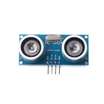
- HC-SR04 ultrasonic sensor module - measures distance in centimeters
- Neopixel LEDs (WS2812B or similar), 6 LEDs - visualizes proximity with color
- Jumper wires and a breadboard - for quick prototyping connections
Note: The HC-SR04 is typically powered from 5V. Make sure your wiring and logic-level requirements are appropriate for your Pico W setup.
Step-by-Step Guide
Step 1 - Understand how the HC-SR04 measures distance
Goal: Know what the ultrasonic sensor pins do so you can wire and code it correctly.
What to do: The HC-SR04 measures distance by sending an ultrasonic pulse and timing how long it takes to return. It has four pins:
- VCC (5V power supply)
- GND (ground)
- Trig (trigger pin to start measurement)
- Echo (echo pin to read the return signal)
Typical measurable range is from 2 cm to 400 cm, with an accuracy of around 3 mm.
Expected result: You understand that your code must pulse TRIG briefly, then measure the ECHO pulse width to calculate distance.
Step 2 - Set up Neopixel LEDs for proximity feedback
Goal: Use Neopixel LEDs (WS2812B or similar) to show distance using color.
What to do: Plan your distance-to-color mapping. In this project, the LEDs indicate proximity like this:
- Red for very close objects.
- Yellow for moderate distance.
- Green for objects further away.
Expected result: You have a clear set of thresholds that your code can apply to change the LED color based on measured distance.
Step 3 - Copy the combined MicroPython code and run it on the Pico W
Goal: Measure distance with the HC-SR04 and update all Neopixel LEDs based on proximity.
What to do: Copy and paste this script into your Thonny editor (or any MicroPython environment) for your Raspberry Pi Pico W, then upload/run it.
Code:
"""
This script uses an ultrasonic sensor (HC-SR04) and Neopixel LEDs on a Raspberry Pi Pico.
It measures distance using the ultrasonic sensor and changes the LED colors based on proximity:
- Red (<10 cm)
- Yellow (10-20 cm)
- Green (>20 cm)

Additionally, it includes a function to randomly light up LEDs with different colors.

Module used:
https://www.amazon.com/Ultrasonic-Compatible-Distance-Avoidance-Raspberry/dp/B0BRMP73C2

Neopixel helper library found at shillehtek.com
"""

from machine import Pin, time_pulse_us
import random
import time

from neopixel import Neopixel

# Initialize ultrasonic sensor pins and Neopixel LEDs.
# Defines trigger/echo pins for distance measurement and sets up LED colors.
SOUND_SPEED = 340
TRIG_PULSE_DURATION_US = 10
TRIG_PIN = Pin(15, Pin.OUT)
ECHO_PIN = Pin(14, Pin.IN)

# Set params for Neopixel
NUMPIX = 6
PIXELS = Neopixel(NUMPIX, 0, 28)

# Define LED colors
YELLOW = (255, 100, 0)
ORANGE = (255, 50, 0)
GREEN  = (0, 255, 0)
BLUE   = (0, 0, 255)
RED    = (255, 0, 0)
LAVENDER = (230, 230, 250)

# Color dictionary for assigning random colors
COLOR_DICT = {
    0: YELLOW,
    1: ORANGE,
    2: GREEN,
    3: BLUE,
    4: RED,
    5: LAVENDER
}

def get_distance():
    '''Returns distance in centimeters'''
    TRIG_PIN.value(0)
    time.sleep_us(5)
    TRIG_PIN.value(1)
    time.sleep_us(TRIG_PULSE_DURATION_US)
    TRIG_PIN.value(0)

    ultrason_duration = time_pulse_us(ECHO_PIN, 1, 30000)  # 30ms timeout
    distance_cm = SOUND_SPEED * ultrason_duration / 20000
    print(f"Distance : {distance_cm} cm")
    return distance_cm

def change_color_with_distance():
    '''
    Continuously measures distance and changes LED color based on proximity:
    - <10 cm: RED
    - 10–20 cm: YELLOW
    - >20 cm: GREEN
    '''
    while True:
        distance = get_distance()
        if distance < 10:
            color = RED
        elif distance < 20:
            color = YELLOW
        else:
            color = GREEN

        # Set all 6 LEDs to the same color
        for i in range(NUMPIX):
            PIXELS.set_pixel(i, color)
        PIXELS.show()

        time.sleep(1)

def fun():
    '''
    Loops through random colors for the 6 LEDs.
    Demonstrates how to randomly assign colors and
    can be modified further for brightness, effects, etc.
    '''
    while True:
        random_led = random.randint(0, 5)
        random_color = random.randint(0, len(COLOR_DICT) - 1)
        print(random_led, COLOR_DICT[random_color])

        PIXELS.set_pixel(random_led, COLOR_DICT[random_color])
        PIXELS.show()

        time.sleep(0.5)

# Start the main distance-based color function:
change_color_with_distance()
The function change_color_with_distance() continuously checks the distance and updates all LEDs to a color that reflects how close an obstacle is. The fun() function is an alternative loop that assigns random colors to random LEDs. You can comment out one function call and use the other, depending on which feature you want to test.
Expected result: You see distance readings in the console, and the Neopixel LEDs change color as you move an object closer or farther away.
Step 4 - Test and tweak thresholds and timing
Goal: Confirm your setup works reliably and tune it for your robot.
What to do:
- Upload the script to your Raspberry Pi Pico W.
- Open the serial console to watch distance readings in real time.
- Move an object closer and farther to see the LED colors change.
- Experiment with
time.sleep()values and the distance thresholds to find what works best for your project.
Expected result: The color transitions match the distance ranges you want, and the update speed feels responsive for obstacle detection.
Conclusion
You added obstacle detection to a Raspberry Pi Pico W using an HC-SR04 ultrasonic sensor, and you used Neopixel LEDs to visualize proximity by changing colors based on distance. This gives your robot a simple, effective way to sense nearby objects and provide immediate feedback.
Want the parts used in this build? Grab what you need from ShillehTek.com. If you want help customizing this project or building a more advanced robotics or IoT system, check out our IoT consulting services.





.png?v=25000753014097803521791168436)

.png?v=68677308723310773341791168436)


