

Video Tutorial (Optional)
Watch first if you want to see how to expose a Raspberry Pi camera Flask stream to the internet using ngrok.
Project Overview
Raspberry Pi + Raspberry Pi Camera: In this Part 2 project, you take the Flask-based Raspberry Pi camera stream from Part 1 and use ngrok to create a publicly accessible URL so you can view the live video feed from anywhere.
This removes the local-network limitation by tunneling your Pis local Flask server (port 5000) to the public internet. The free ngrok URL changes each time you start the tunnel.
Note: This tutorial assumes you already completed Part 1 and have a working Flask video stream running locally on your Raspberry Pi.
- Time: 10 to 20 minutes
- Skill level: Beginner
- What you will build: A public ngrok URL that streams your Raspberry Pi Camera feed from your Flask app
Parts List
From ShillehTek
- No ShillehTek parts required for this tutorial.
External
- Raspberry Pi (4B or any compatible model)
- Raspberry Pi Camera module (or compatible camera)
- Internet connection (better connection reduces lag)
- Computer or phone to view the public stream URL
- ngrok account (free tier works)
- ngrok setup guide for Raspberry Pi: https://dashboard.ngrok.com/get-started/setup/raspberrypi
Note: The commands below assume your Flask app is running on http://localhost:5000 on the Raspberry Pi.
Step-by-Step Guide
Step 1 - Install and set up ngrok on the Raspberry Pi
Goal: Get ngrok installed on your Raspberry Pi so it can tunnel your local Flask stream to a public URL.
What to do: Create a free ngrok account at https://ngrok.com/.
Then follow ngroks Raspberry Pi setup instructions here: https://dashboard.ngrok.com/get-started/setup/raspberrypi.
Expected result: ngrok is installed and ready to run from the Raspberry Pi terminal.
Step 2 - Start an ngrok tunnel to your Flask server
Goal: Create a secure tunnel from the internet to your Flask app running locally on port 5000.
What to do: On the Raspberry Pi, run this command:
Code:
ngrok http http://localhost:5000ngrok will print a publicly accessible URL in your terminal output. On the free plan, this URL changes each time you restart ngrok.
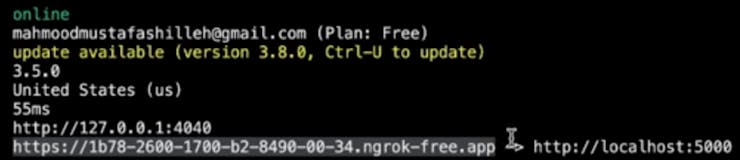
Expected result: You have a public ngrok URL that forwards to your Raspberry Pis local Flask server.
Step 3 - Run the Flask camera streaming app (from Part 1)
Goal: Start the Raspberry Pi Camera streaming server so ngrok has something to expose publicly.
What to do: Run the same Flask app you created in Part 1. The only difference called out here is that the route is set to @app.route('/') (base URL) so the ngrok tunnel points directly to the root path.
Code:
import io
import picamera
from flask import Flask, Response

app = Flask(__name__)


def generate_frames():
    with picamera.PiCamera() as camera:
        camera.resolution = (640, 480)
        camera.framerate = 24
        stream = io.BytesIO()
        for _ in camera.capture_continuous(stream, 'jpeg', use_video_port=True):
            stream.seek(0)
            yield b'--frame\r\nContent-Type: image/jpeg\r\n\r\n' + stream.read() + b'\r\n'
            stream.seek(0)
            stream.truncate()


@app.route('/')
def video_feed():
    return Response(generate_frames(), mimetype='multipart/x-mixed-replace; boundary=frame')


if __name__ == '__main__':
    app.run(host='0.0.0.0', port=5000, threaded=True)
Expected result: Your Flask app is running on the Raspberry Pi and serving the MJPEG stream on port 5000.
Step 4 - Open the ngrok URL to view the stream from anywhere
Goal: Verify the stream is accessible from outside your local network.
What to do: With both the Flask app and ngrok running, open the public URL shown in the ngrok terminal output on any device (even on a different network).
You may notice some lag. A faster internet connection can help, and ngrok paid plans may improve bandwidth and smoothness.

Expected result: You can view the Raspberry Pi camera stream using the ngrok URL from anywhere.
Conclusion
You extended your Raspberry Pi camera Flask stream by using ngrok to create a publicly accessible URL. With your Flask app running on port 5000 and ngrok tunneling to it, you can view the live stream from any network.
If you want to support the channel, you can subscribe here: https://www.youtube.com/@mmshilleh, or support here: https://www.buymeacoffee.com/mmshilleh. You can also hire via UpWork: https://www.upwork.com/freelancers/~017060e77e9d8a1157.
Want the exact parts used in your next build? Grab project hardware and accessories from ShillehTek.com. If you want help customizing this setup or building a production-ready IoT camera workflow, check out our IoT consulting services.


.png?v=25000753014097803521791168436)

.png?v=68677308723310773341791168436)